01
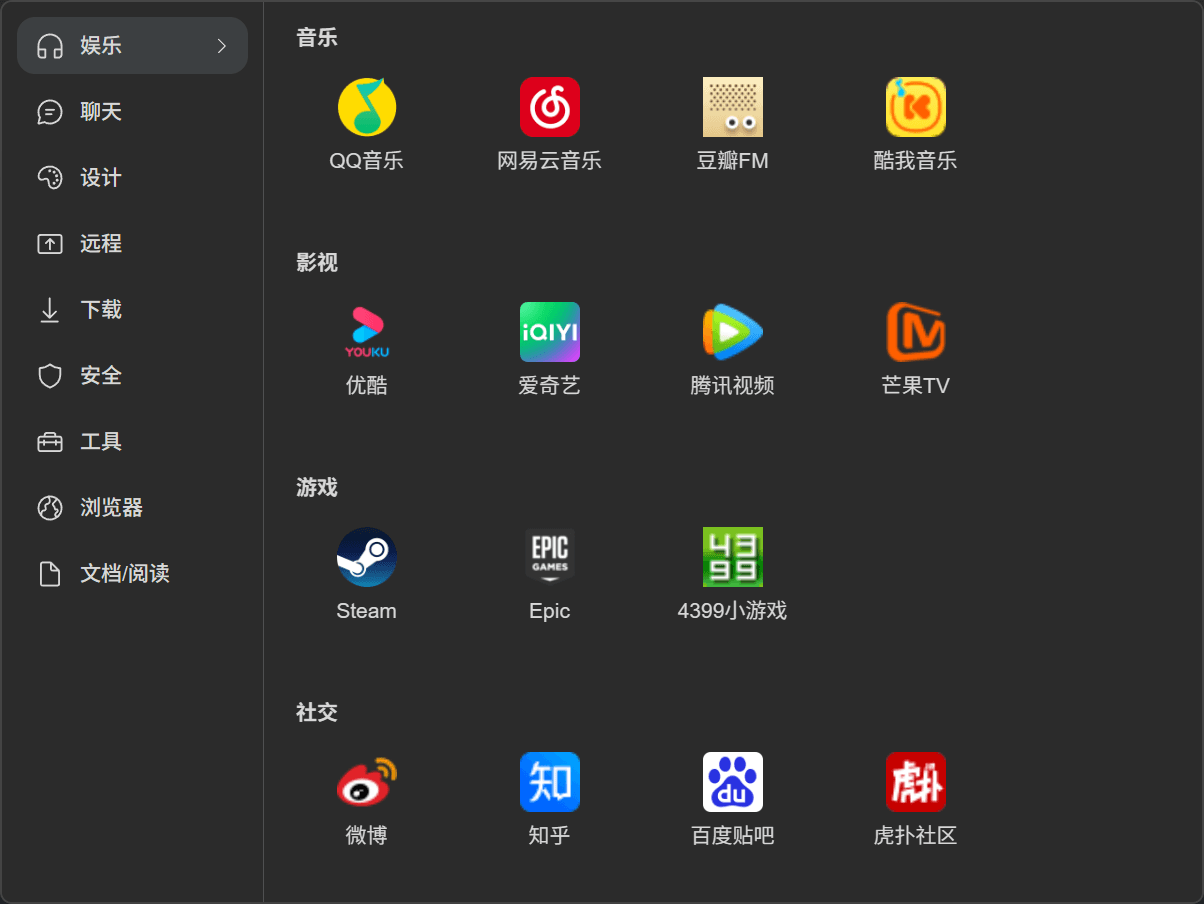
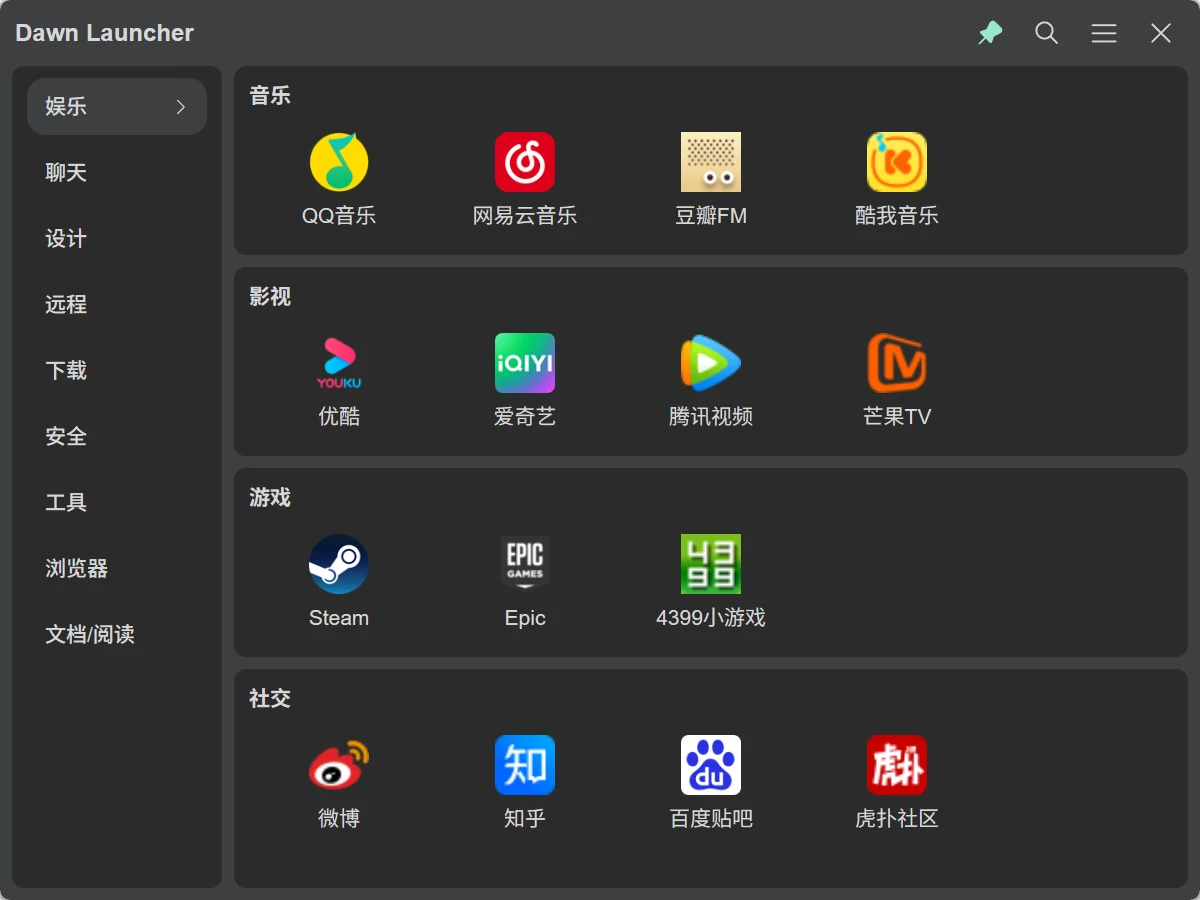
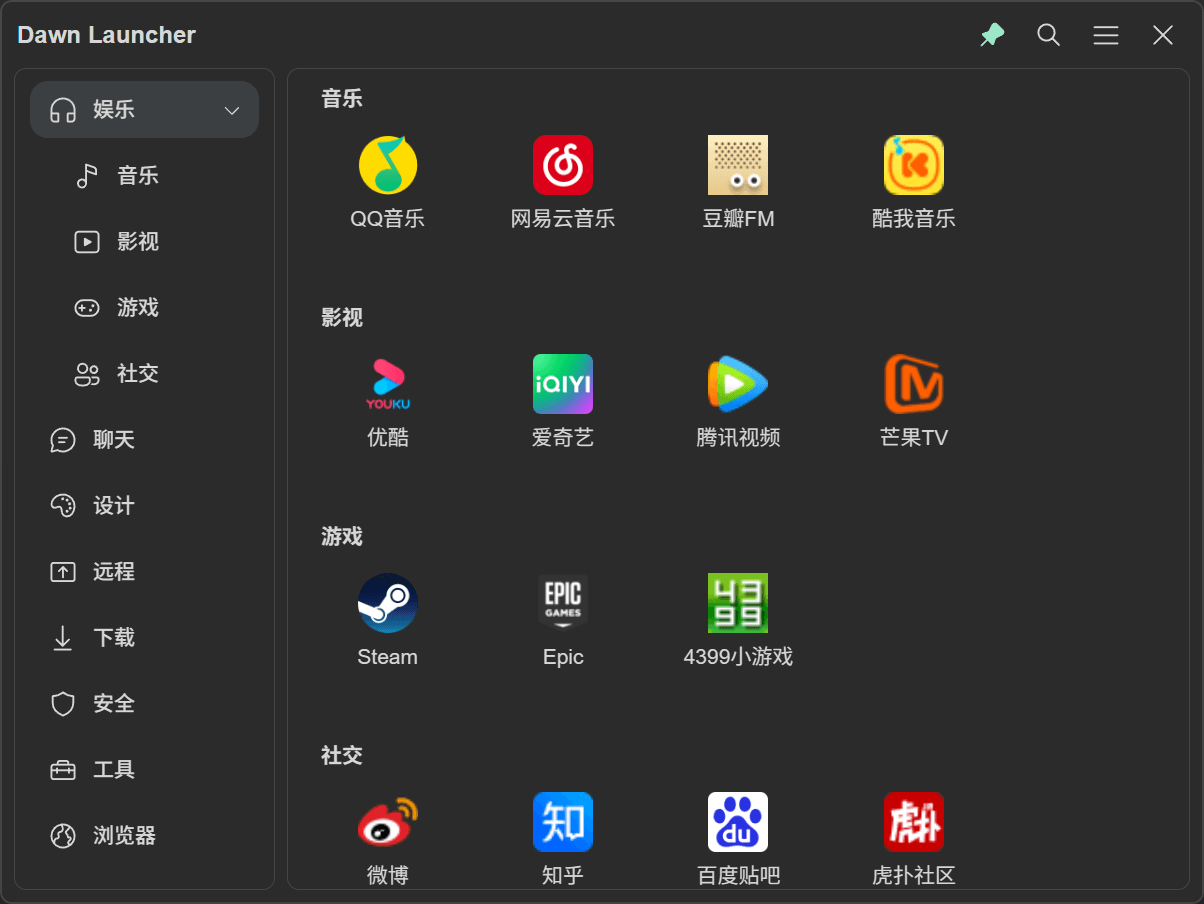
A redesigned main interface
Switch layouts in Settings → Appearance → Interface Style.
Customize your interface, organize items, and launch faster. Explore Pro features and where to configure them.
FEATURE CATALOG
Browse 29 Pro features and their settings from the directory.
Switch layouts in Settings → Appearance → Interface Style.
Adjust corners in Settings → Appearance → Interface Corners → Corner Size, from 0%–100%. 0% makes corners square.
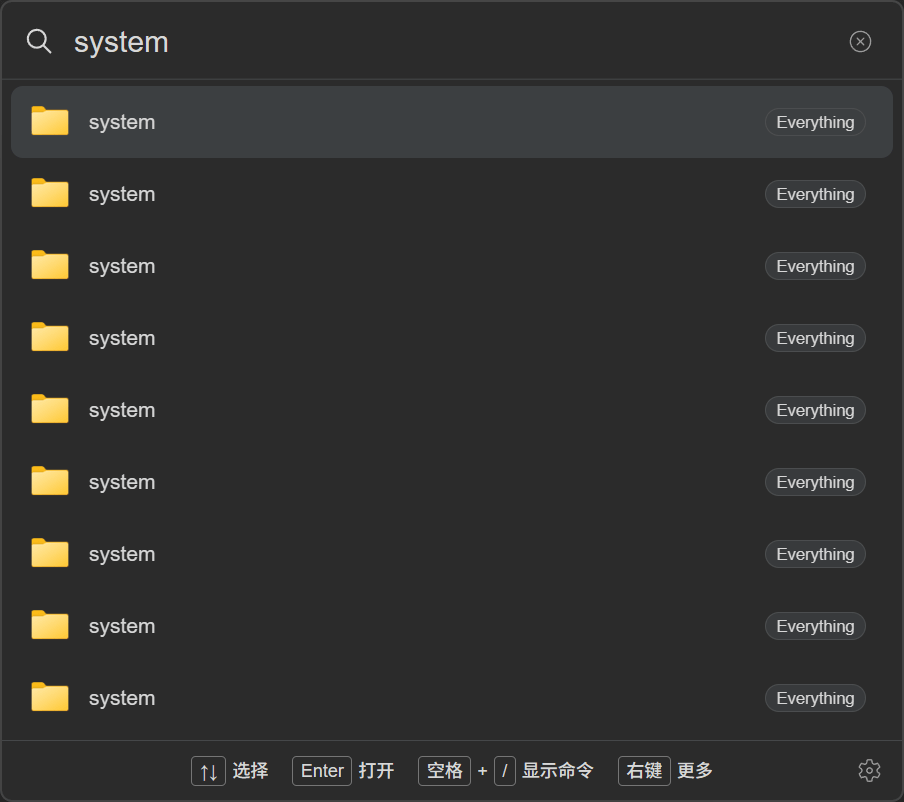
Enable Settings → Quick Search → Everything Search to find local files and folders. Allow administrator access during initial setup.
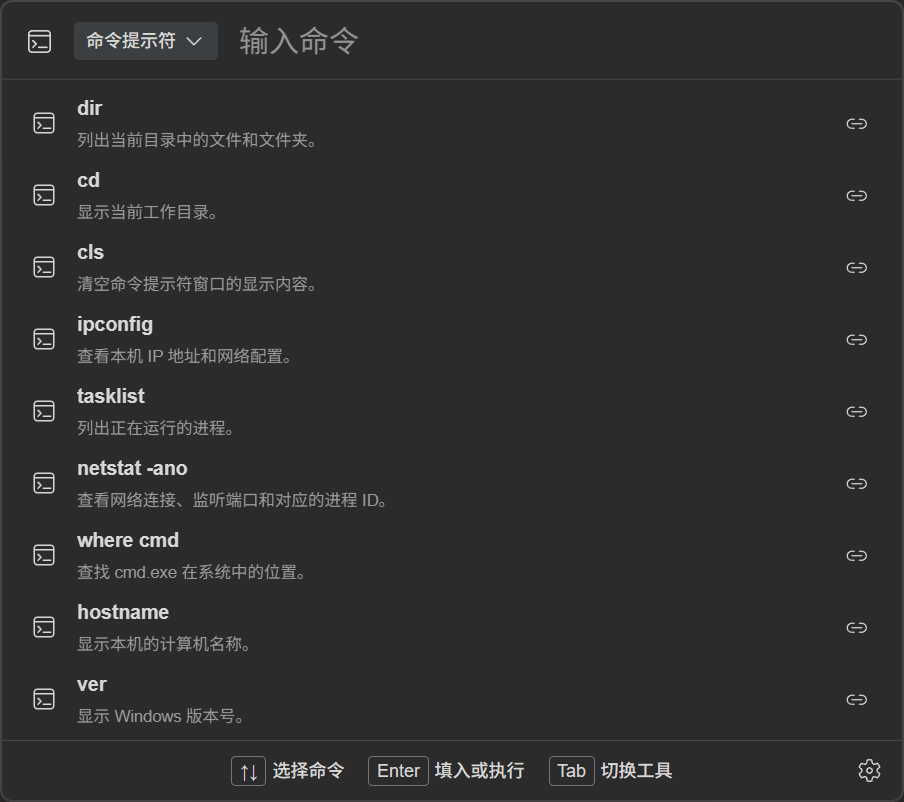
Choose a shell in Settings → Quick Search → Command Line. Type > then Space in Quick Search; Tab switches shells and Enter fills in or runs a command.
Switch layouts in Settings → Items → Subcategories → Display Mode.
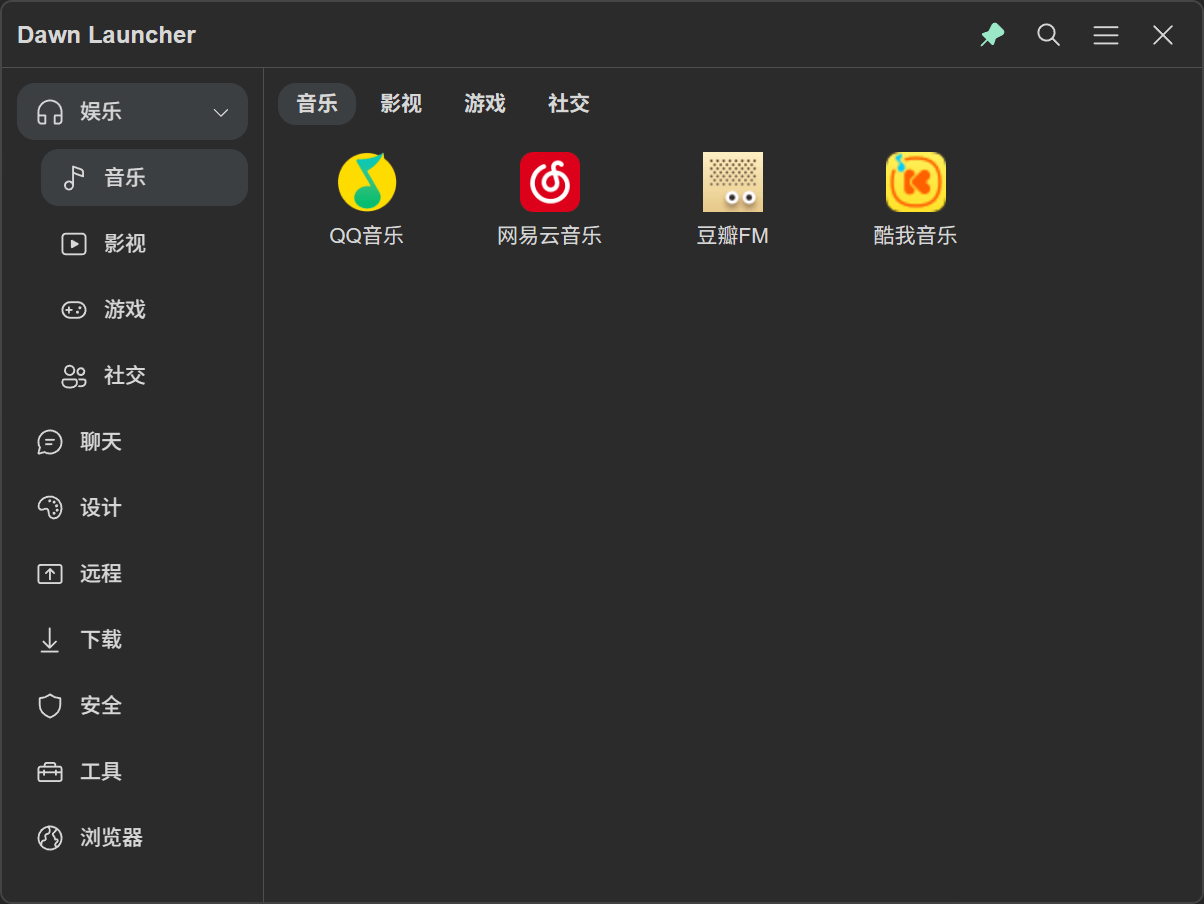
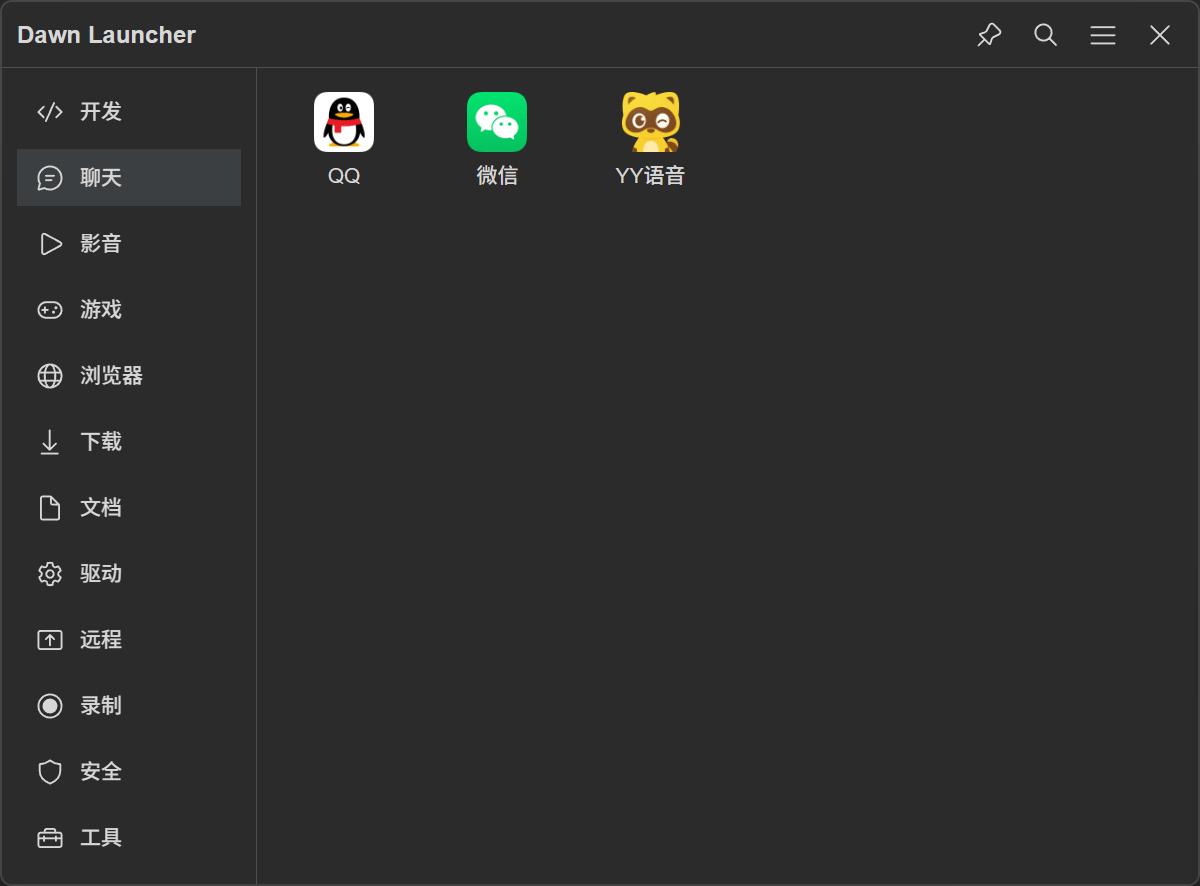
Choose Normal Mode in Create or edit category → Standalone Window and set a global shortcut to show or hide it. Configure always-on-top, edge snapping, and appearance in the window's settings.
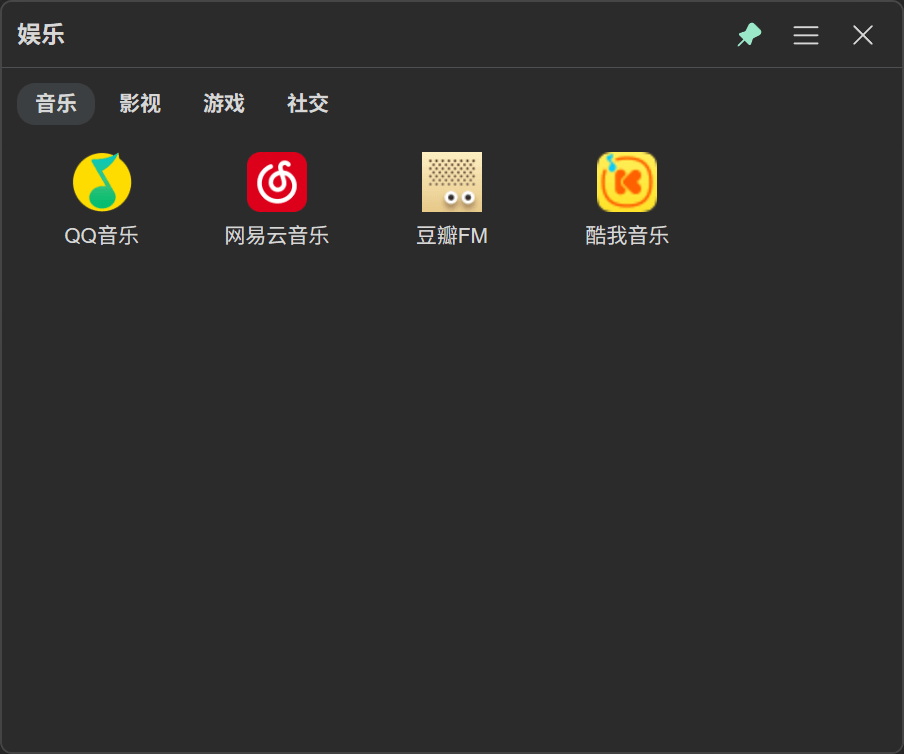
Select Desktop Mode in Right-click category → Edit Category → Standalone Window and save. The window shares category data and appears on the desktop at startup; a shortcut is optional.
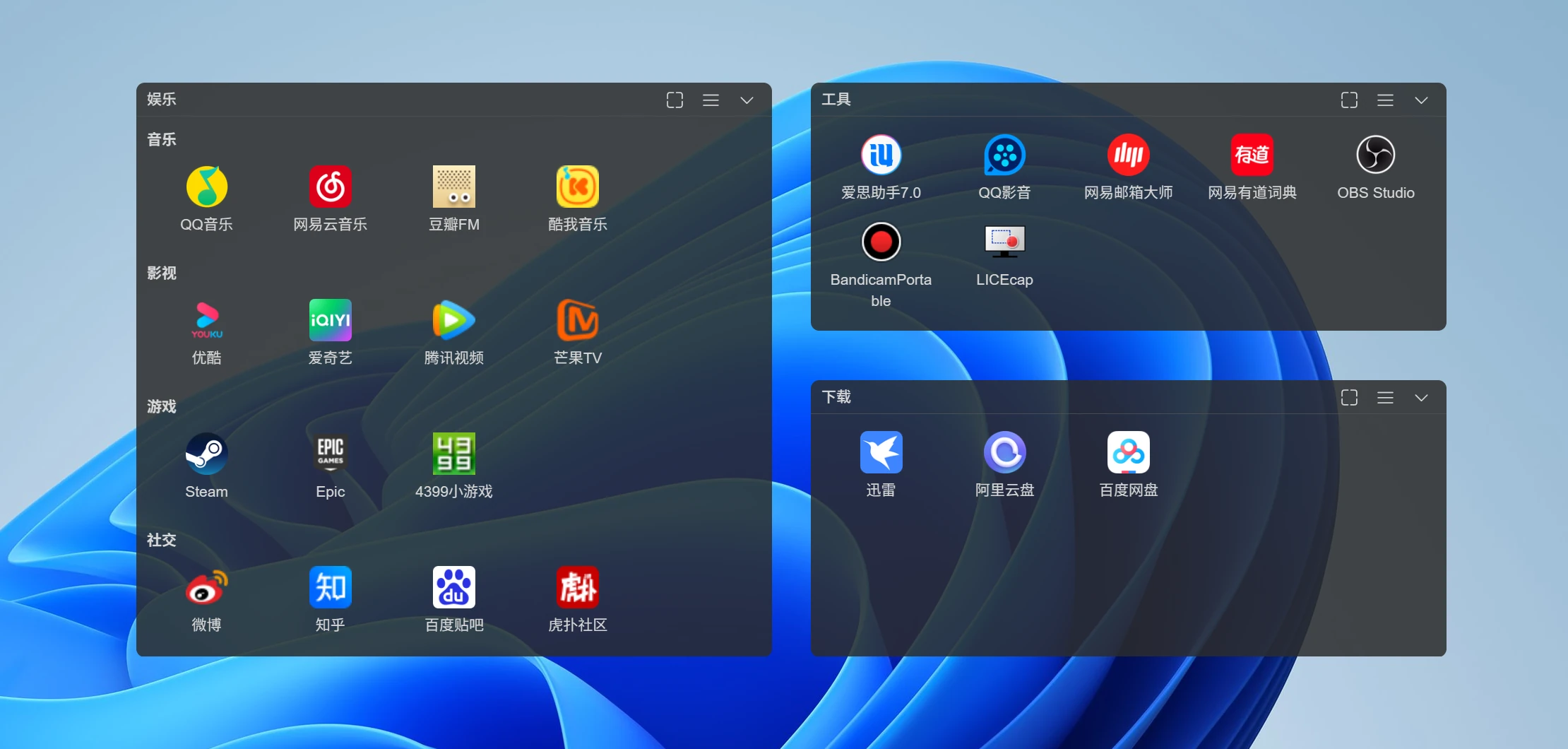
Adjust category height, font size, and weight in Settings → Categories.
Use Right-click category → Edit Category to choose a local or online image, emoji, or SVG icon.
Choose Image URL as the source in Settings → Appearance → Background Image. Adjust the image opacity, display mode, and position.
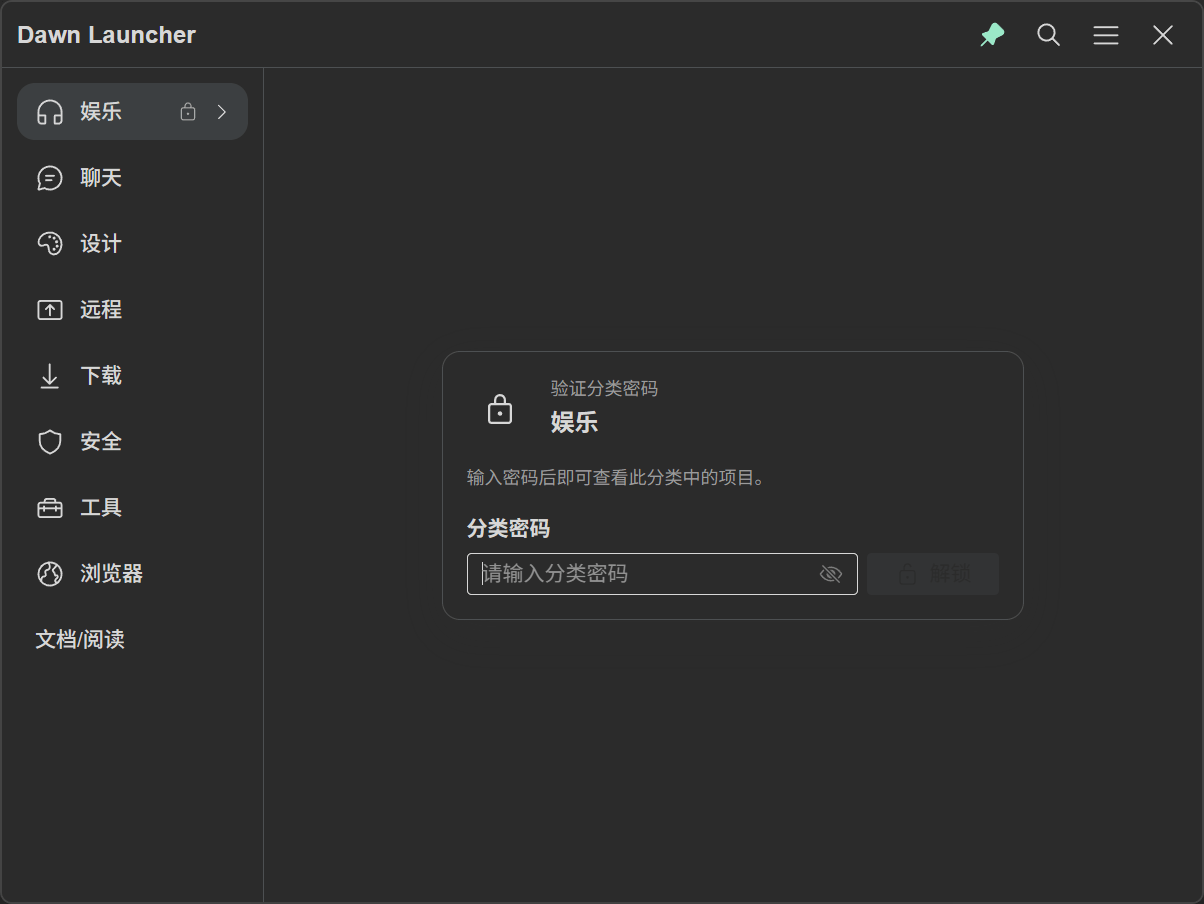
Add a password in Right-click category → Set Category Password. Verify it on every entry or once per app session. Passwords cannot be recovered; keep yours safe.
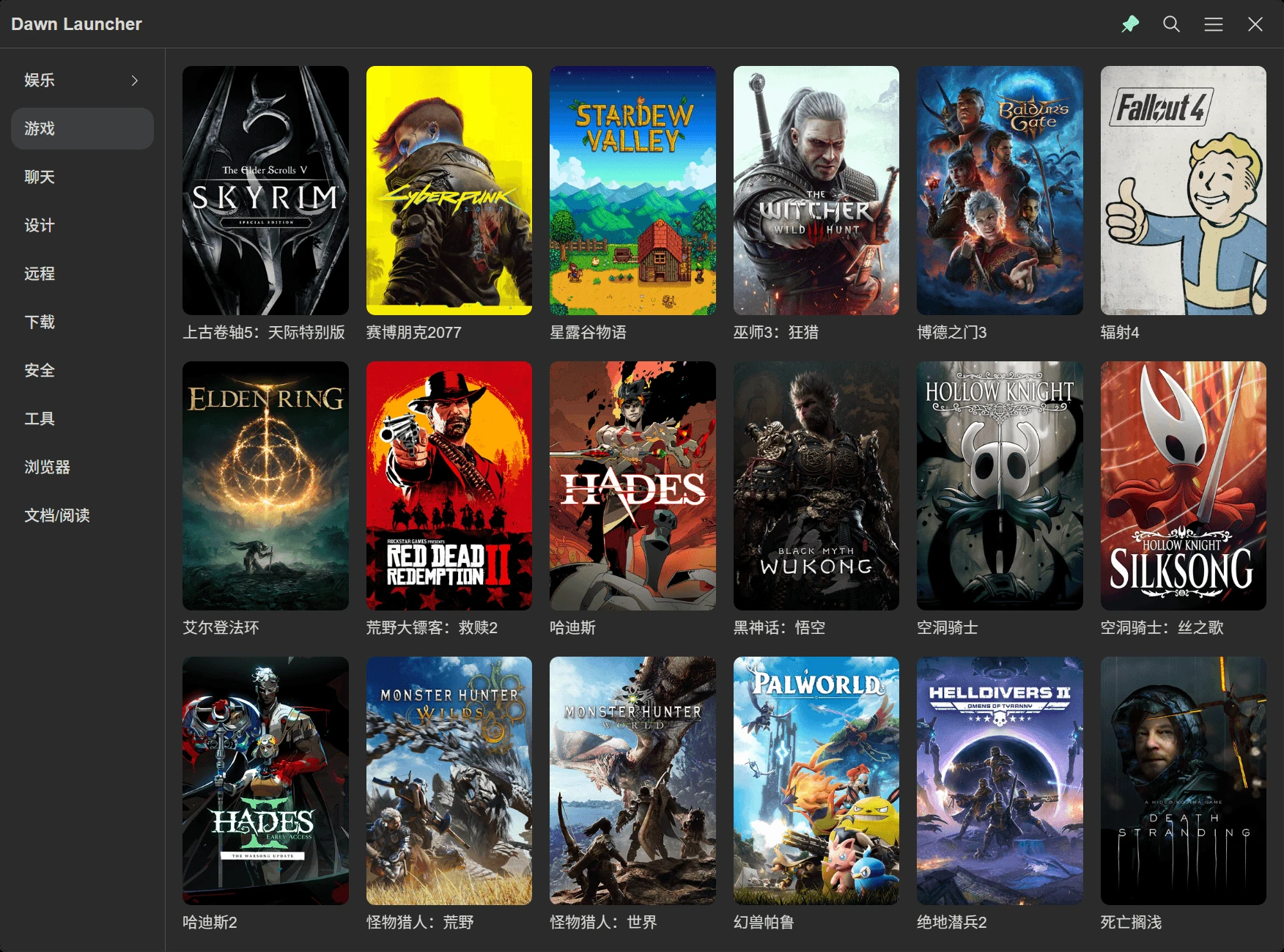
Organize games and everyday content as cover cards for easy visual browsing. Choose Cover in Settings → Items → Item Layout, then upload images under Create or edit item → Cover Images. 2:3 portrait images are recommended. Each item supports up to 6 covers, which cycle automatically in order. Reorder images and adjust the cover width, saved separately from the tile width.
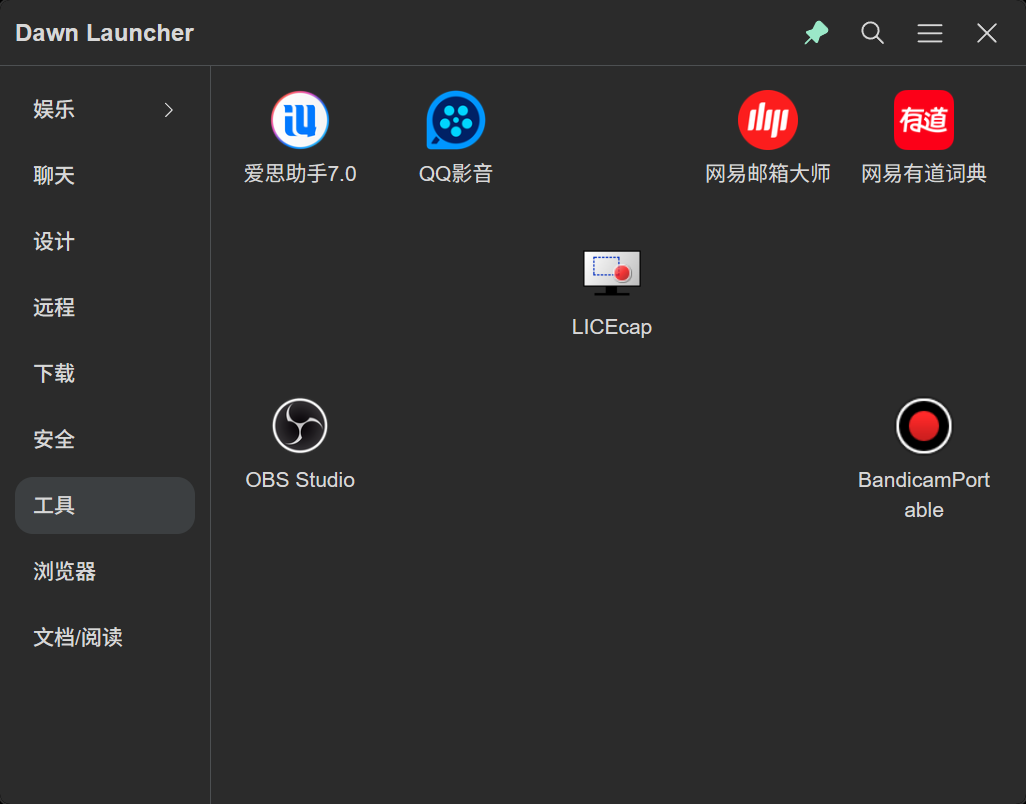
In Right-click category → Item Settings, choose Manual Sorting and set Arrangement → Free Grid. Drag items to grid positions and leave empty spaces; unlock the item order first.
Use Right-click empty item area → New Collection to group items in an organizer.
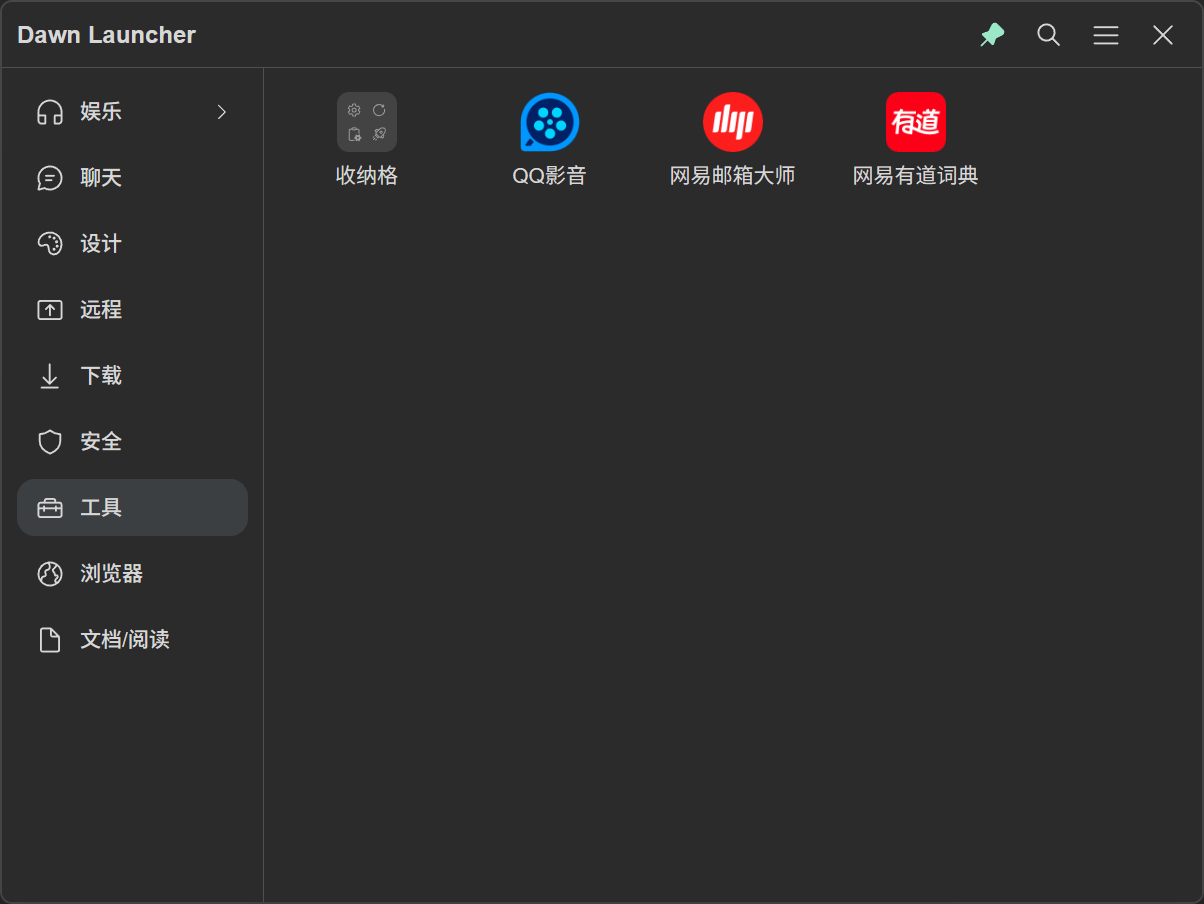
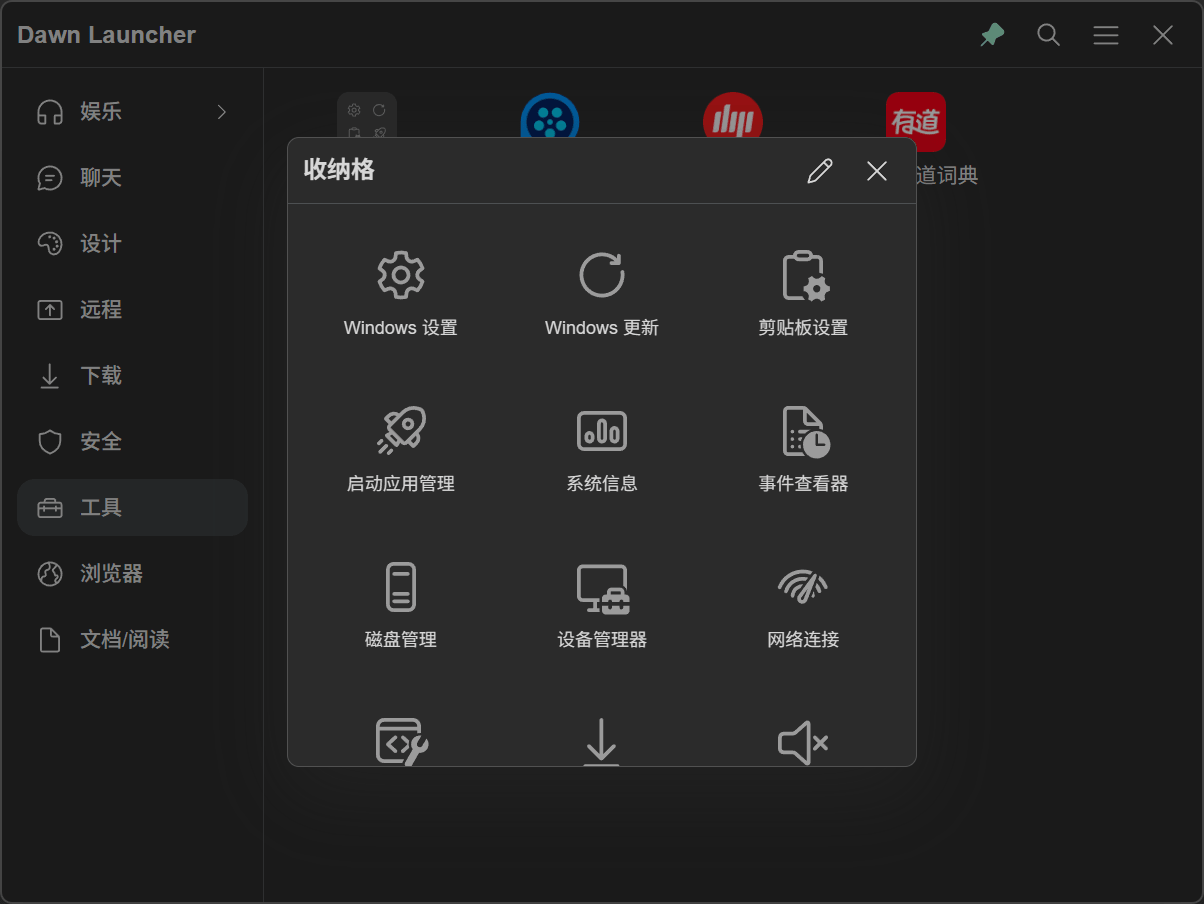
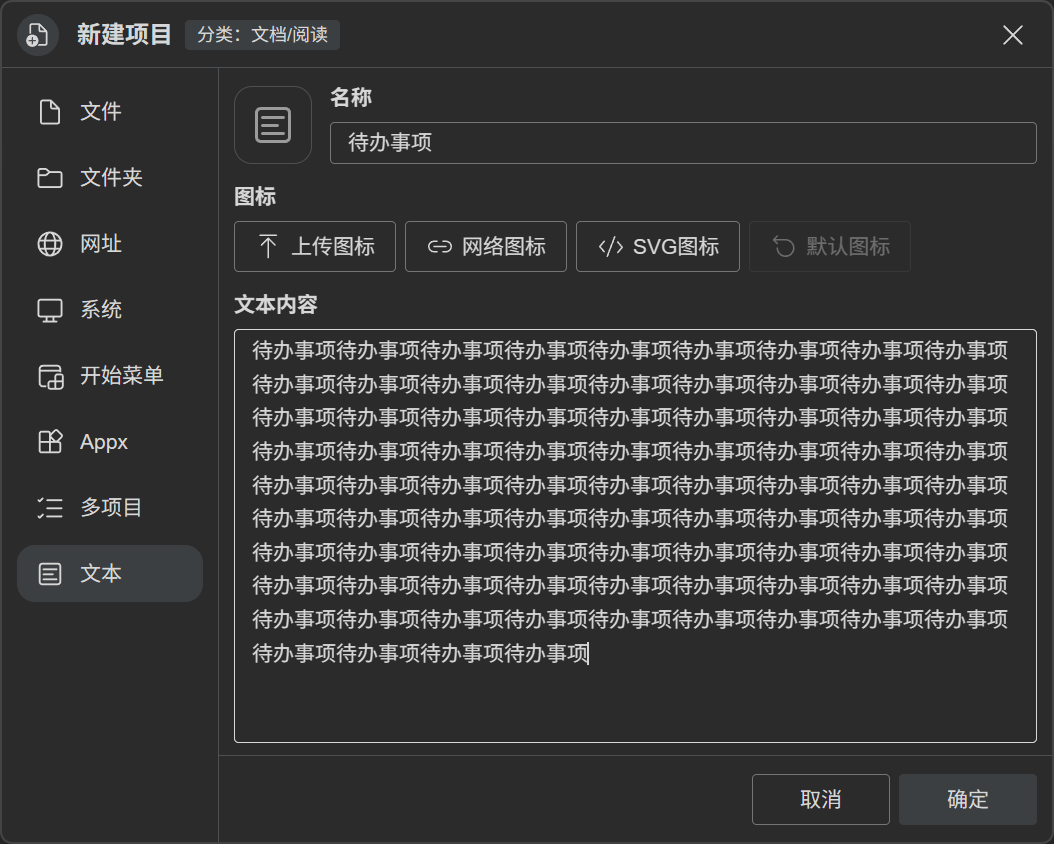
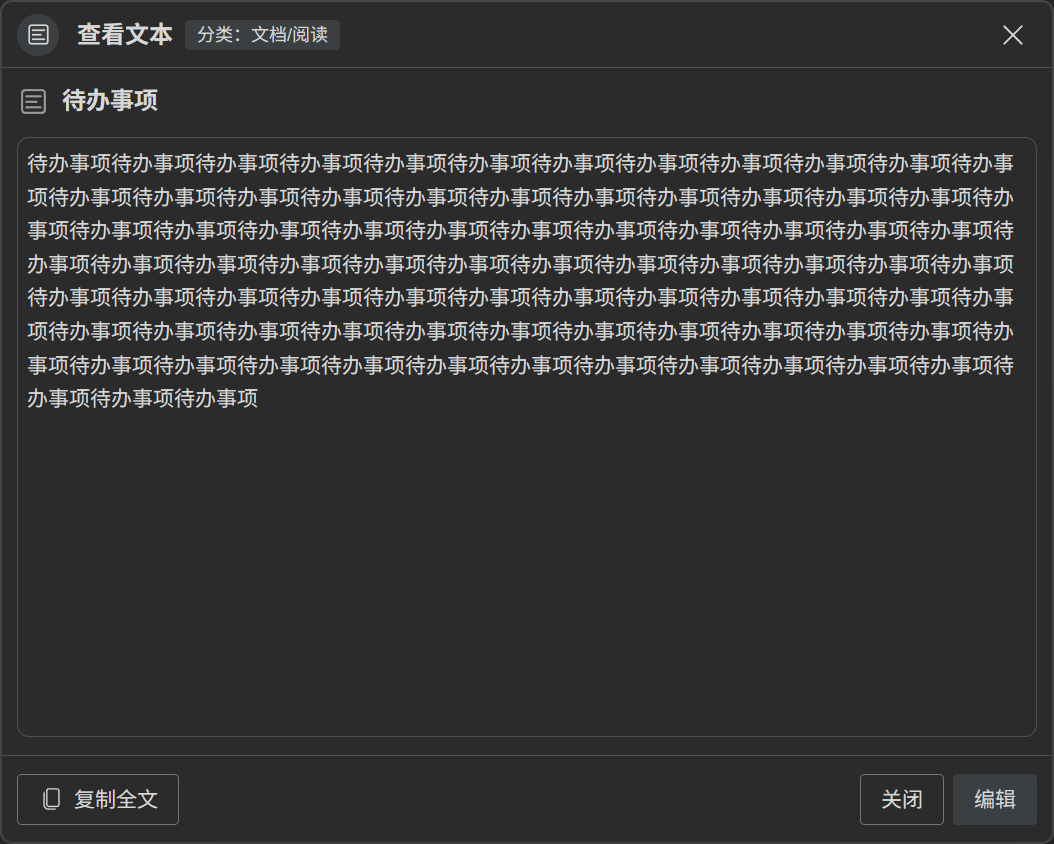
Choose New Item → Text to save notes or to-dos. Open them to read, copy, or edit.
Set a shared icon for folder items in Settings → Items → Folder Icon, using a local image, online image, or SVG.
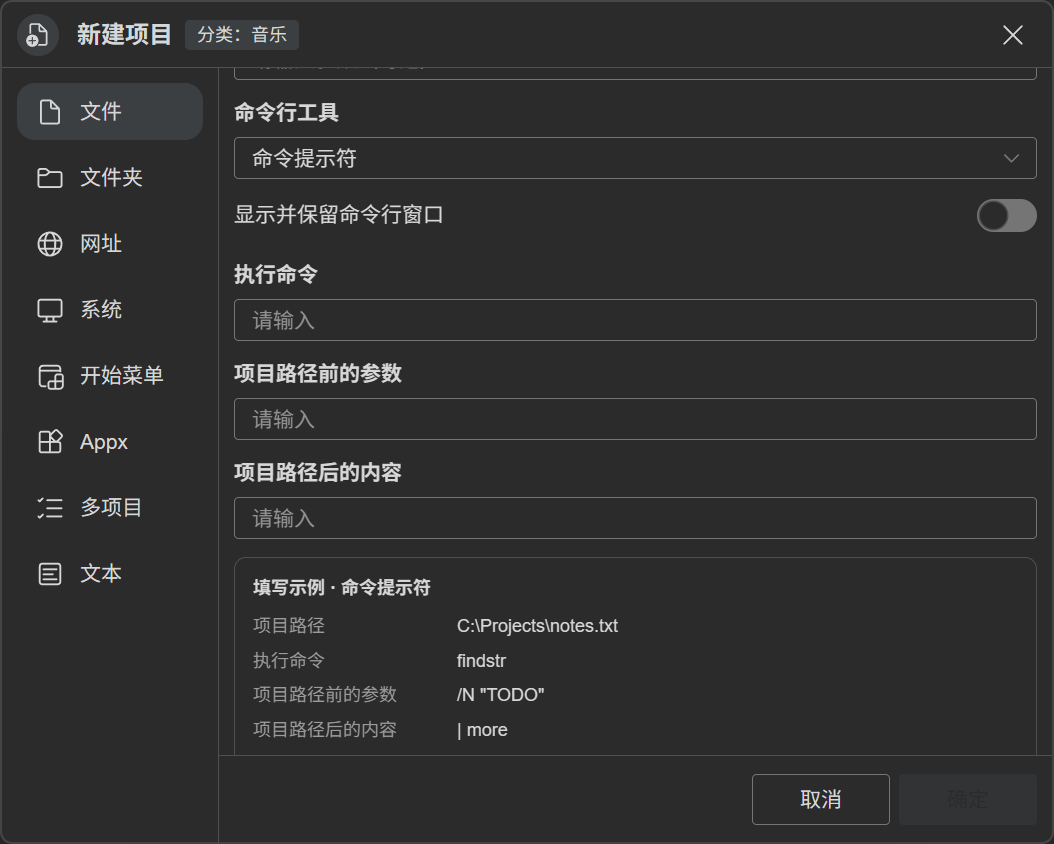
Choose Command Prompt or PowerShell when creating or editing a file item. Run command → arguments before path → item path → trailing content; see the example below.
C:\Projects\notes.txtfindstr/N "TODO"| moreCommand runfindstr /N "TODO" "C:\Projects\notes.txt" | more
Configure these features in Settings → General.
Press Ctrl or Alt twice to show or hide the main window. Enable each gesture separately.
Choose the forward or back mouse button to show or hide the main window with one click.
XButton1 / XButton2Double-click the left mouse button to show or hide the main window, globally or only on the desktop.
Left Click ×2Set a shortcut to pause or resume other shortcuts. Only this shortcut stays active while paused; app and tray icons can still open the window.
Pause / ResumeChange the app font in Settings → Appearance → Font.
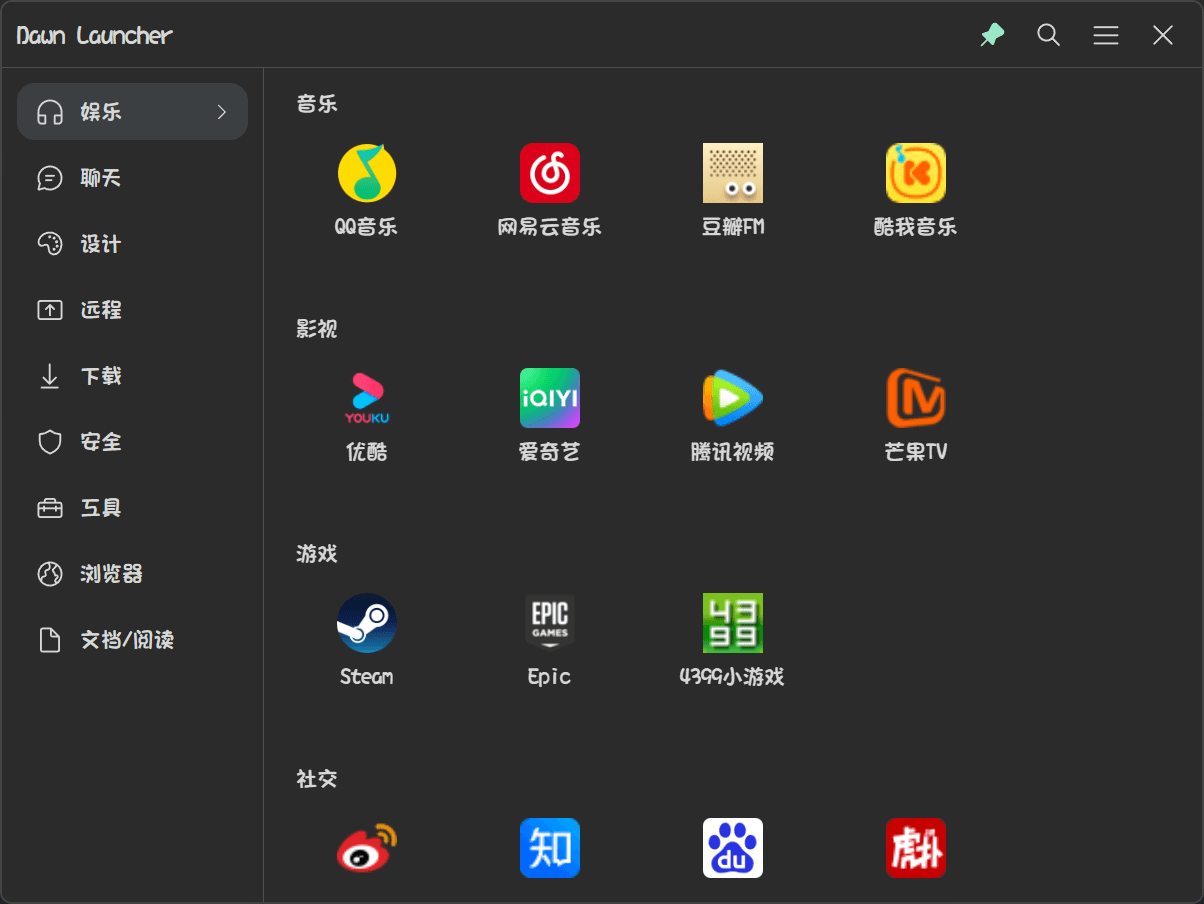
Enable Settings → Items → Features → Prefer Relative Paths to save file and folder items with relative paths for portable use.
Add a browser and choose the default in Settings → Browser, or select a browser when editing a URL item.
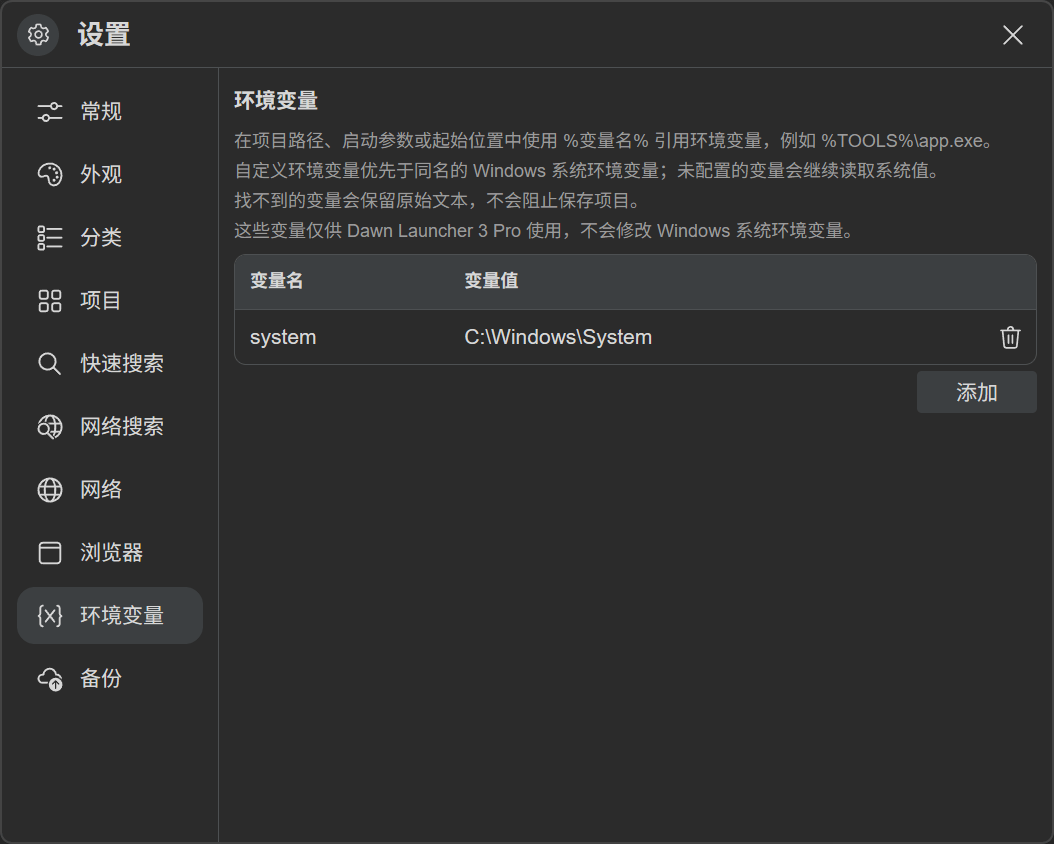
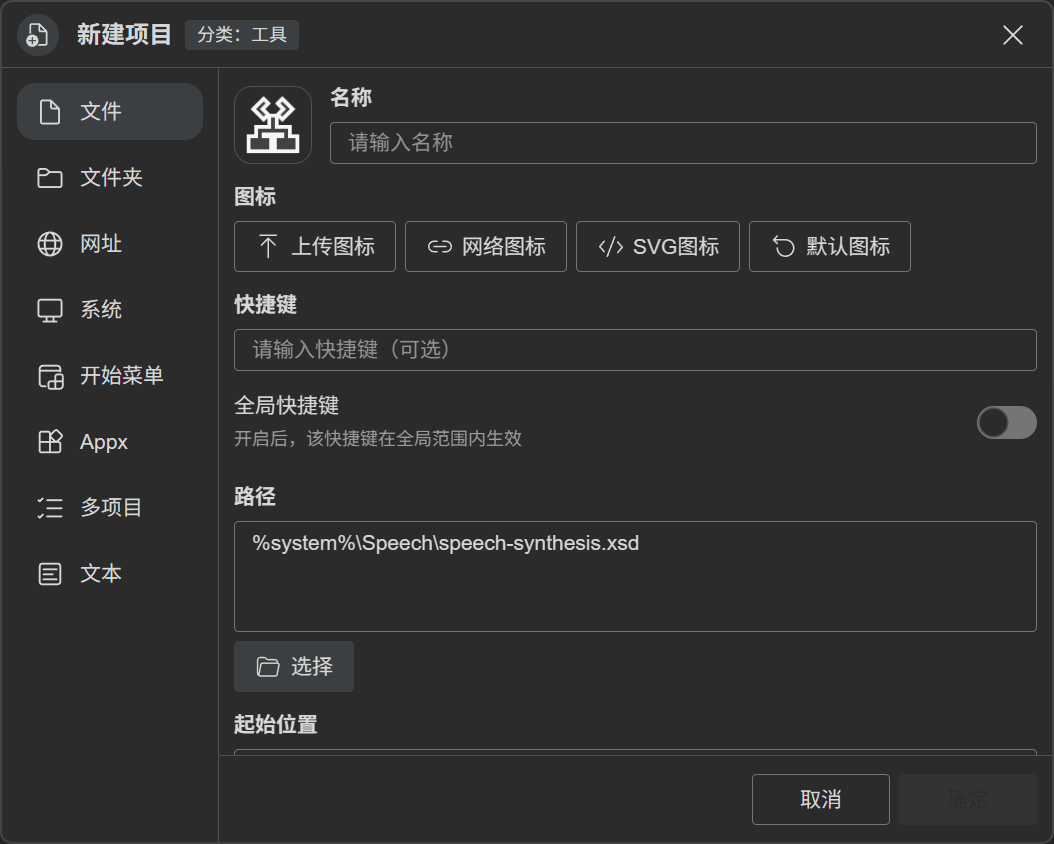
Define variables in Settings → Environment Variables. Use %variable_name% in paths, arguments, starting locations, or command-line tools.
Change the search hint in Settings → Quick Search → Placeholder Text.
Choose an image in Settings → Appearance → Tray Icon to replace the tray icon.
Enable Settings → Backup and choose a location. Back up data when it changes, with an option to keep only the last 7 days of backups. Original files, background images, and custom tray icons are excluded.