
DAWN LAUNCHER / GUIDE

User guide

Get started step by step, or use the contents to find a feature.

01 / GET STARTED

Quick start

Six steps to install, add items and launch.

Start reading
02 / EXPLORE

Features explained

Find each feature’s purpose, entry point and key details.

Start reading
03 / PRO

Pro features

Explore the paid features in Dawn 3 Pro.

View Pro features
01

Quick start

Six steps to install, add items and launch.

  1. Download and install

    Choose an edition and installation method.

    1.2Website installer

    Run the installer and follow its steps. Update using a newer installer of the same edition.

    1.3Portable package

    Extract the full package and run Dawn. Keep the datafolder when moving or updating it.

    Installed and portable editions store data separately. Back up in the old edition and restore in the new one when switching. For older versions, see the migration guide.

    Go to downloads →Read the migration guide →
  2. Meet the main interface

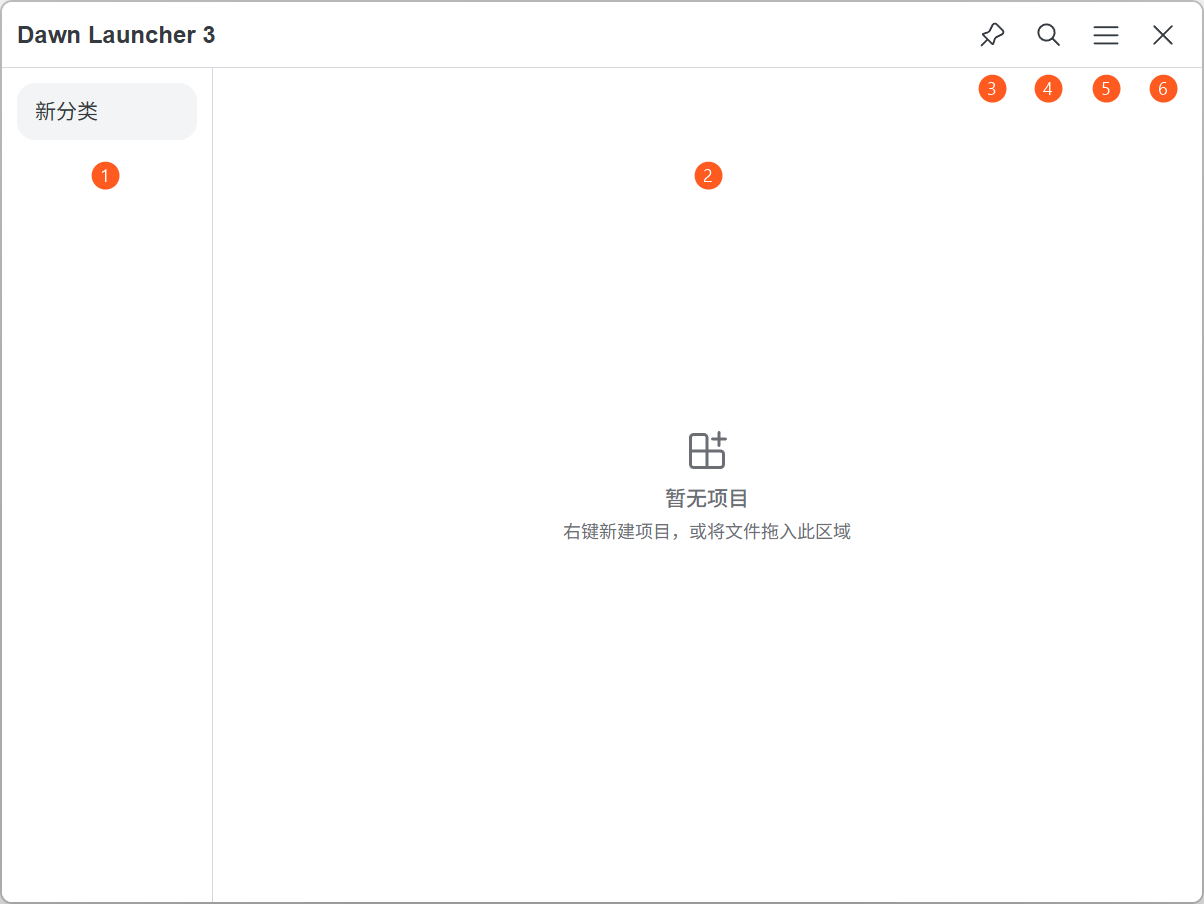
    Choose categories on the left, open items on the right and access search and menus at the top right.

    Dawn Launcher 3 main interface with numbered category and item areas and four toolbar buttons.
    Dawn Launcher 3 main interface with numbered category and item areas and four toolbar buttons.View full image
    1. Categories

      Select a category to switch its contents. Use the arrow to expand or collapse subcategories.

    2. Items

      View items in the selected category. In normal categories, right-click or drag to add items; click an item to open it.

    3. Always on top

      Keep Dawn above other windows. Click again to turn this off.

    4. Search items

      Open item search within the main window and enter a keyword to find added items.

    5. Main menu

      Access settings and tools to change appearance, configure shortcuts or back up data.

    6. Close button

      Hide the main window while Dawn keeps running. Use the show/hide shortcut to bring it back.

  3. Create your first category

    Create a normal category, then add items.

    3.1Create a category

    Choose Normal category. Icons and shortcuts are optional.

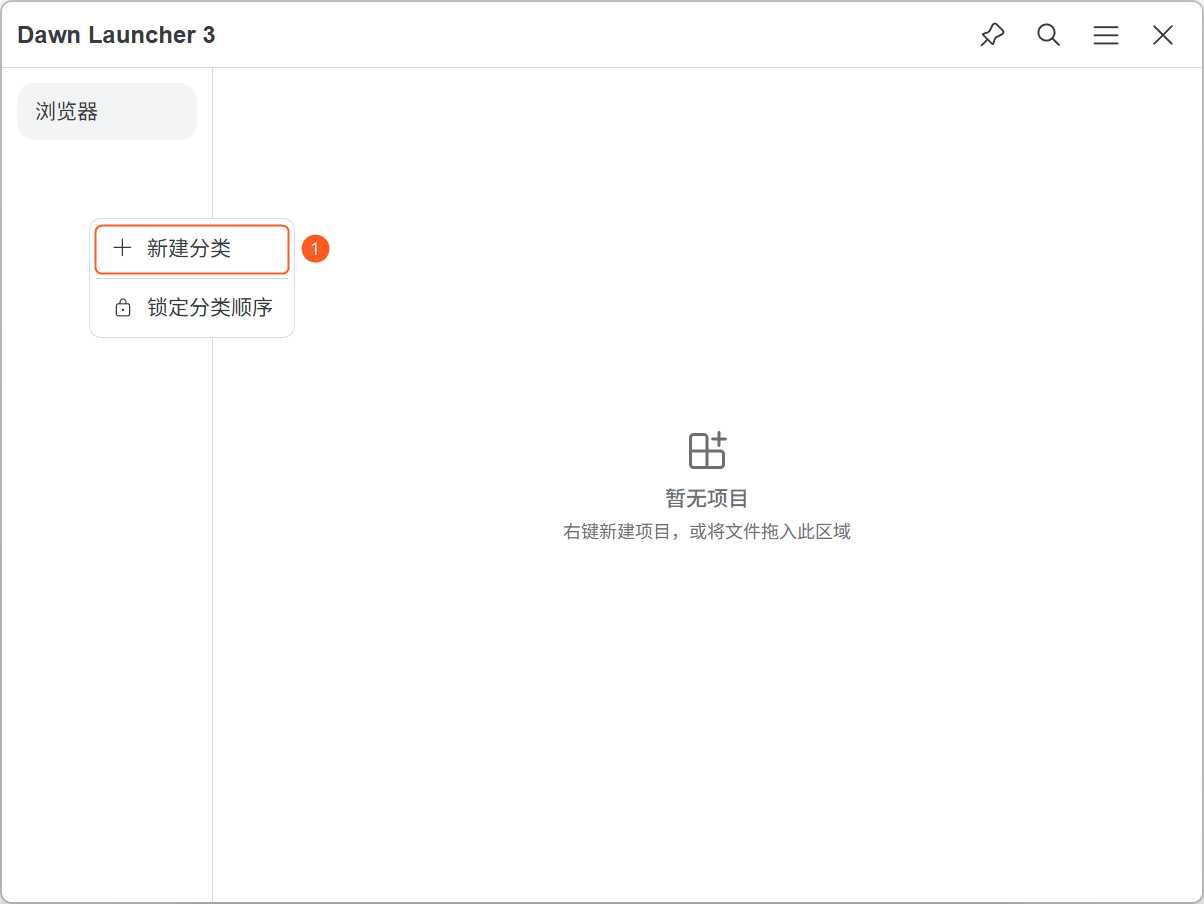
    1. Right-click an empty area in the category panel and select “New category”.

      The category panel context menu with the New category option highlighted.
      Select New category from the context menu.View full image
      1. New category

        Right-click an empty area in the category list and choose New category.

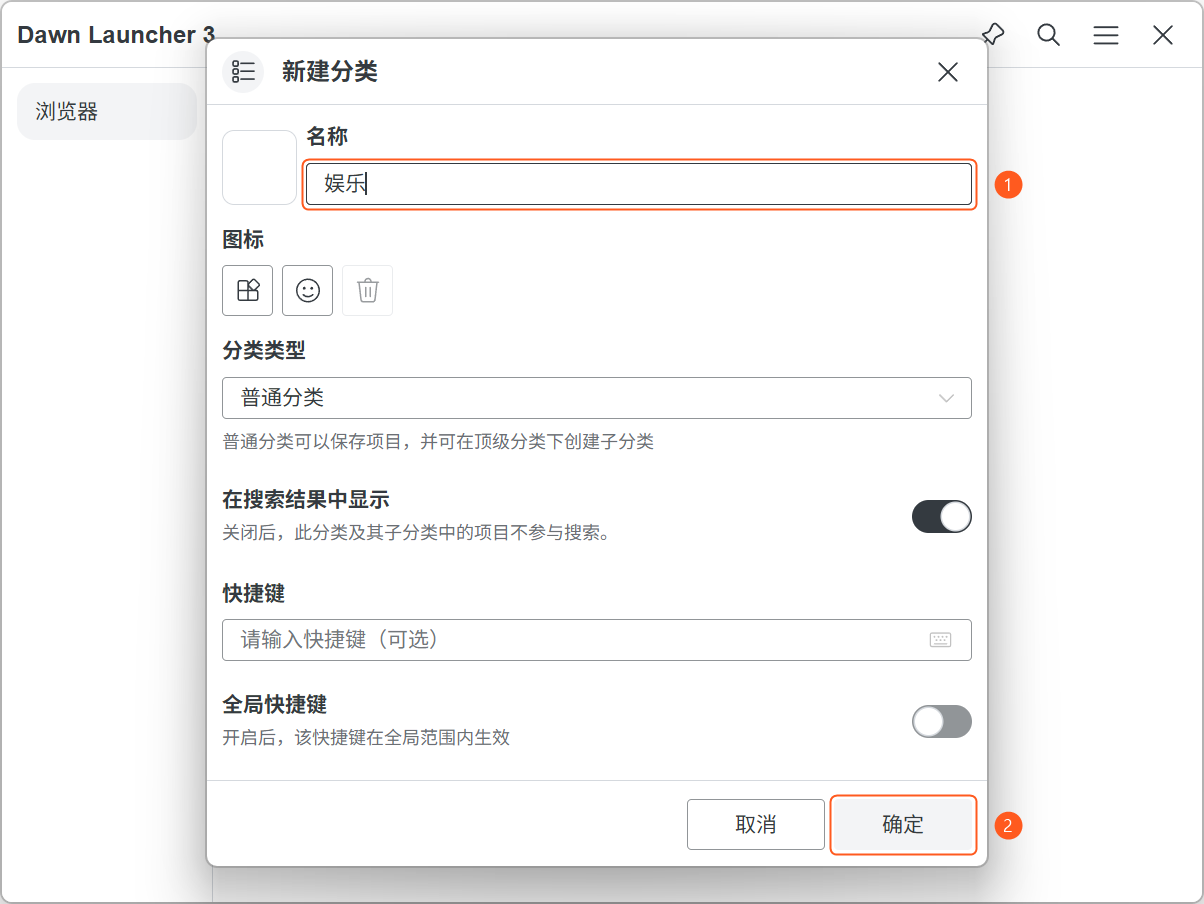
    2. Enter a category name, then click “OK” to create it.

      The New category window with the name field and confirmation button highlighted.
      Enter a category name, then confirm.View full image
      1. Category name

        Enter a category name, such as Entertainment.

      2. Confirm

        Click Confirm to create the category.

    3.2Create a subcategoryOptional

    Only top-level normal categories support subcategories. Enter a name and confirm.

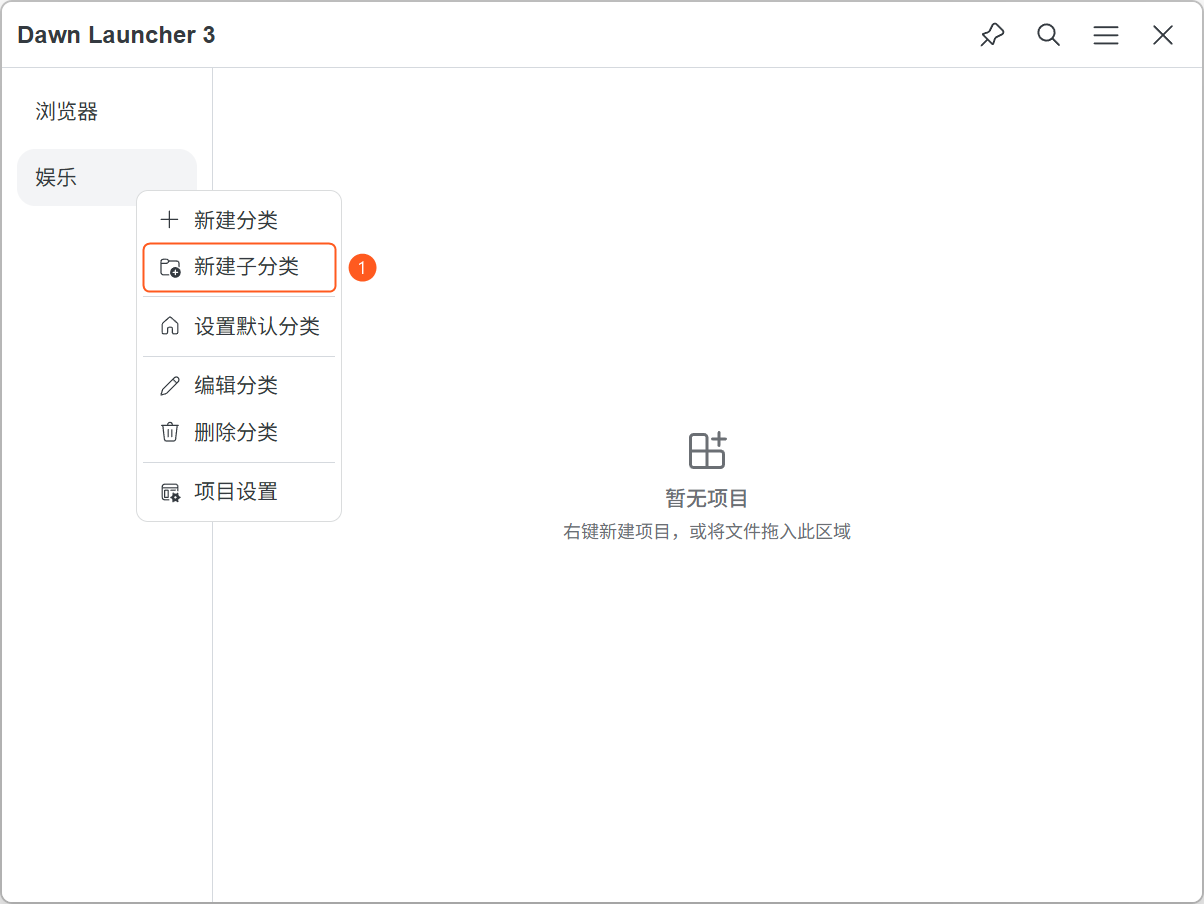
    1. Right-click the parent category you want to add a subcategory to, then select “New subcategory”.

      The parent category context menu with the New subcategory option highlighted.
      Right-click the parent category and select New subcategory.View full image
      1. New subcategory

        Right-click the parent category and choose New subcategory.

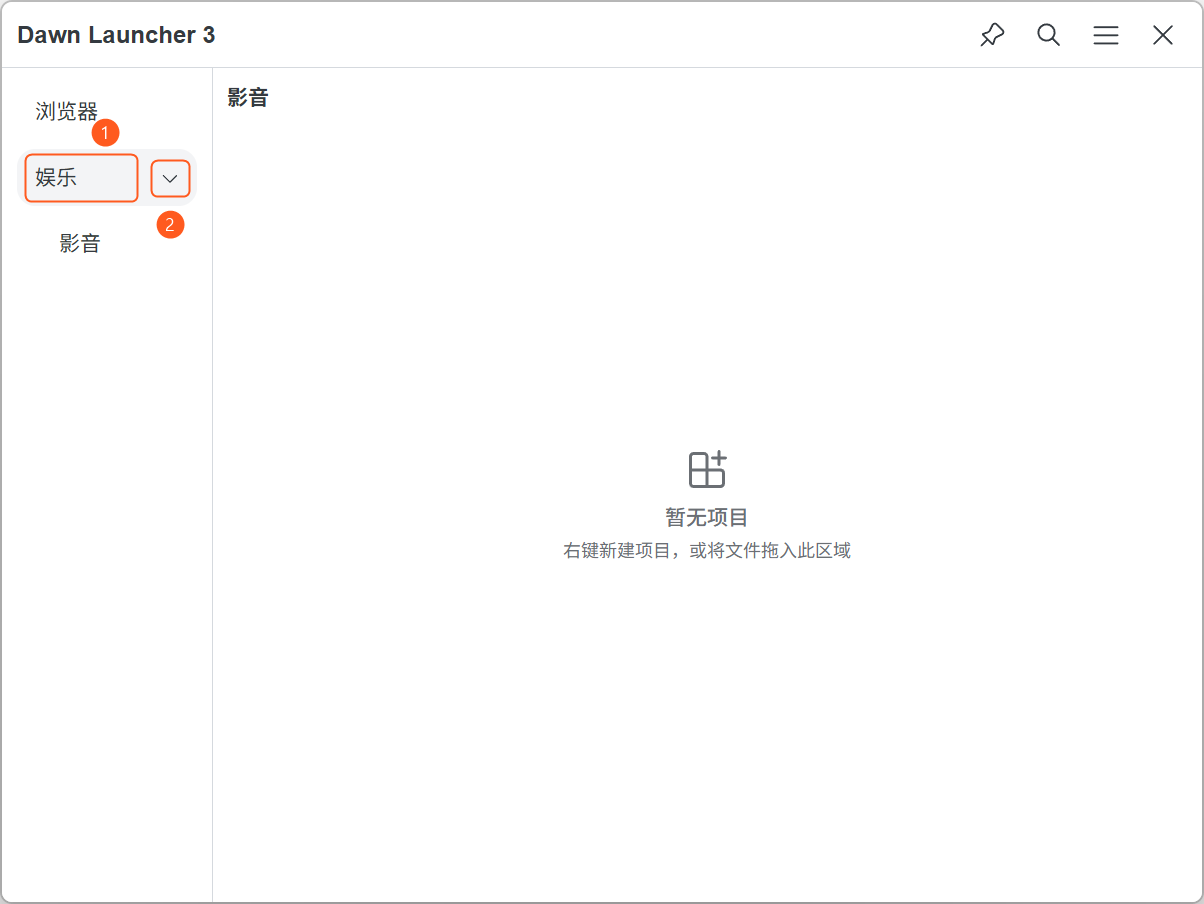
    2. Double-click the parent category name or click the arrow on its right to expand or collapse the subcategory list. Either method works.

      An expanded parent category with its subcategory, highlighting the category name and the arrow used to expand or collapse the list.
      Double-click the parent category name or click its arrow to expand or collapse subcategories.View full image
      1. Parent category name

        Double-click the name to expand or collapse subcategories.

      2. Arrow on the right

        Click the arrow to expand or collapse subcategories.

  4. Add your first item

    Select a normal category or subcategory first. Read-only categories do not allow manual additions.

    4.1Add an item with a right-click

    Choose File for apps, shortcuts and documents, or Folder for directories. Open the added item to check it works.

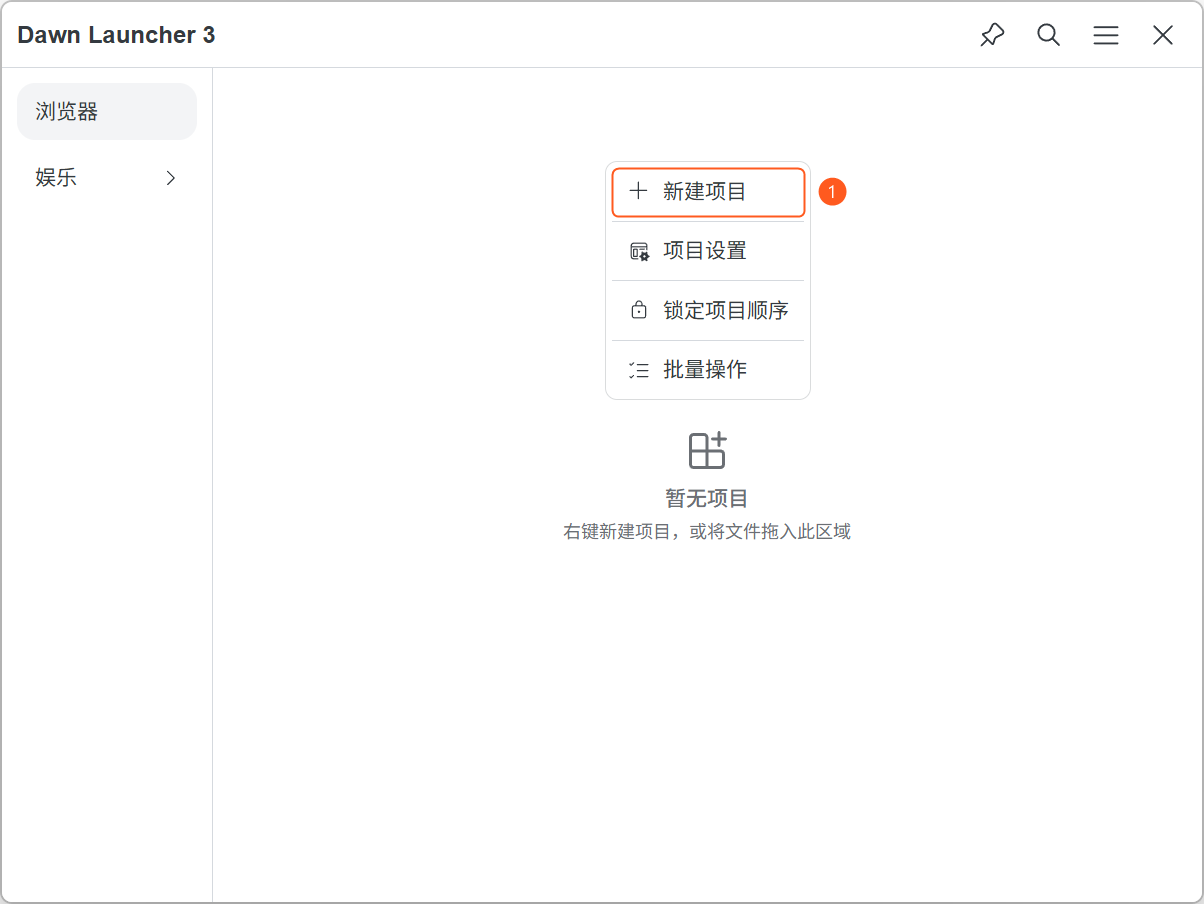
    1. Right-click an empty area in the item panel and select “New item”.

      The item panel context menu with the New item option highlighted.
      Select New item from the context menu.View full image
      1. New item

        Right-click an empty area in the item panel and choose New item.

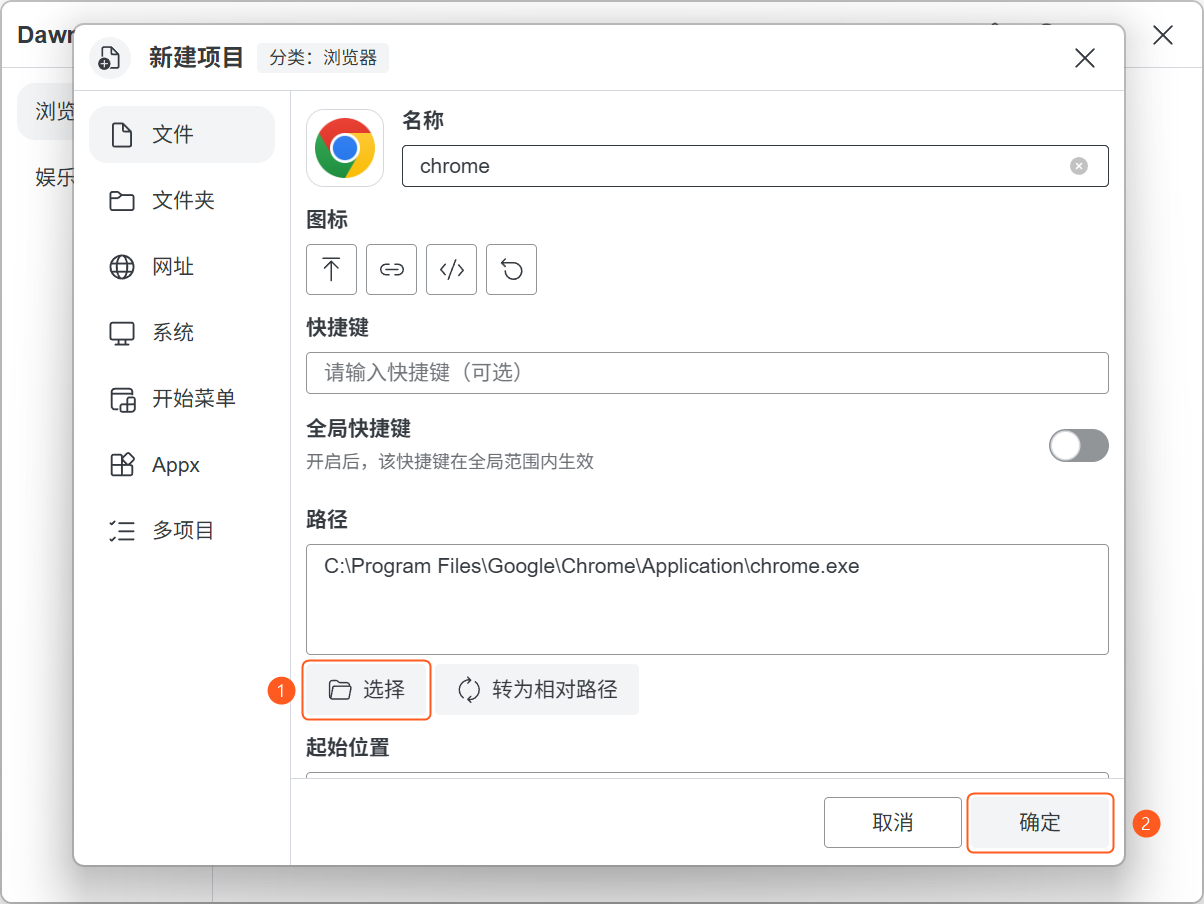
    2. Click “Select” to choose the file you want to add, then click “OK” to finish.

      The New item window with Chrome selected, highlighting the file selection and confirmation buttons.
      Choose a file, then confirm to add the item.View full image
      1. Select

        Click Select and choose the file to add.

      2. Confirm

        Click Confirm to finish adding the item.


    4.2Drag an item from the desktop

    Select a category and drag a shortcut, file or folder into the item area. Dawn adds a launch entry without moving the original.

    A demonstration of dragging the Firefox desktop shortcut into the Dawn Launcher item panel.
    Drag a desktop shortcut into the current category’s item panel.View full image

    4.3Drag to reorder items

    Drag an item to its new position. Use manual sorting, all items visible and unlocked order, configured in the empty-area menu and Item settings.

  5. Set up a launch shortcut

    Set a shortcut to show or hide the main window.

    5.1Show/hide shortcut

    Click the field and press the key combination. It toggles the window; choose another combination if it conflicts.

    1. Open the main menu at the top right of the main window, then select Settings.

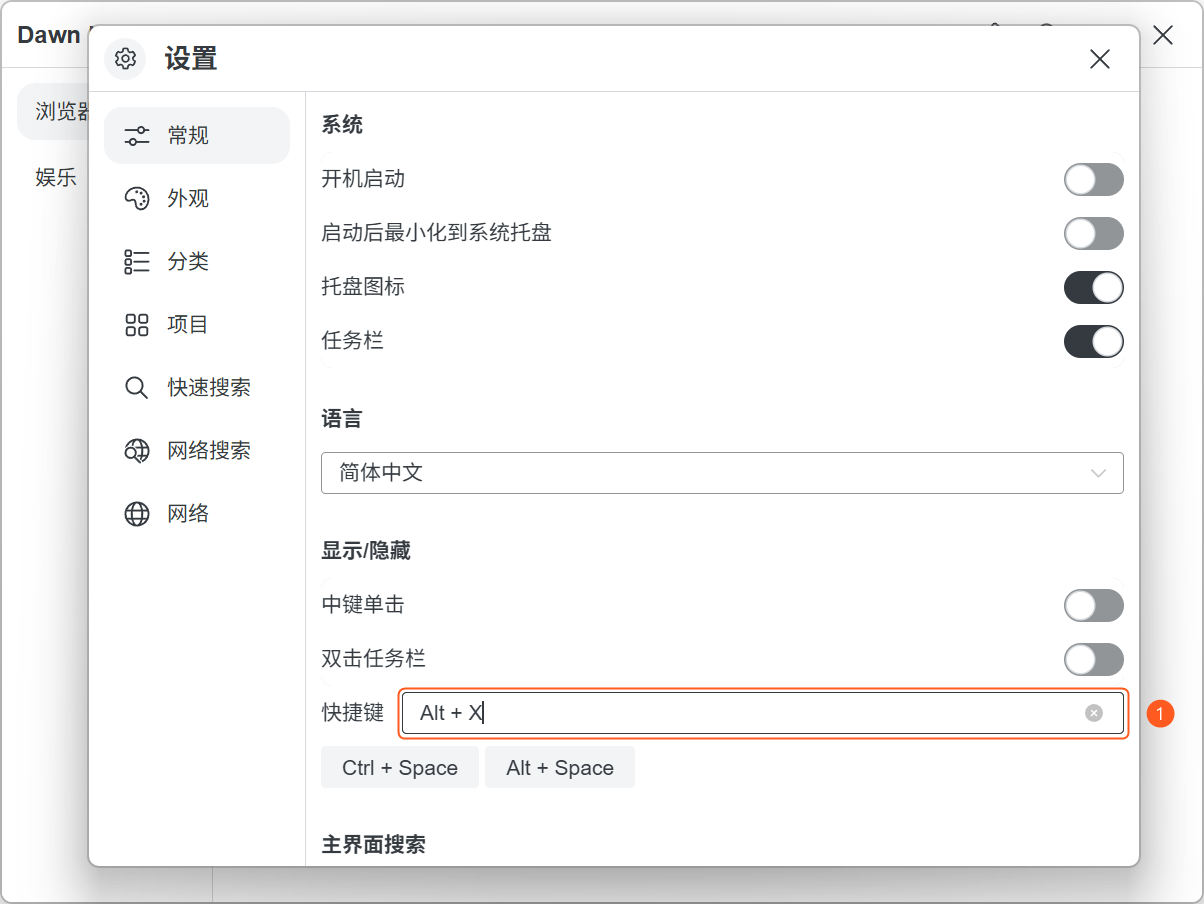
    2. Under General → Show/Hide, click the shortcut field and press your preferred key combination, such as Alt + X. Use that shortcut to show or hide the main window.

      The General settings page with the Show/Hide shortcut field highlighted and Alt + X entered.
      Click the shortcut field and press your preferred key combination.View full image
      1. Shortcut field

        Click the field and press a key combination, then use it to show or hide the main window.

    5.2Everyday launching

    Show Dawn with your shortcut, choose a category and click an item.

    A demonstration of showing Dawn Launcher with a keyboard shortcut and clicking an item to launch it.
    Show the window with your shortcut, then click an item to launch it.View full image
  6. What to explore next

    Find items with search and choose a theme.

    6.1Quick Search

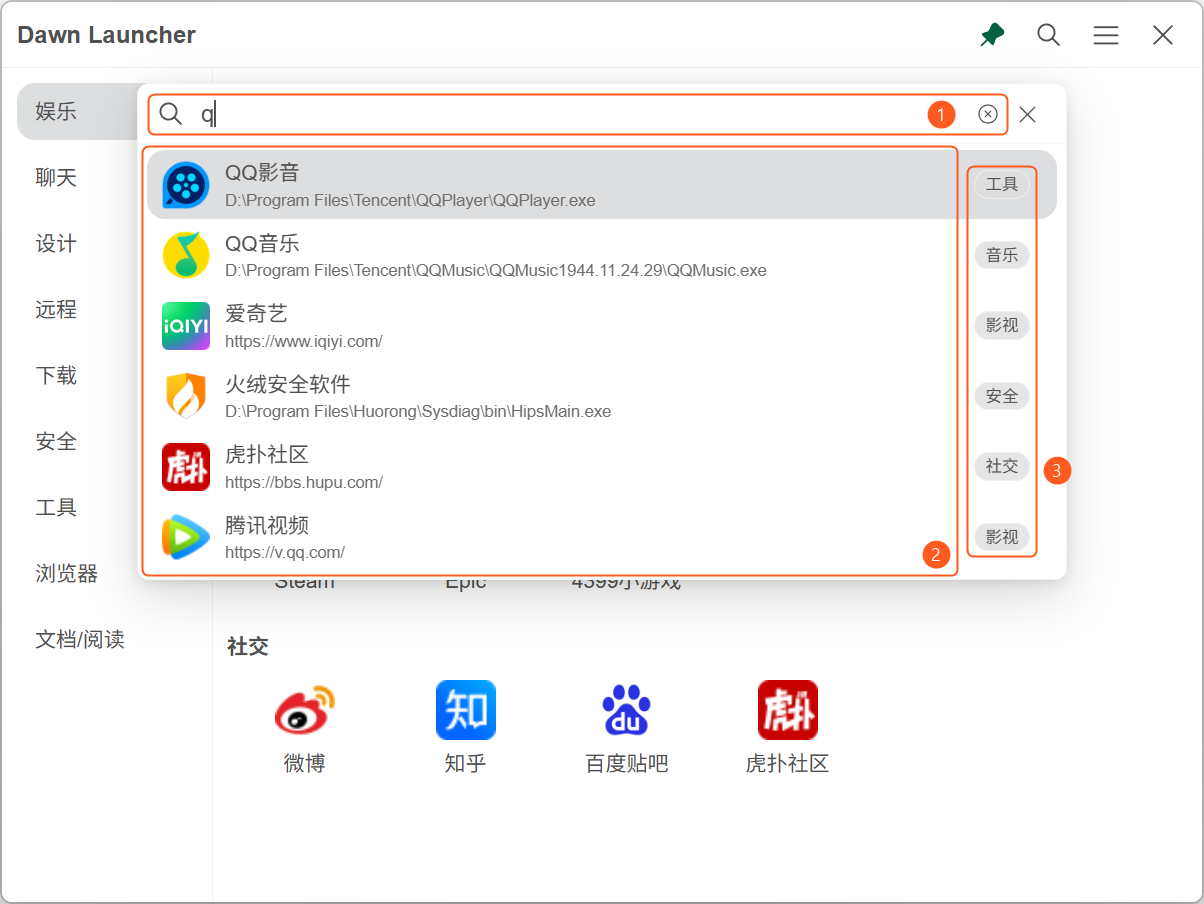
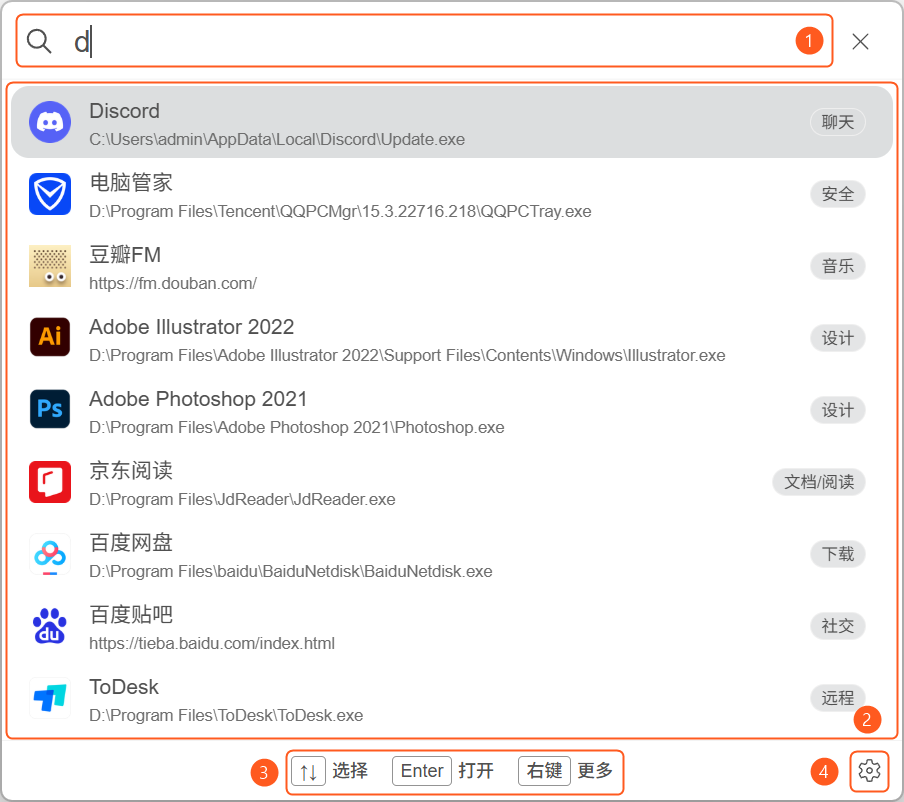
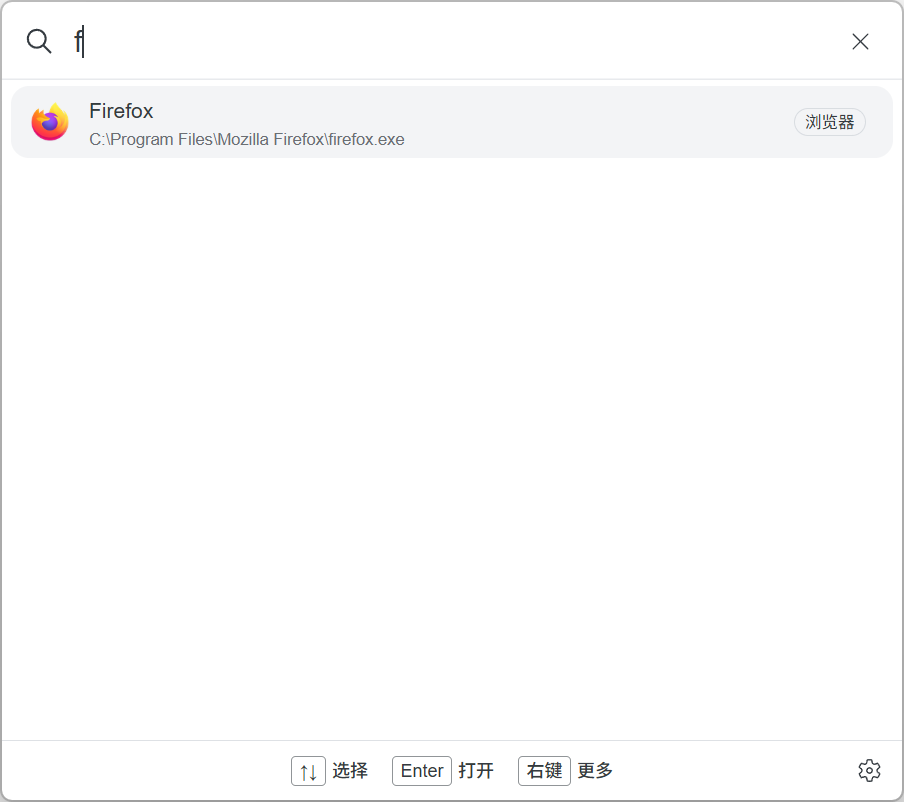
    Press Alt + Space, enter a keyword and click a result. PressEscto hide. Change the shortcut in Settings → Quick Search.

    The Quick Search window showing the added Firefox item after entering the letter f.
    Enter a keyword to quickly find an item you have added.View full image

    6.2Adjust appearance


    Open Main menu → Settings → Appearance and select a theme. Save custom colors with Save as new theme.

    A demonstration of selecting a theme and changing theme colors in Dawn Launcher appearance settings.
    Choose a theme in Settings → Appearance to change the theme colors.View full image
    Features explained →Help center →

You’re ready to launch. Explore more features below.

Features explained →
02

Features explained

Find each feature’s purpose, entry point and key details.

Categories

Group items manually or display them through linked and aggregate categories.

1.1Normal categories

Manage items manually; top-level normal categories support subcategories. Open empty category area → New category → Normal category.
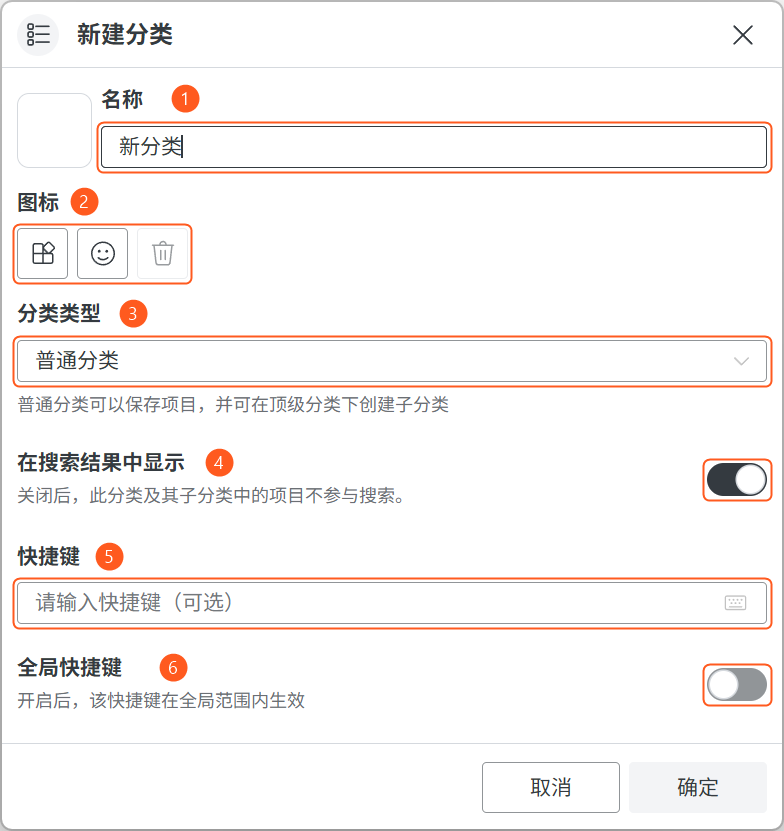
Normal category dialog with annotations for name, icon, category type, search visibility, shortcut and global shortcut.
Normal categories: add and organize items manually, with support for subcategories.View full image
  1. Name

    Enter a category name.

  2. Icon

    Set or clear the category icon.

  3. Category type

    Normal categories hold items. Top-level categories can contain subcategories.

  4. Show in search results

    Choose whether items in this category and its subcategories appear in search.

  5. Shortcut

    Optionally set keys to switch to this category. Use them within the Dawn main window when Global shortcut is disabled.

  6. Global shortcut

    Use the same category key combination while working in other applications.

1.2Linked folder categories

Sync a real folder into a read-only category. Add or remove files in the original folder.

Open New/Edit category → Category type → Linked folder and select a folder. Separate hidden names with commas, e.g.notes.txt,Backup,*.tmp. This hides entries without deleting files.
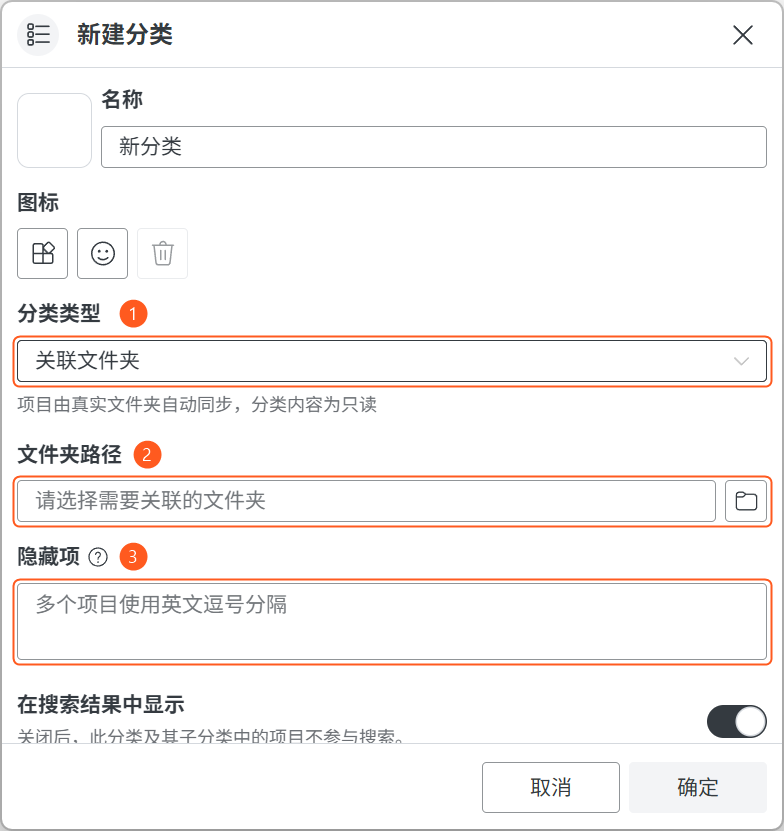
Linked folder category dialog with category type, folder path and hidden items numbered one to three.
Linked folder categories: automatically sync the selected folder with read-only category contents.View full image
  1. Category type

    Linked folders sync items automatically. Category contents are read-only.

  2. Folder path

    Select a folder on your computer to link.

  3. Hidden items

    Enter actual file or folder names, such as Readme.txt,Backup, separated with commas. Originals are not deleted.

1.3Aggregate categories

Gather items from other categories without copying them. Open New category → Category type → Aggregate category to set sorting, count and type.

Top-level only; no manual items or subcategories. Change filters via Edit category.
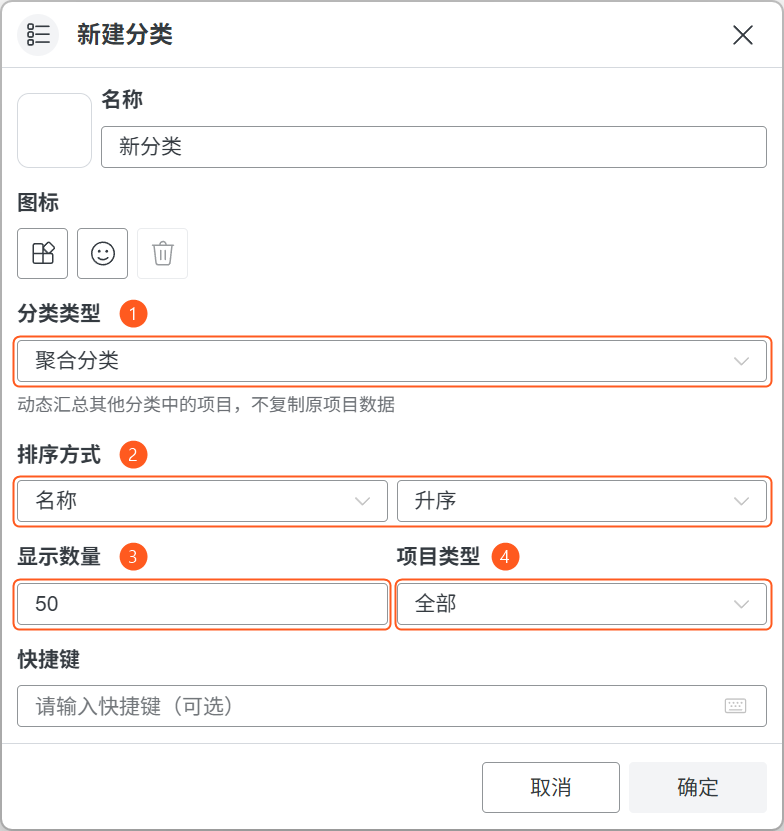
Aggregate category dialog with category type, sorting, display count and item type numbered one to four.
Aggregate categories collect items from other categories without copying their data.View full image
  1. Category type

    Aggregate items from other categories without copying their data.

  2. Sorting

    Choose a sorting field and ascending or descending order.

  3. Display count

    Set how many items to show in the aggregate category.

  4. Item type

    Filter which types of items to display.

1.4Right-click a category

Right-click a category name to create, edit, delete, set a default or open item settings.

Only one default category is allowed; category shortcuts take priority. Deleting removes subcategories and item records, not original files. Keep at least one category.
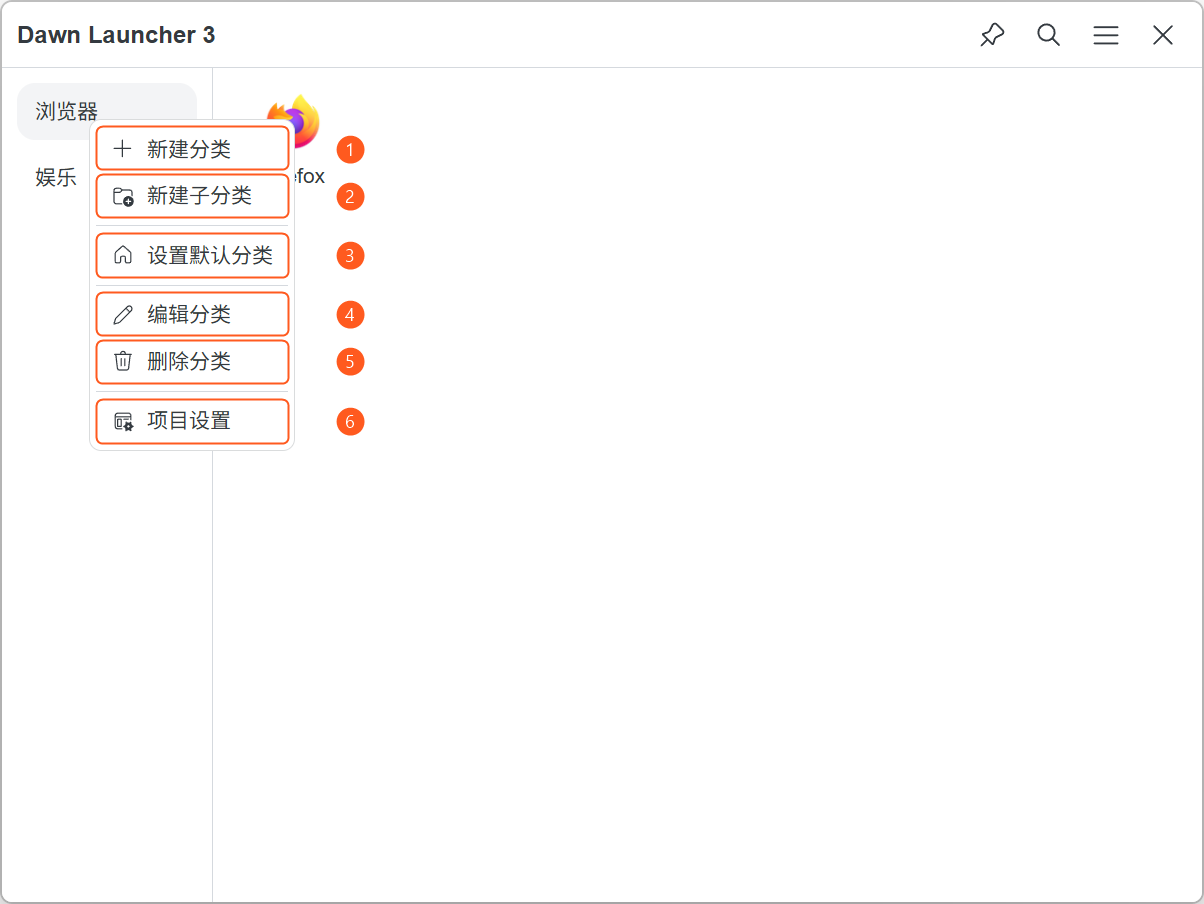
Category context menu with six annotated actions: new category, new subcategory, set default category, edit category, delete category and item settings.
Right-click a category name to manage the category and its item settings.View full image
  1. New category

    Create a new top-level category.

  2. New subcategory

    Create a subcategory; only top-level normal categories support this.

  3. Set default category

    Show this category on normal main-window activation. Only one default is allowed; right-click again to remove it. Category shortcuts take priority.

  4. Edit category

    Change the category name, icon and other category settings.

  5. Delete category

    Remove this category, its subcategories and item records. Original files are not deleted; keep at least one category.

  6. Item settings

    Adjust item layout and sorting for this category. For aggregate categories, use Edit category.

1.5Right-click an empty category area

Right-click an empty category area to create a category or lock/unlock order. Drag when unlocked; subcategories reorder within their parent only.
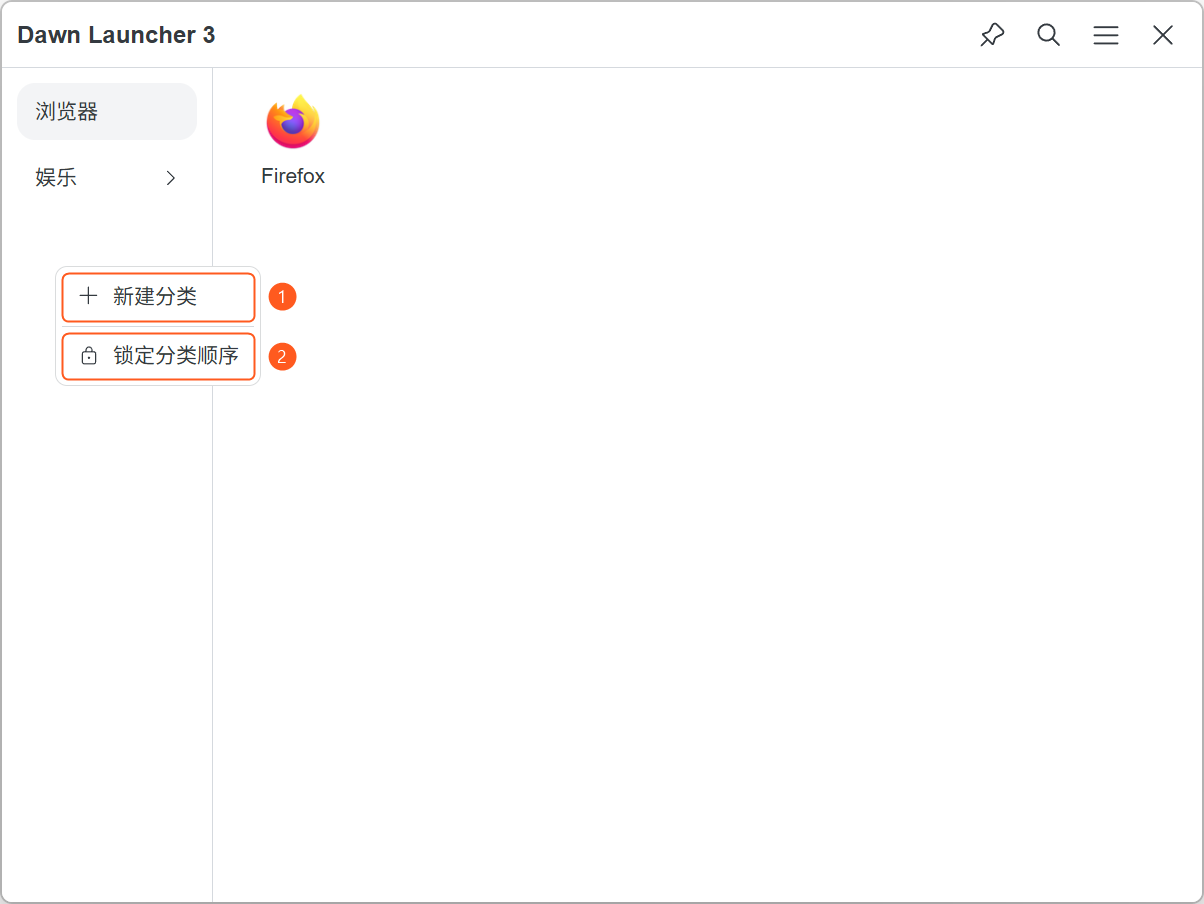
Empty category area context menu with two annotated actions: new category and lock category order.
Right-click an empty category area to create a category or lock its order.View full image
  1. New category

    Create a new top-level category.

  2. Lock category order

    Locking prevents drag reordering. Unlock before rearranging categories.

1.6Category icon mode

Show only category icons; click one to switch categories.

Open Main menu → Settings → Categories → Display mode → Icons only. This example uses Left layout. Choose Icons and names to restore names.

Set icons via Right-click category → Edit category → Icon.
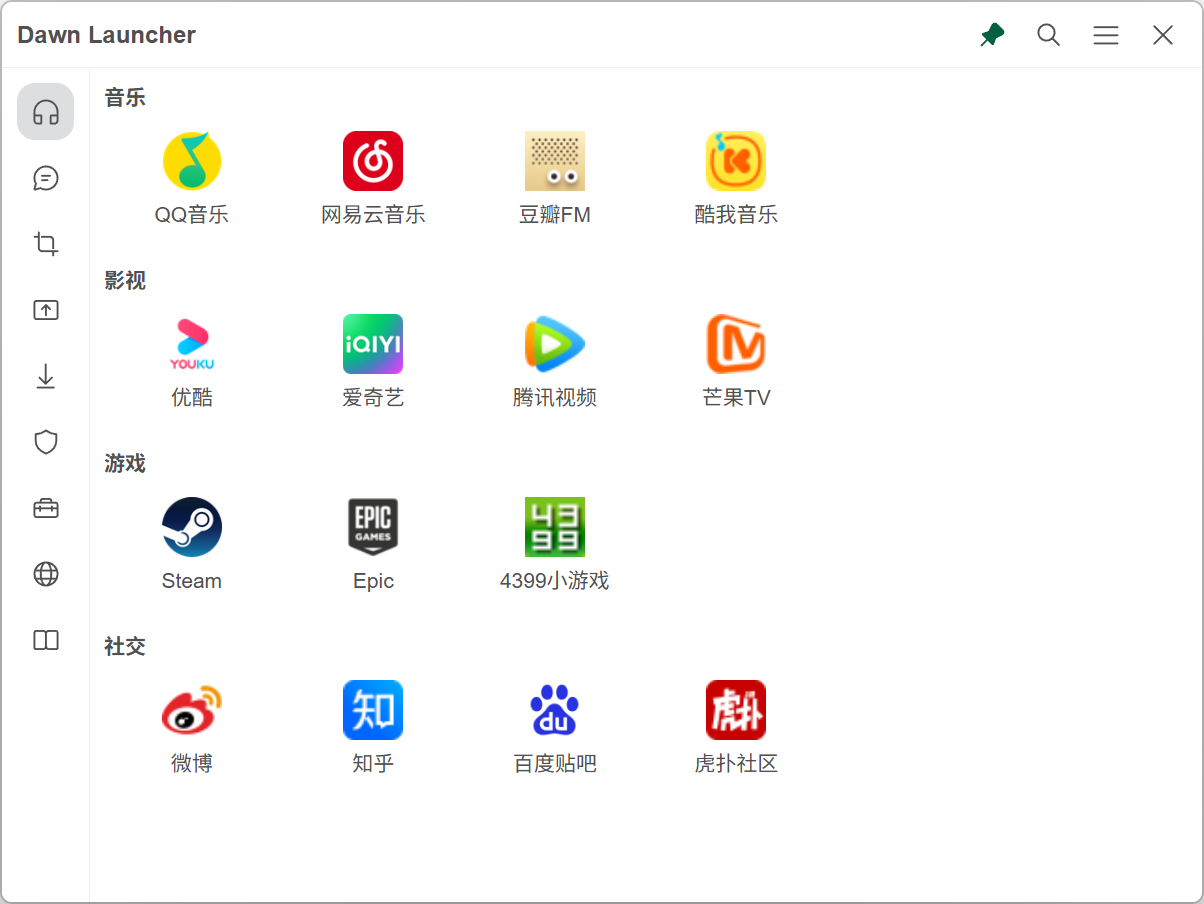
Dawn Launcher with an icon-only category bar on the left and tiled items grouped by subcategory on the right.
Category icon mode: click an icon in the left category bar to switch categories.View full image

1.7Categories at the top

Place the category bar above the items.

Open Main menu → Settings → Categories → Layout → Top. This example uses the Icons and names display mode.
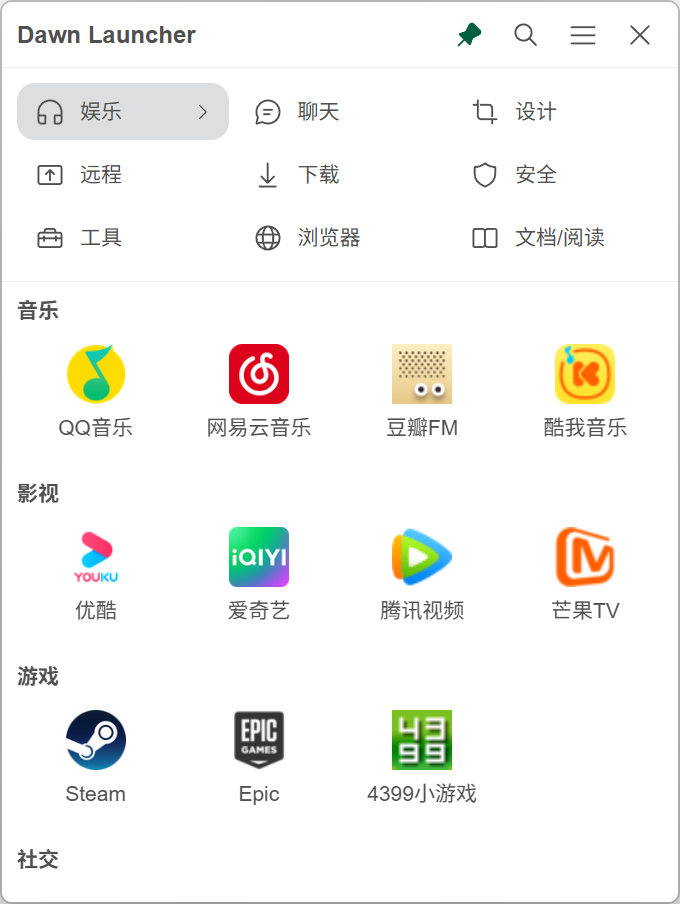
Dawn Launcher with category icons and names at the top and items grouped by subcategory below.
Top layout: switch categories above and open items below.View full image

Items

Add launch entries for apps, files, folders and websites.

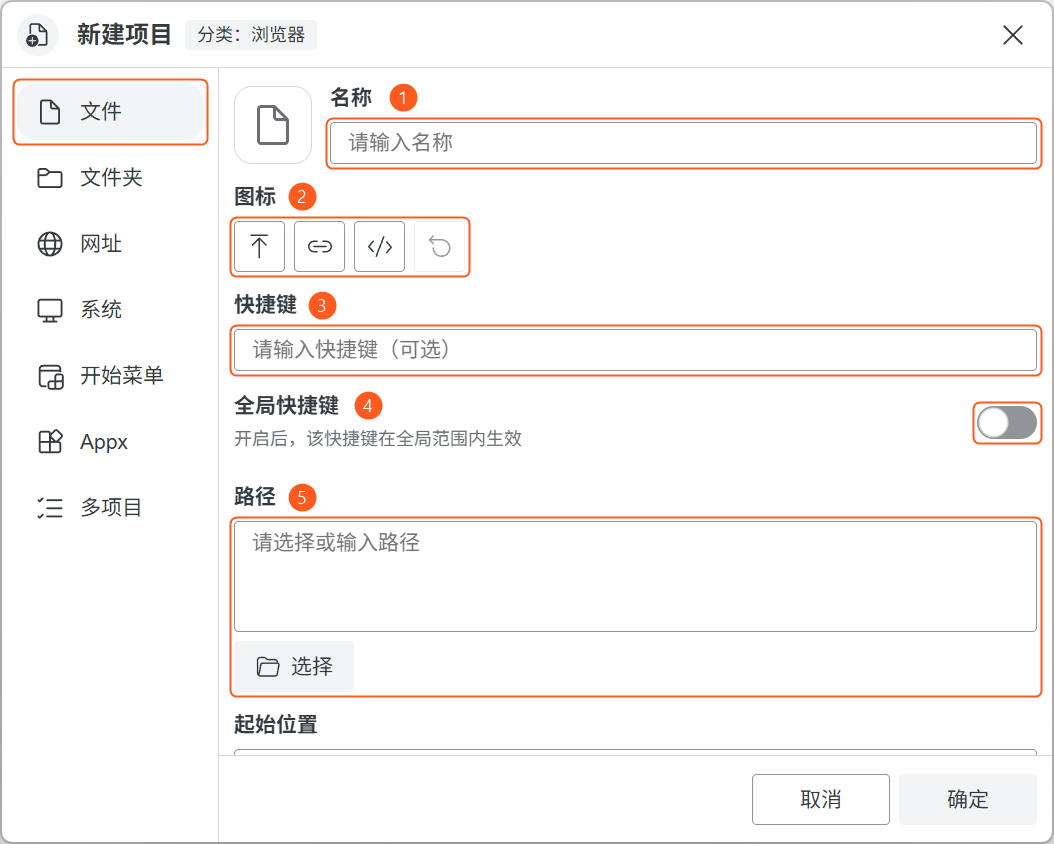
2.1File

Launch apps, shortcuts or documents. Open New item → File → Select, choose a file and confirm. Other fields are optional.

File item dialog with five numbered fields: name, icon, shortcut, global shortcut and path.
File items: basic information and the file path.View full image
  1. Name

    Set the name shown in the item list.

  2. Icon

    Set, replace or restore the item icon.

  3. Shortcut

    Optionally set keys to launch this item. Use them within the Dawn main window when Global shortcut is disabled.

  4. Global shortcut

    Use the configured item shortcut while working in other applications.

  5. Path

    Click Select or enter the path to an app, shortcut or file.

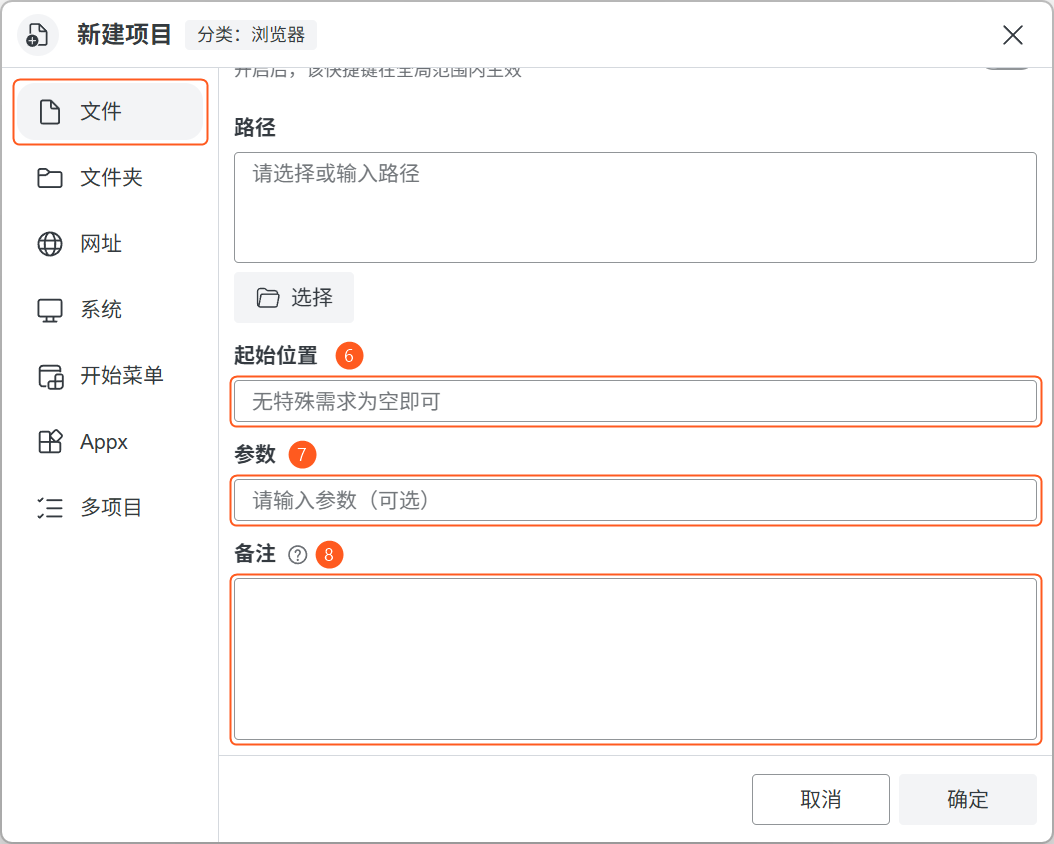
Lower part of the file item dialog with working directory, arguments and notes numbered six to eight.
File items: optional working directory, arguments and notes.View full image
  1. Working directory

    Set the directory the program starts in. Leave blank unless needed.

  2. Arguments

    Optional startup arguments passed to the program. Their syntax depends on the program.

  3. Notes

    Optional additional information, with support for website and file links.

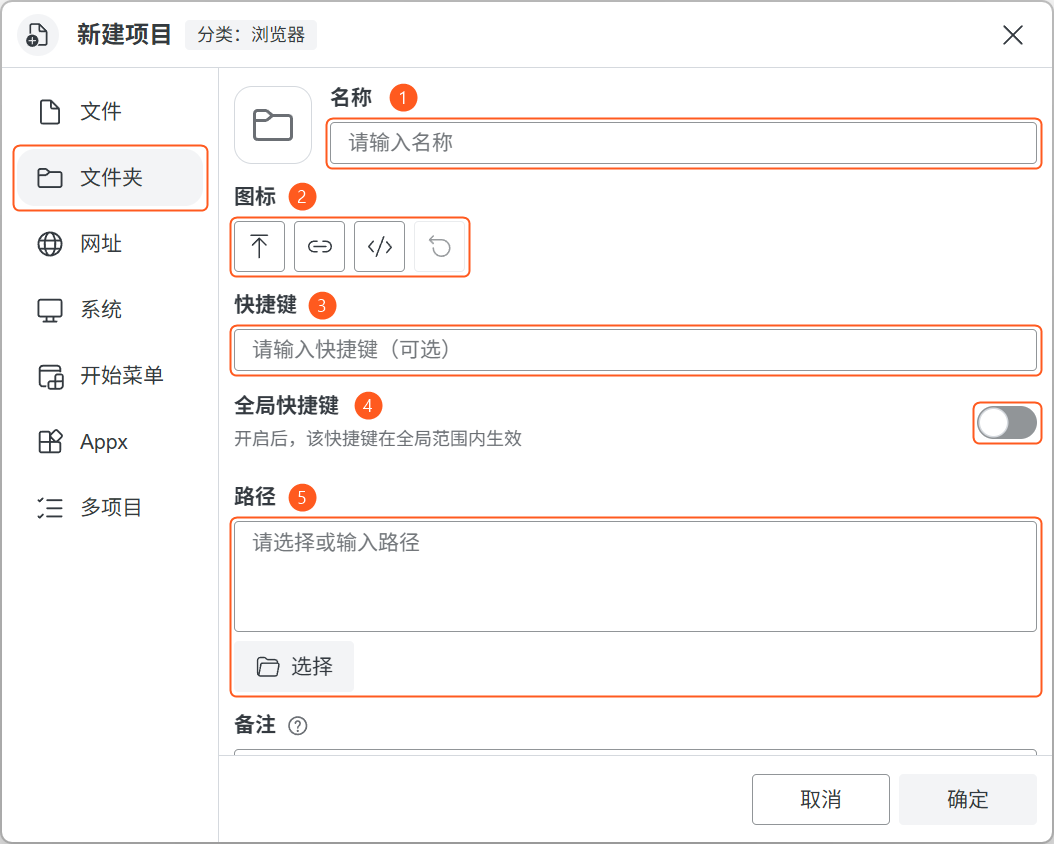
2.2Folder

Open a folder via New item → Folder → Select. This creates a folder launcher, without syncing its contents.

Folder item dialog with name, icon, shortcut, global shortcut and path numbered one to five.
Folder items: basic information and folder path.View full image
  1. Name

    Set the name shown in the item list.

  2. Icon

    Set, replace or restore the item icon.

  3. Shortcut

    Optionally set keys to open this folder. Use them within the Dawn main window when Global shortcut is disabled.

  4. Global shortcut

    Use the configured item shortcut while working in other applications.

  5. Path

    Click Select or enter the path to the folder to open.

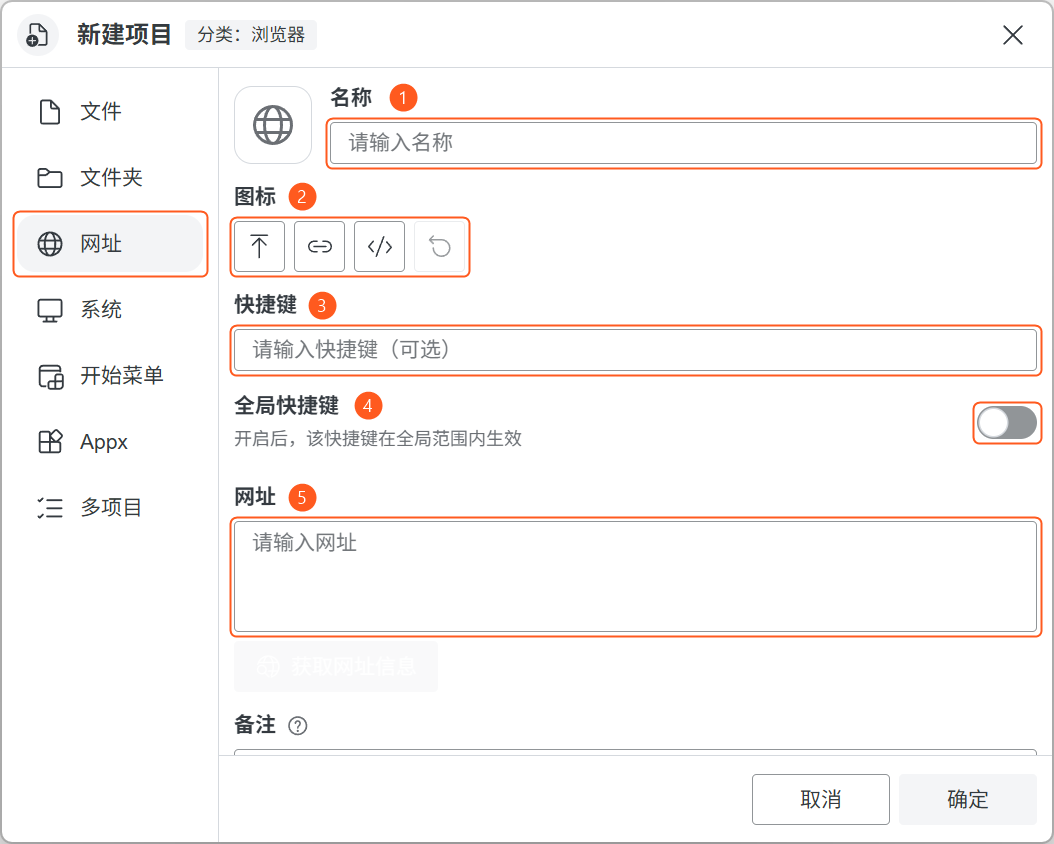
2.3Website

Open New item → Website, enter a name and full URL, then confirm. Get URL information can retrieve the site title and icon.

Website item dialog with name, icon, shortcut, global shortcut and URL numbered one to five.
Website items: basic information and website address.View full image
  1. Name

    Set the name shown for this website item.

  2. Icon

    Set, replace or restore the icon. Get website information can also try retrieving the site icon.

  3. Shortcut

    Optionally set keys to open this URL. Use them within the Dawn main window when Global shortcut is disabled.

  4. Global shortcut

    Use the configured item shortcut while working in other applications.

  5. URL

    Enter the website address, such as https://www.example.com.

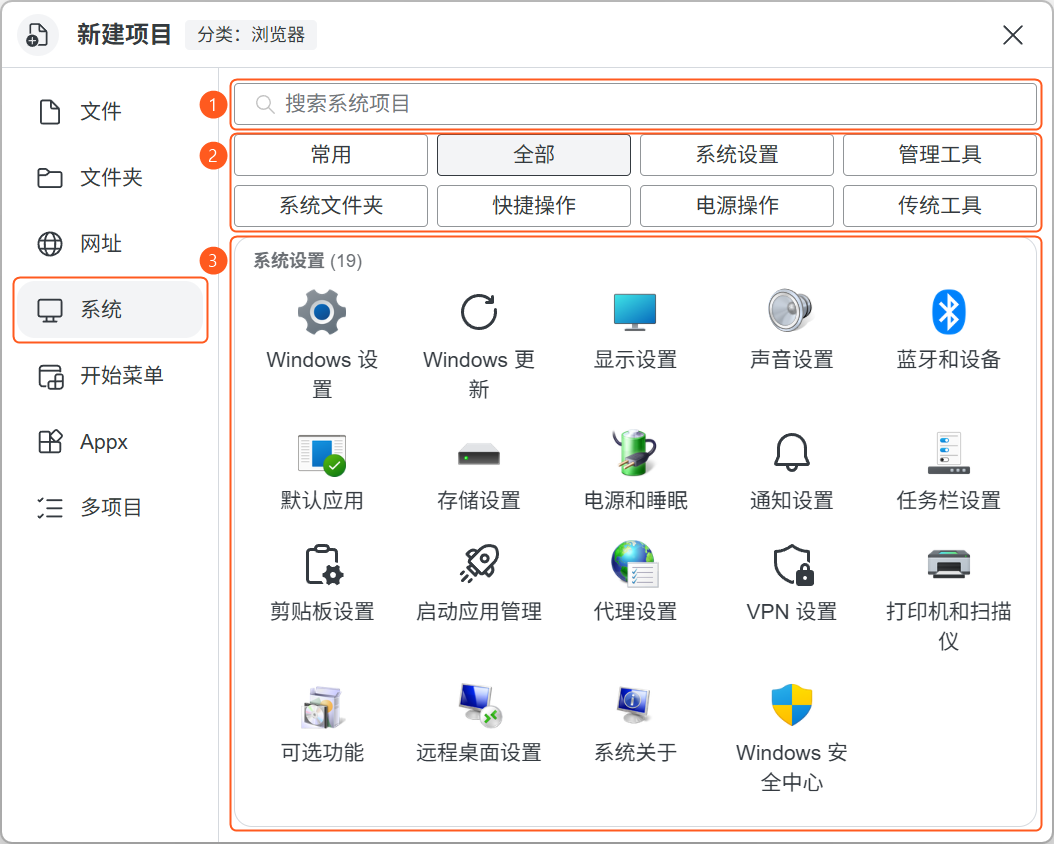
2.4System

Add Windows settings, system folders or actions via New item → System. Search or filter, then click to add. Keep selecting to add more.

System item catalog with search, group filters and the item list numbered one to three.
System items: search or filter by group, then click to add.View full image
  1. Search system items

    Enter a name or keyword to find a system entry.

  2. Group filters

    Filter by Common, All, System settings, Administration tools, System folders, Quick actions, Power actions or Legacy tools.

  3. System item list

    Click an item to add it to the current category. You can then add more items.

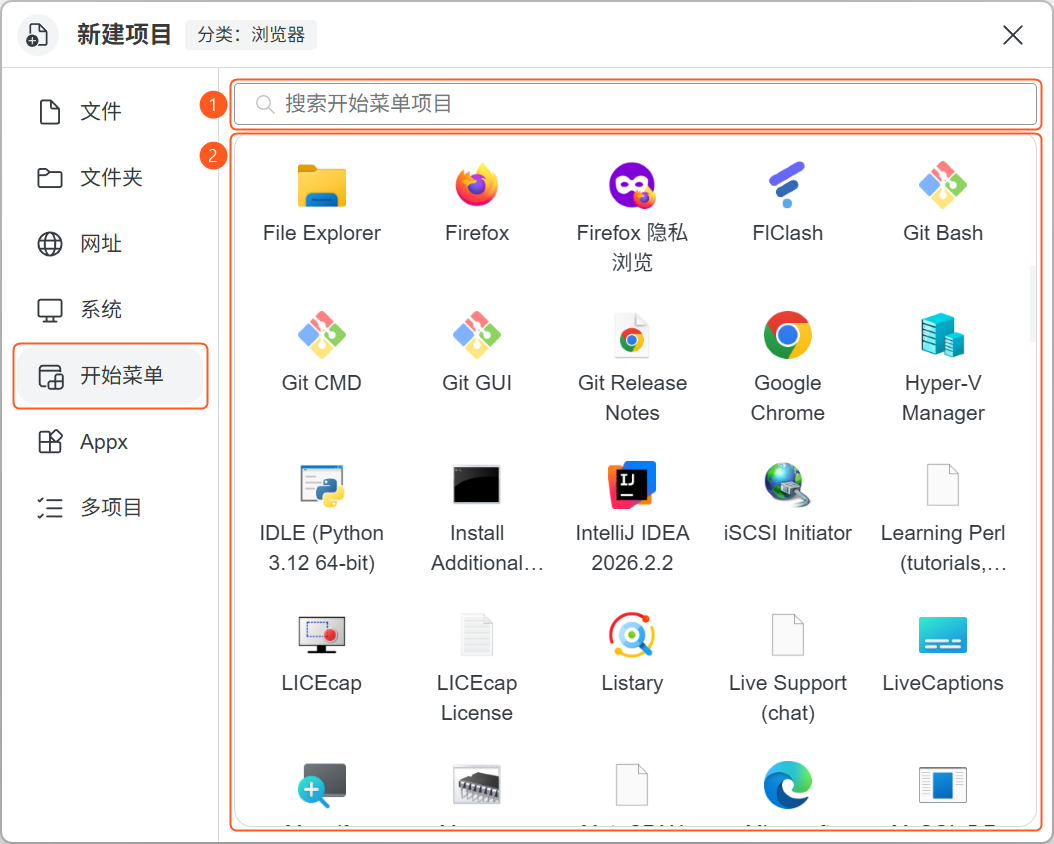
2.5Start menu

Add installed Start menu entries via New item → Start menu. Search and click an entry to add it.

Start menu catalog with the search field and available items numbered one and two.
Start menu: select from existing shortcuts.View full image
  1. Search Start menu items

    Search by name for apps or shortcuts in the Windows Start menu.

  2. Start menu item list

    Click an item to add it to the current category without entering its file path.

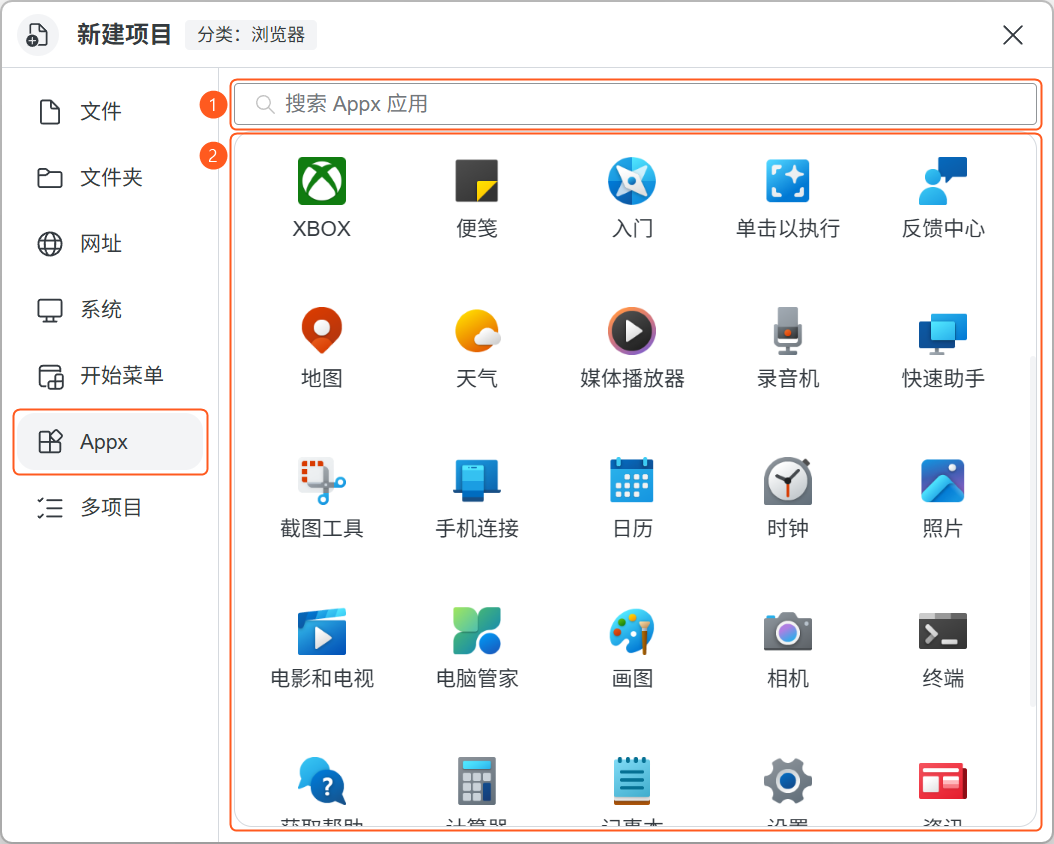
2.6Appx

Open New item → Appx and click an installed app to add it. This does not download or install apps.

Appx catalog with the search field and installed apps numbered one and two.
Appx: select from installed Windows packaged apps.View full image
  1. Search Appx apps

    Search by name for installed Windows packaged apps.

  2. Appx app list

    Click an app to add it to the current category. This does not download or install apps.

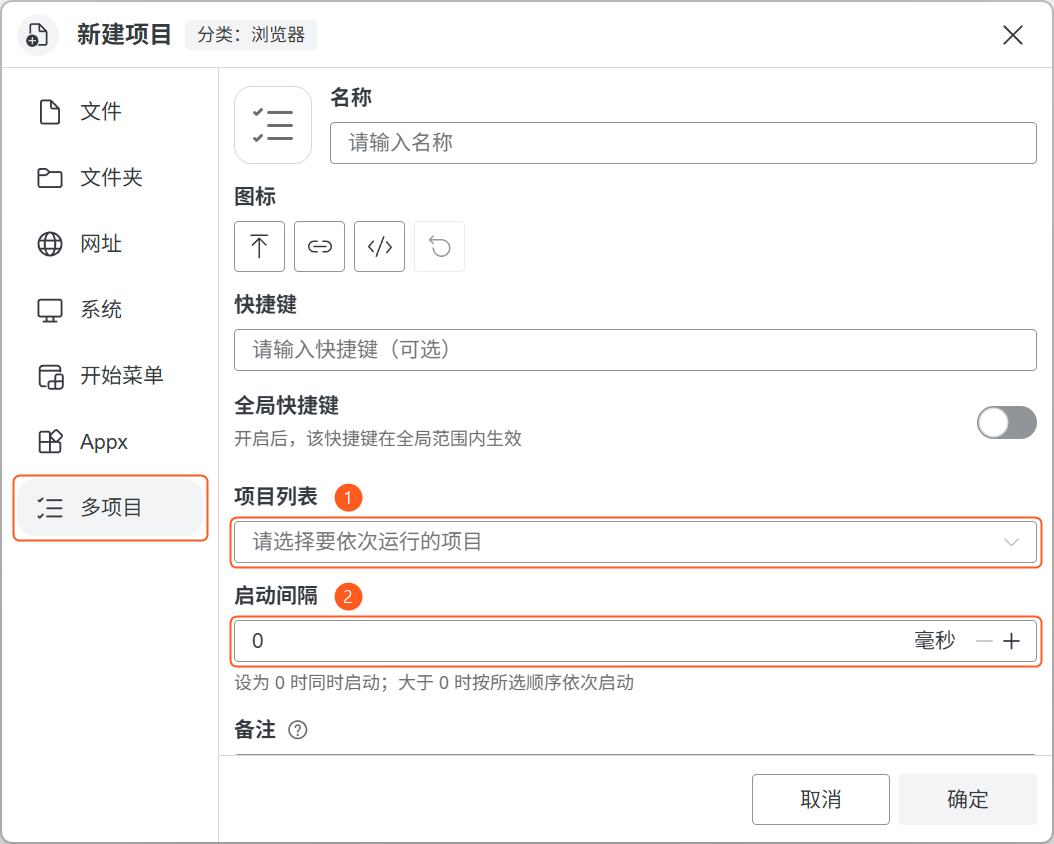
2.7Multiple items

Launch several existing items together via New item → Multiple items. Select items and confirm.

0 launches together; positive intervals launch in order, in milliseconds. Other multiple-item entries cannot be selected.

Multiple items dialog with the item list and launch interval numbered one and two.
Multiple items: select existing items and set the launch interval.View full image
  1. Item list

    Select one or more existing items to run together. Other Multiple items entries cannot be selected.

  2. Launch interval

    Measured in milliseconds. 0 launches items simultaneously; a positive value launches them in the selected order. 1000 means one second between launches.

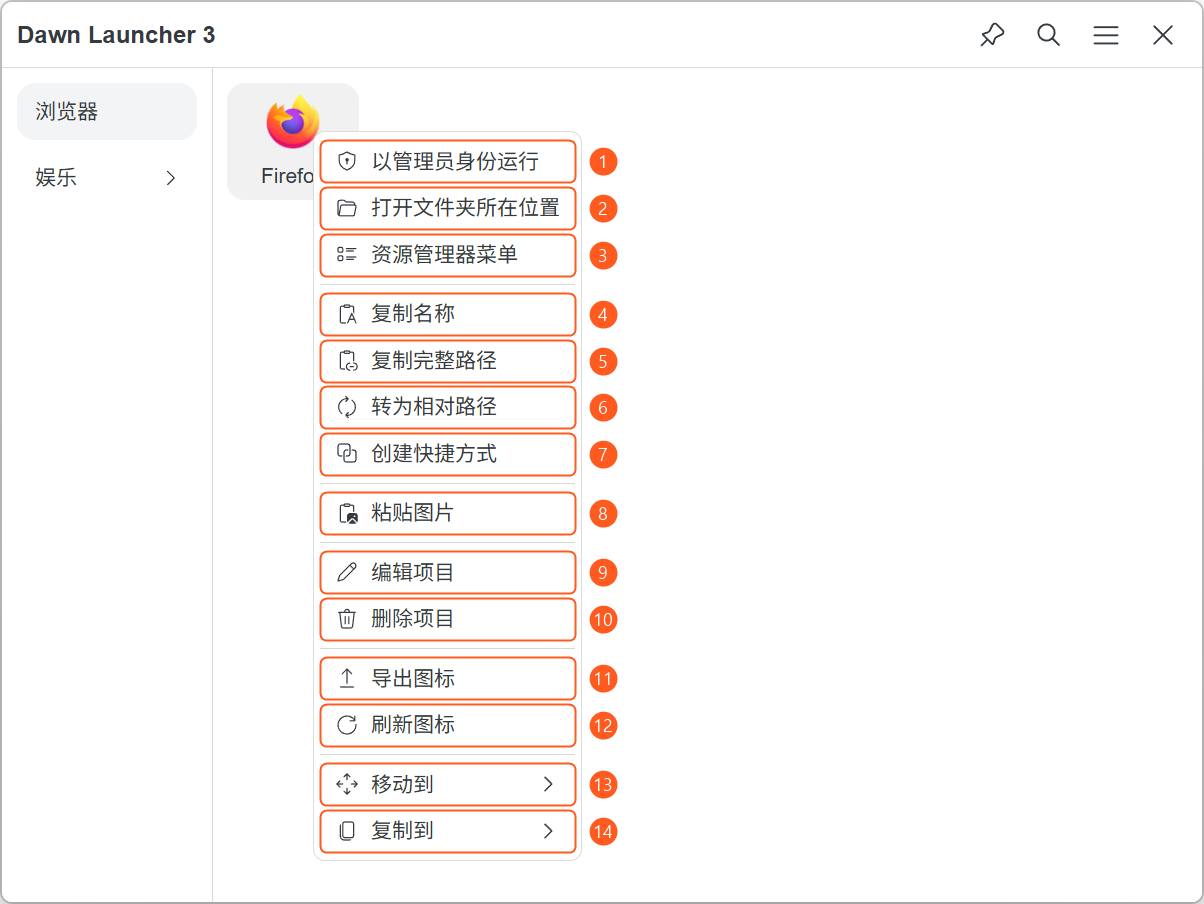
2.8Right-click an item

Right-click an item to launch, edit, delete or manage its path, icon and category. Actions vary by item type and category.

Deleting, moving and copying affect Dawn records, not the original files.

File item context menu with fourteen numbered actions for launching, paths, editing, icons and category transfers.
Right-click to manage an item. Available actions vary by item type.View full image
  1. Run as administrator

    Launch this file item with administrator privileges.

  2. Open file location

    Open the location of the target file or folder in File Explorer.

  3. File Explorer menu

    Open the original file or folder’s Windows context menu.

  4. Copy name

    Copy the item name displayed in Dawn to the clipboard.

  5. Copy full path

    Copy the full file or folder path, or the URL for a website item.

  6. Convert to relative path

    Store a path relative to the Dawn application directory, or convert it back to an absolute path. The original file stays in place.

  7. Create shortcut

    Create a desktop shortcut to this file or folder.

  8. Paste image

    Use the clipboard image as the item icon. Shown only when an image is on the clipboard.

  9. Edit item

    Change the name, icon, path, shortcut and other item settings.

  10. Delete item

    Remove the item record from Dawn. The original file is not deleted.

  11. Export icon

    Save the current item icon as an image file, when an exportable icon is available.

  12. Refresh icon

    Read the file or folder icon again and update its appearance in Dawn.

  13. Move to

    Move the item to another category without keeping it in the source category. The original file stays in place.

  14. Copy to

    Create a copy of the item in another category while keeping the source item. The original file is not copied.

2.9Right-click an empty item area

Right-click an empty item area to add items, open item settings, lock order or enter batch mode.

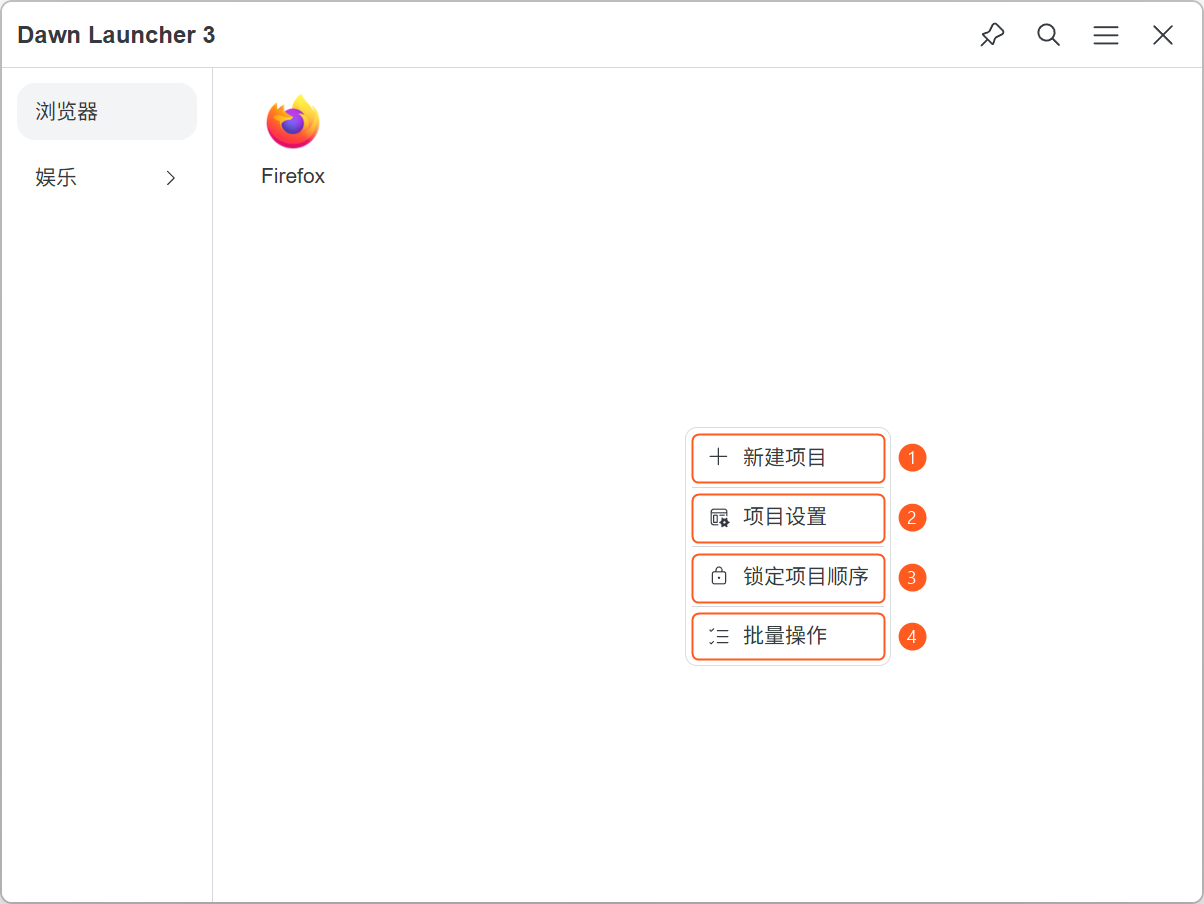
Drag reordering requires manual sorting, all items visible and unlocked order. Read-only categories have different menus.

Empty item area context menu with New item, Item settings, Lock item order and Batch actions numbered one to four.
Right-click an empty item area to manage items in the current category.View full image
  1. New item

    Add a file, folder, website or another item to the current category.

  2. Item settings

    Adjust item layout, sorting and other settings for the current category.

  3. Lock item order

    Locking prevents drag reordering. Choose Unlock item order to rearrange items again.

  4. Batch actions

    Unlock item order, select items and right-click for batch actions. Unavailable in read-only categories.

2.10Item settings

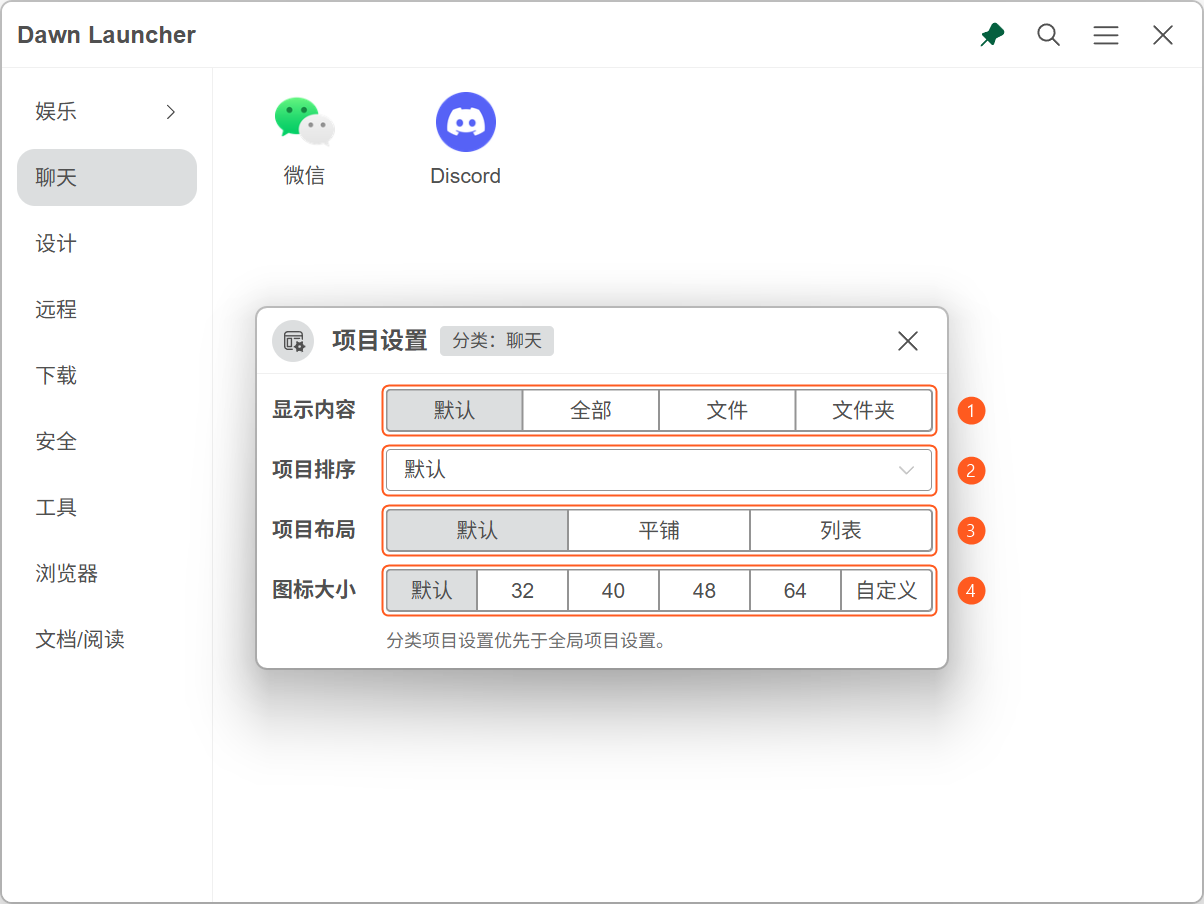
Open category or empty-area context menu → Item settings to change the category’s filter, sort, layout and icon size. Changes save automatically.

Category settings override global settings; Default inherits the parent or default configuration. Use Edit category for aggregate sorting and filtering. To count launches for sorting, enable Settings → Items → Open → Record open count.

Category item settings with display filter, sorting, layout and icon size numbered one to four.
Item settings: adjust the display filter, sorting, layout and icon size for this category.View full image
  1. Display filter

    All items, files or folders; Default inherits the configuration.

  2. Item sorting

    Manual, name or open count; choose ascending or descending for name/count.

  3. Item layout

    Tiles or list; Default inherits the parent or global layout.

  4. Icon size

    32, 40, 48 or 64 pixels, or custom; Default inherits the parent or global size.

2.11List layout

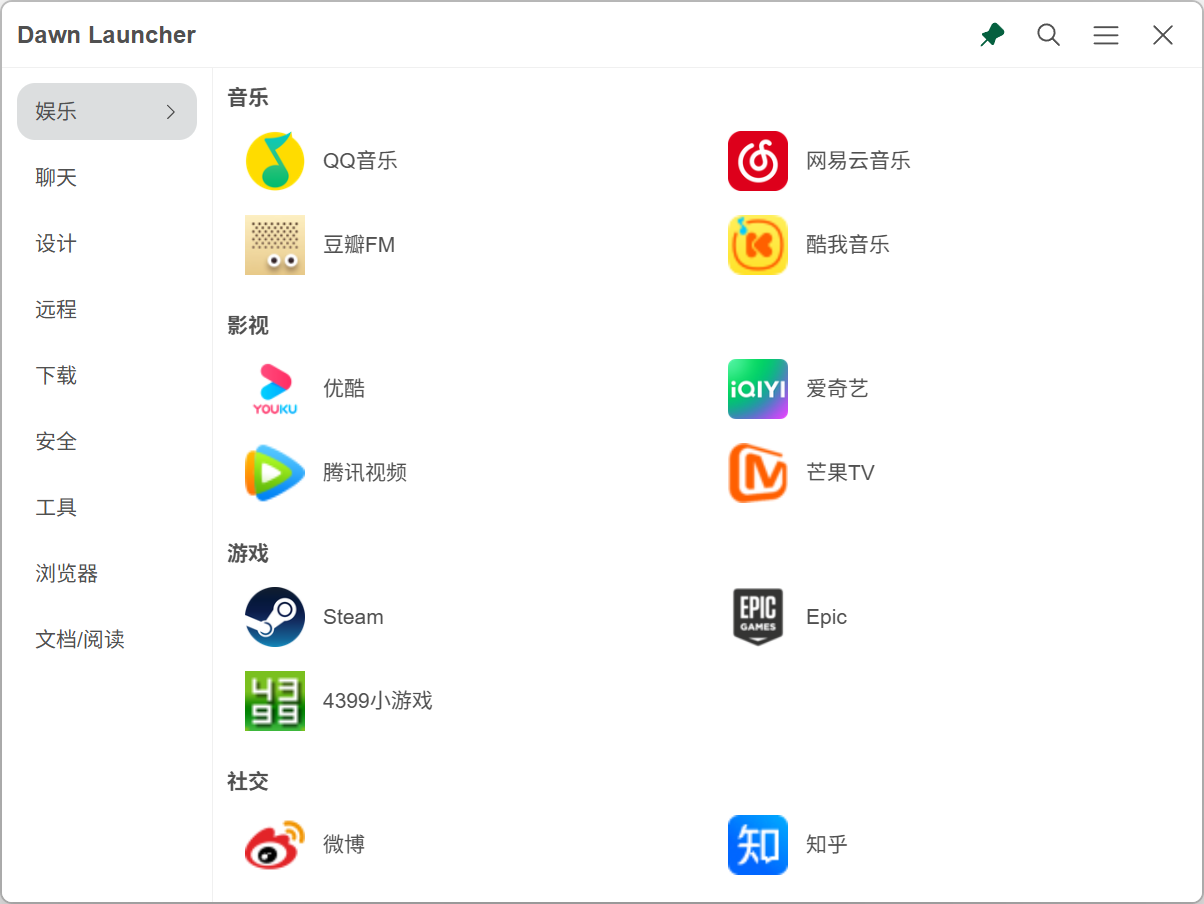
List layout places icons beside names and supports multiple columns.

Global: Main menu → Settings → Items → Item layout → List; adjust columns and icon size there. Per category: Right-click category → Item settings → Item layout → List. Default restores inheritance.

Dawn Launcher list layout showing icons beside names in two columns, grouped into music, video, games and social subcategories.
List layout: icons beside names in two columns, grouped by subcategory.View full image

2.12Batch actions

Open empty item area context menu → Batch actions after unlocking the item order. Select items, then right-click to move, copy, delete, refresh icons or convert paths. Choose Cancel batch actions to exit.

Read-only categories do not support batch actions. Deletion removes Dawn records, not the original files.

2.13Check invalid items

Open Main menu → Tools → Check invalid items to mark file or folder items with missing paths. Nothing is deleted automatically. Right-click → Edit item to fix a path, or delete an unused record.

Enable automatic checks in Settings → Items → Features → Check invalid items. Dawn checks immediately and every 5 minutes afterward.

Settings

Choose a settings page for the feature you want to adjust.

4.1Opening settings and choosing a page

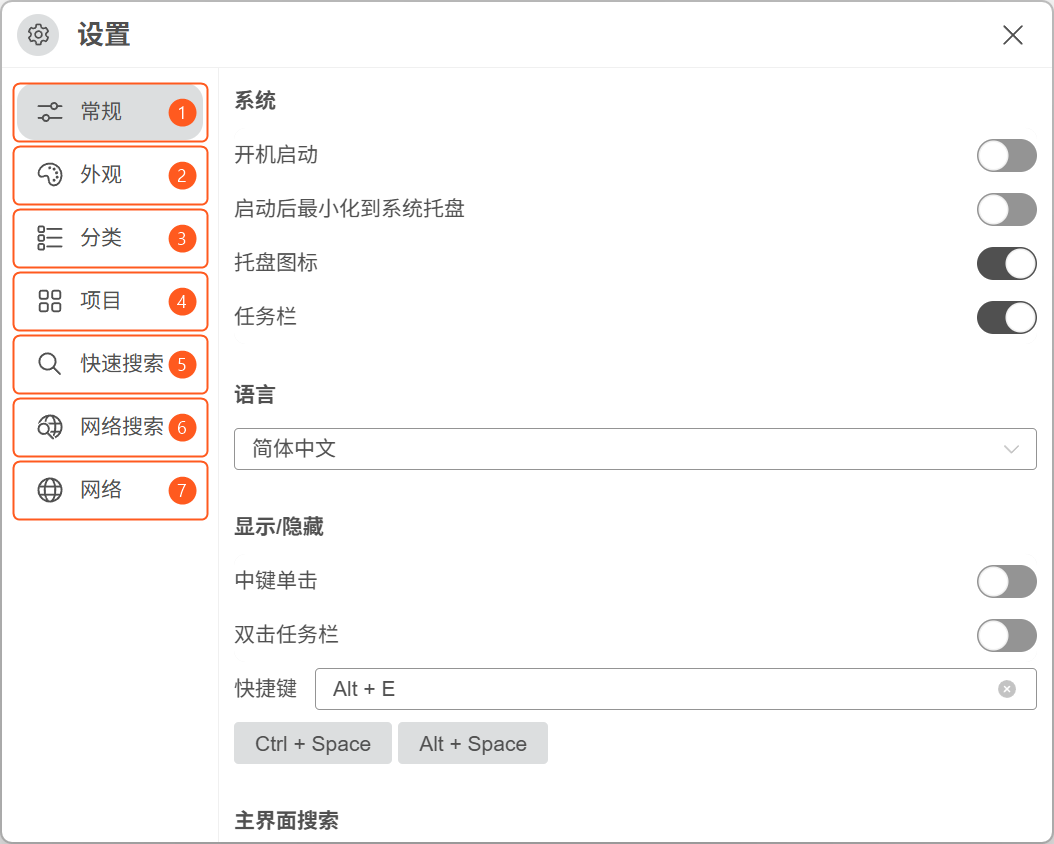
Open top-right main menu → Settings, then select a page on the left. The screenshot shows Dawn 3; options may vary by edition.

Dawn Launcher settings window with General, Appearance, Categories, Items, Quick Search, Web Search and Network numbered one to seven.
Settings overview: select a page on the left to adjust its features.View full image
  1. General

    Startup, tray, language and main window visibility.

  2. Appearance

    Choose a theme or customize colors.

  3. Categories

    Category bar position, display mode and switching.

  4. Items

    Global item layout, icon size and opening behavior.

  5. Quick Search

    Standalone search shortcuts, behavior and history.

  6. Web Search

    Add search sources and choose trigger mode.

  7. Network

    HTTP proxy for Get URL information.

Data backup and restore

Save a backup file or restore data from a backup.

5.1Where to find backup and restore

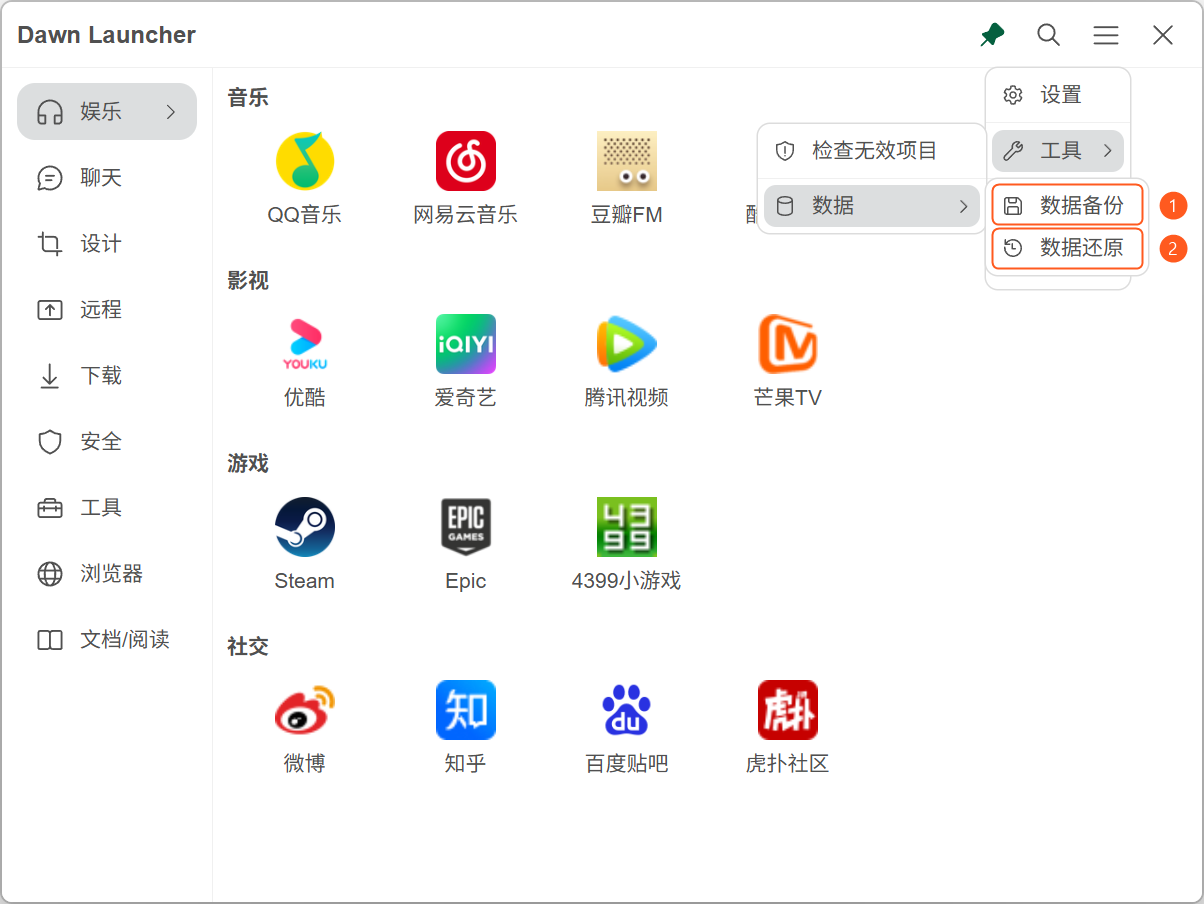
Open top-right main menu → Tools → Data.

Restore replaces current data. Back up first; Dawn restarts after a successful restore. Backups contain categories, item records and settings, not original files or custom backgrounds. Item paths may need updating on another computer.

Dawn Launcher Tools and Data menus with Data backup and Data restore numbered one and two.
Open the top-right main menu → Tools → Data.View full image
  1. Data backup

    Choose a location to save a.dawnbackupfile.

  2. Data restore

    Select a backup and confirm replacement. Dawn restarts after restore.