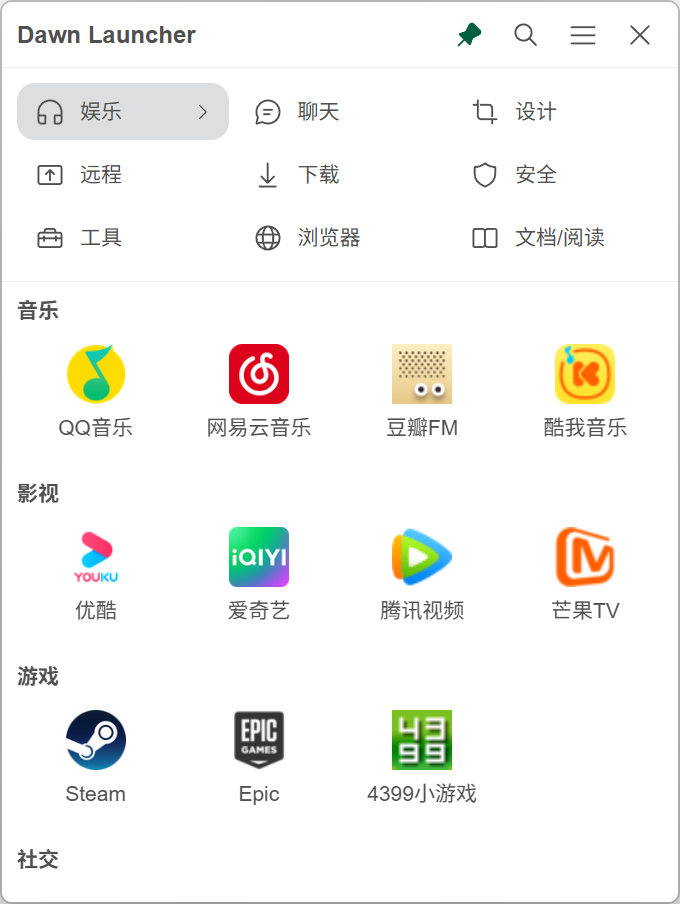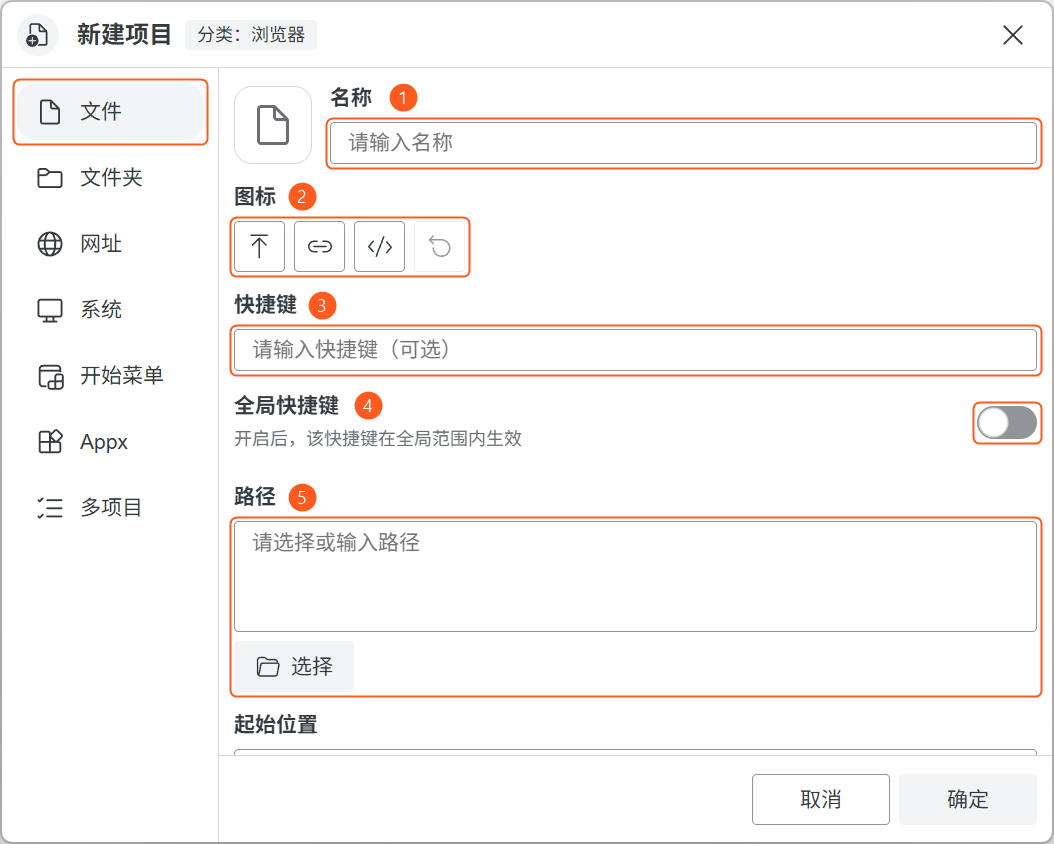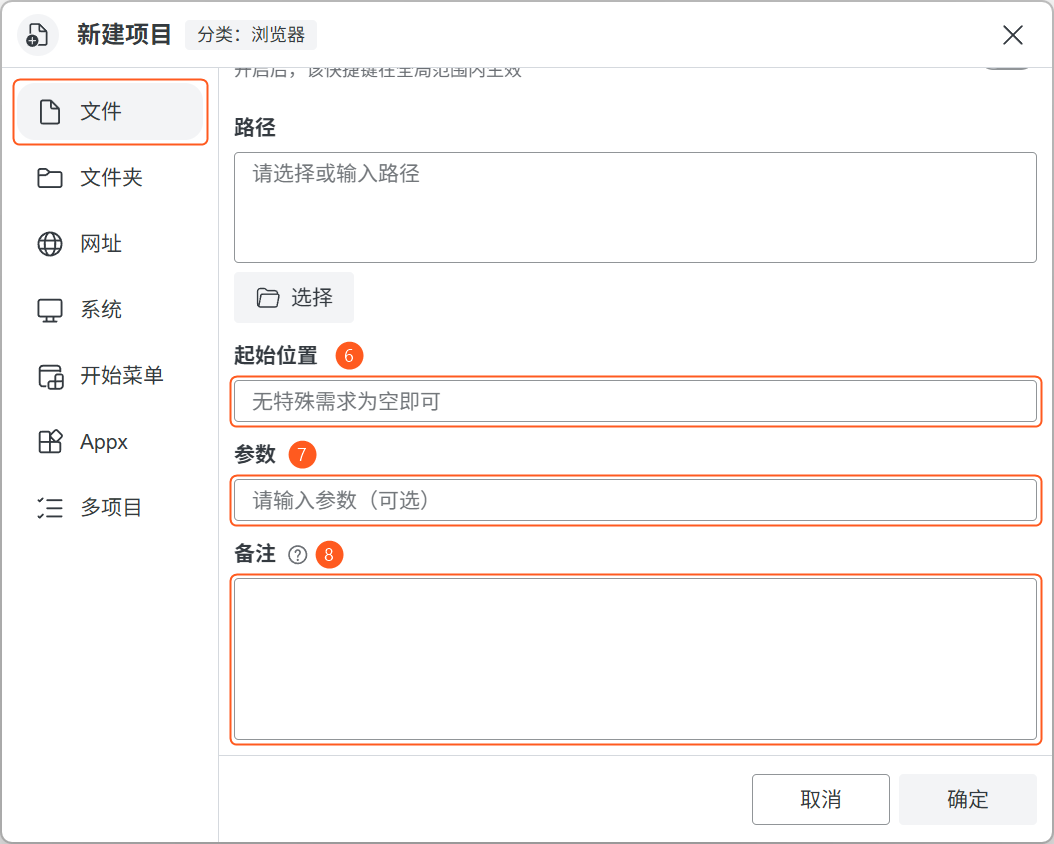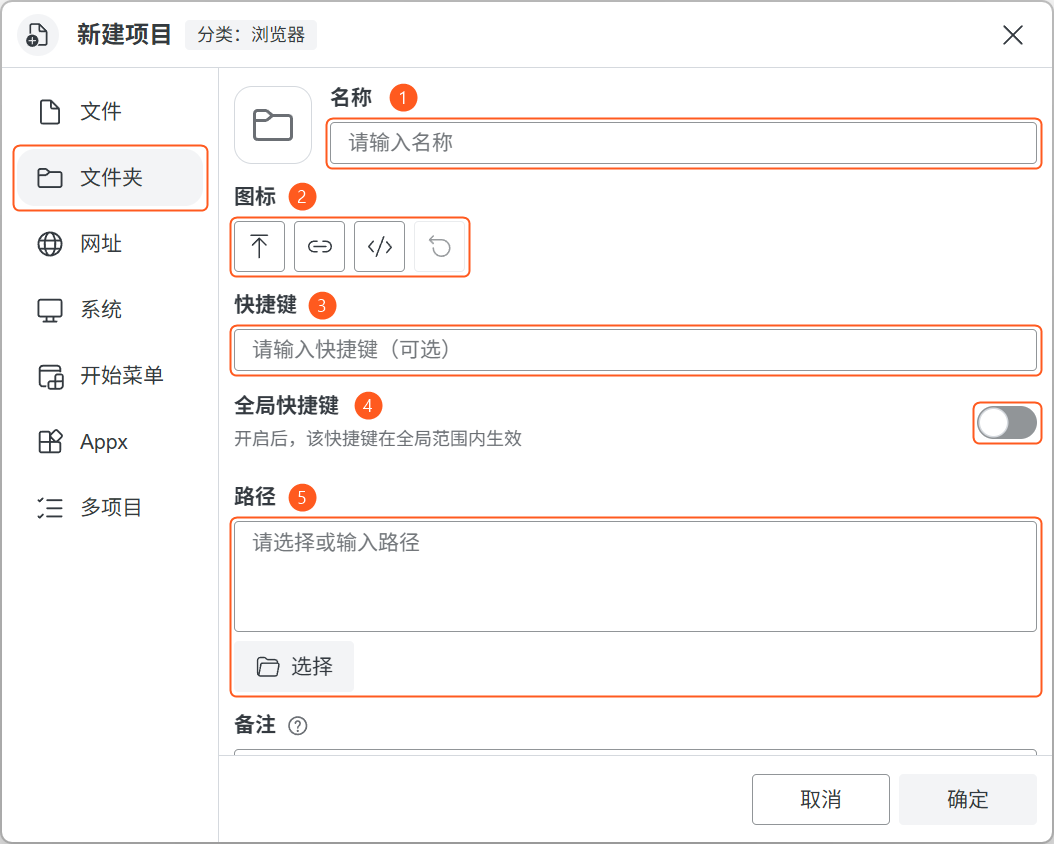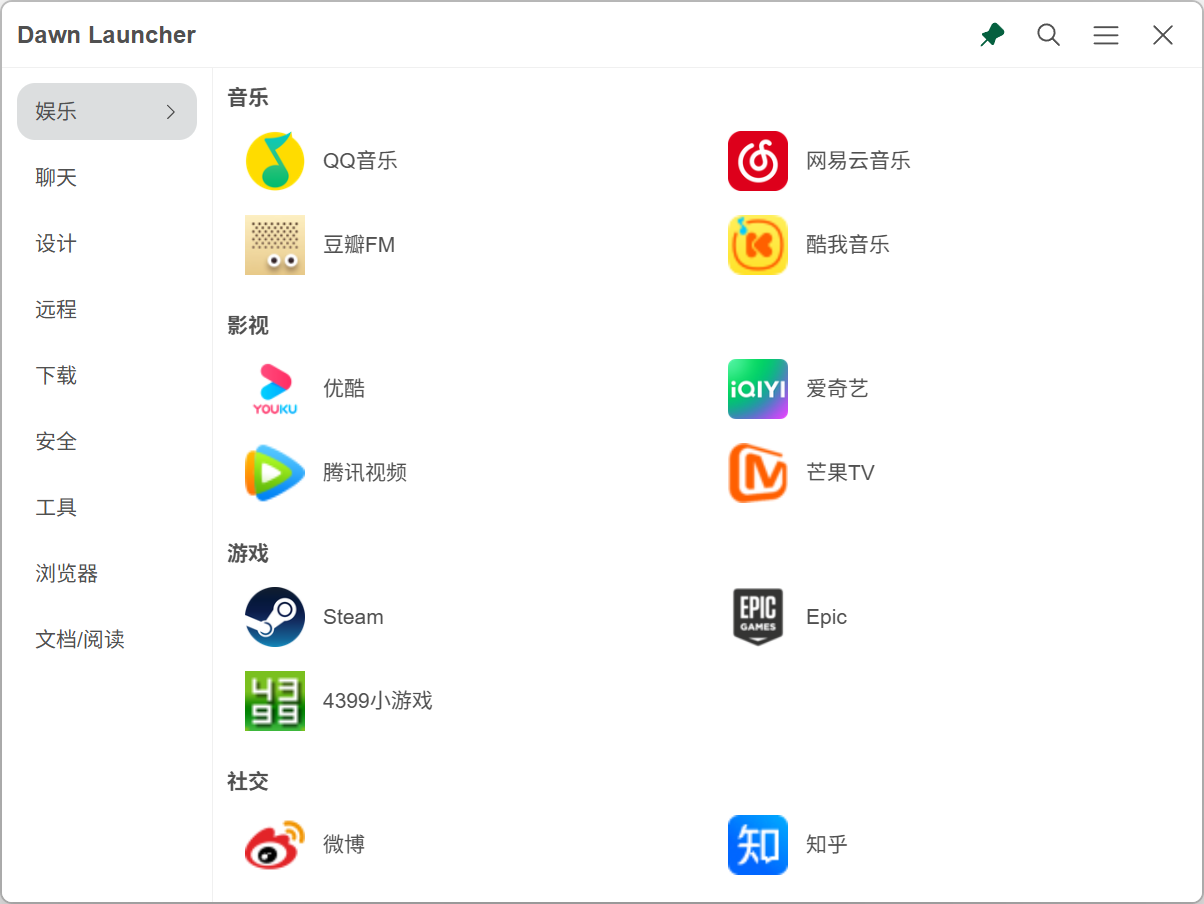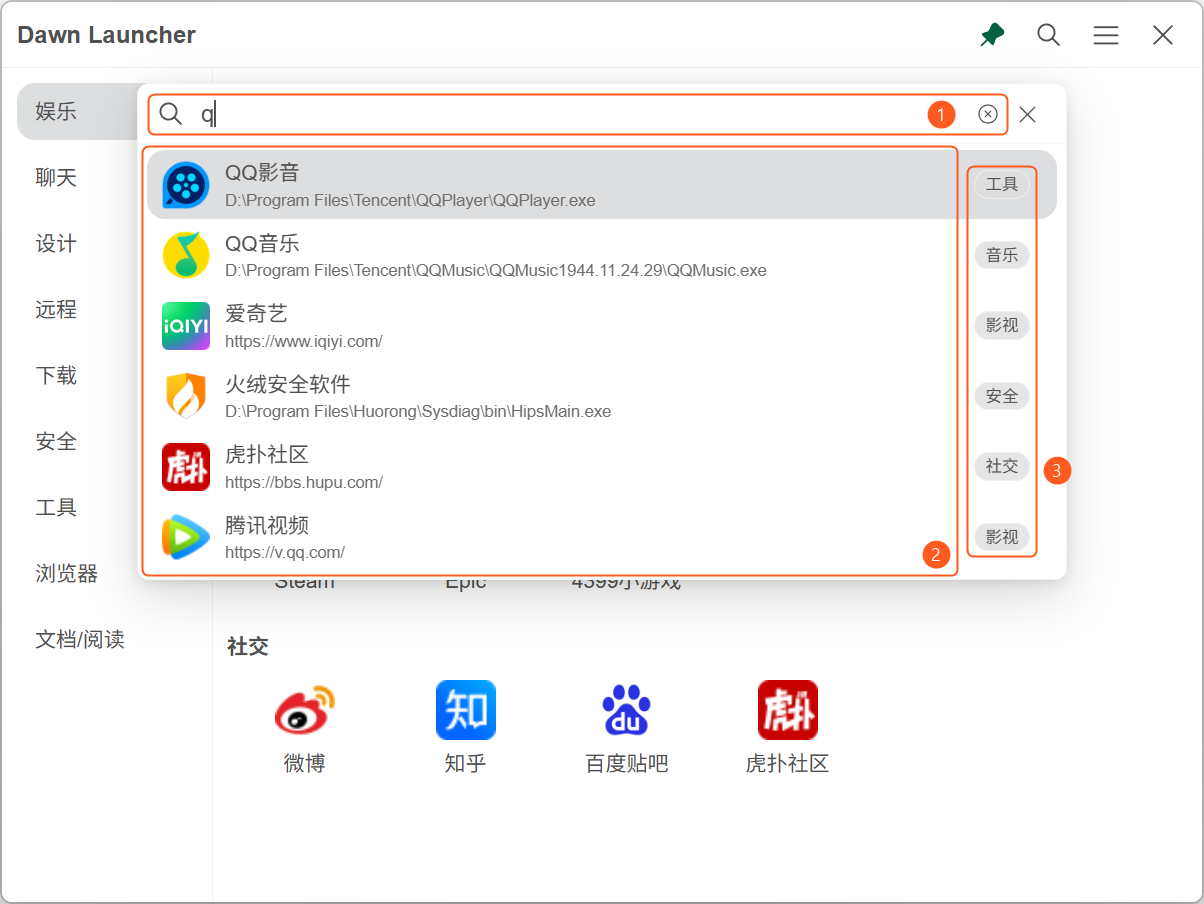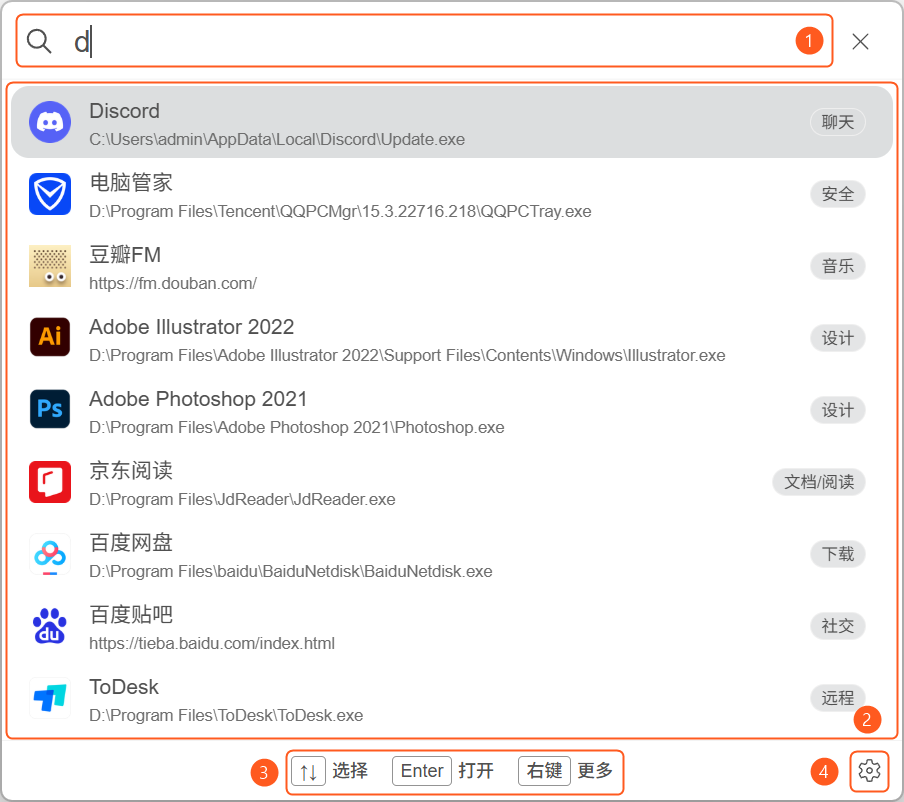


Categories
Group items manually or display them through linked and aggregate categories.
1.1Normal categories
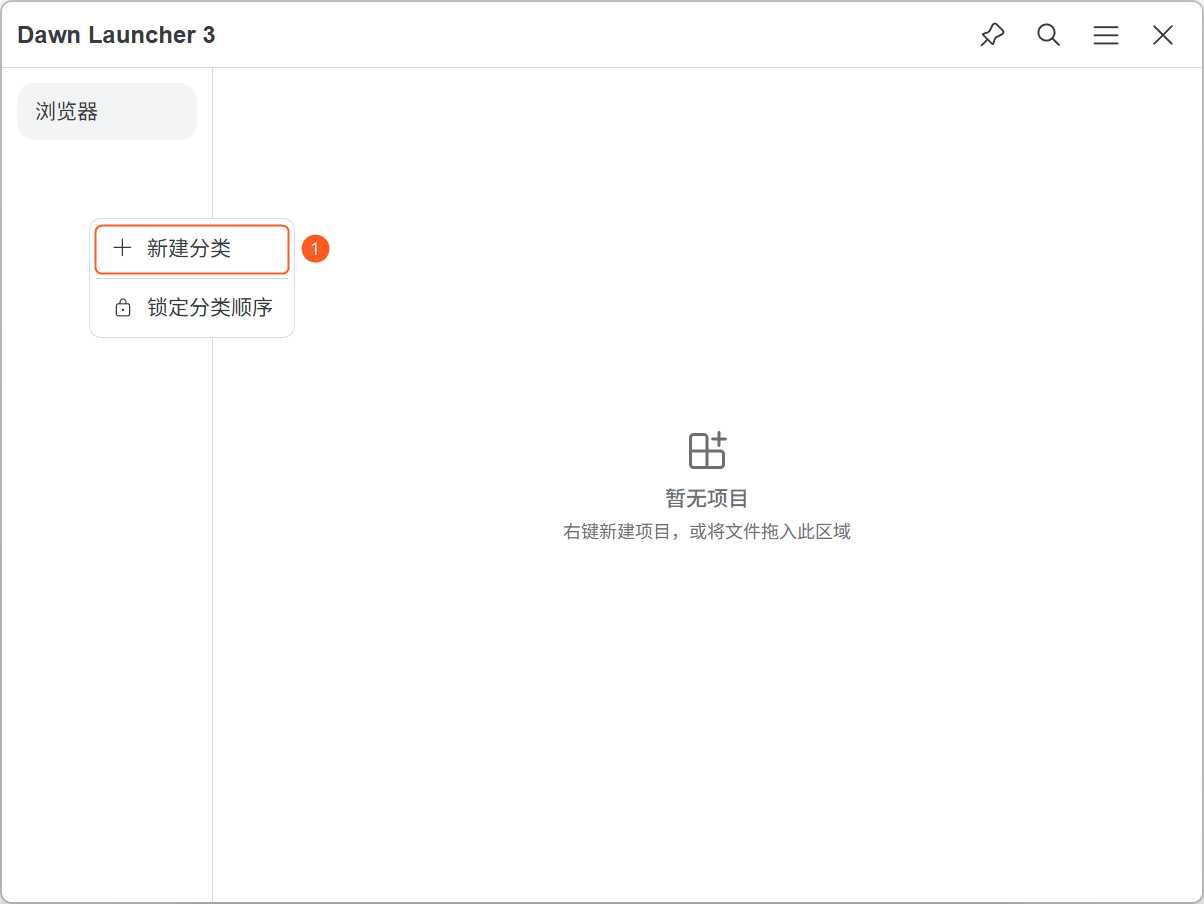
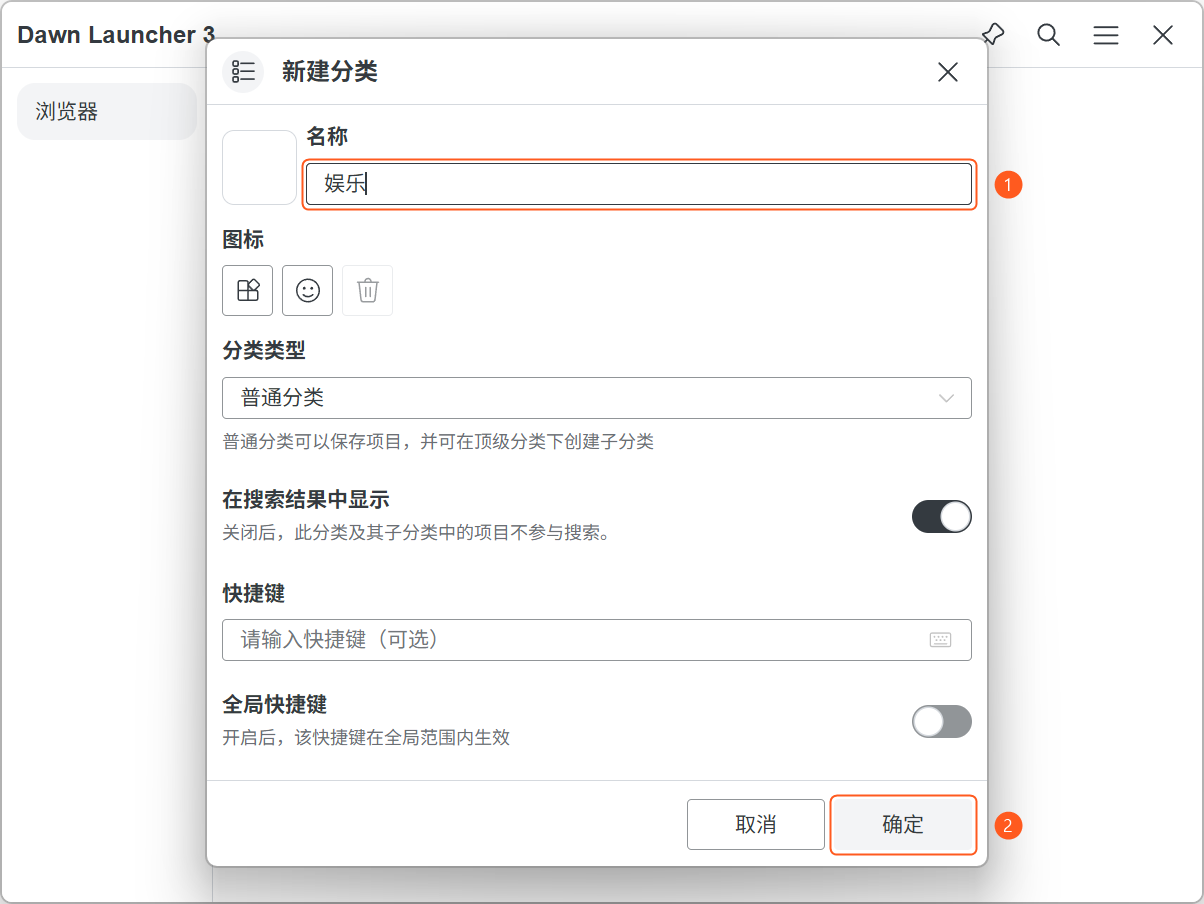
Manage items manually; top-level normal categories support subcategories. Open empty category area → New category → Normal category.
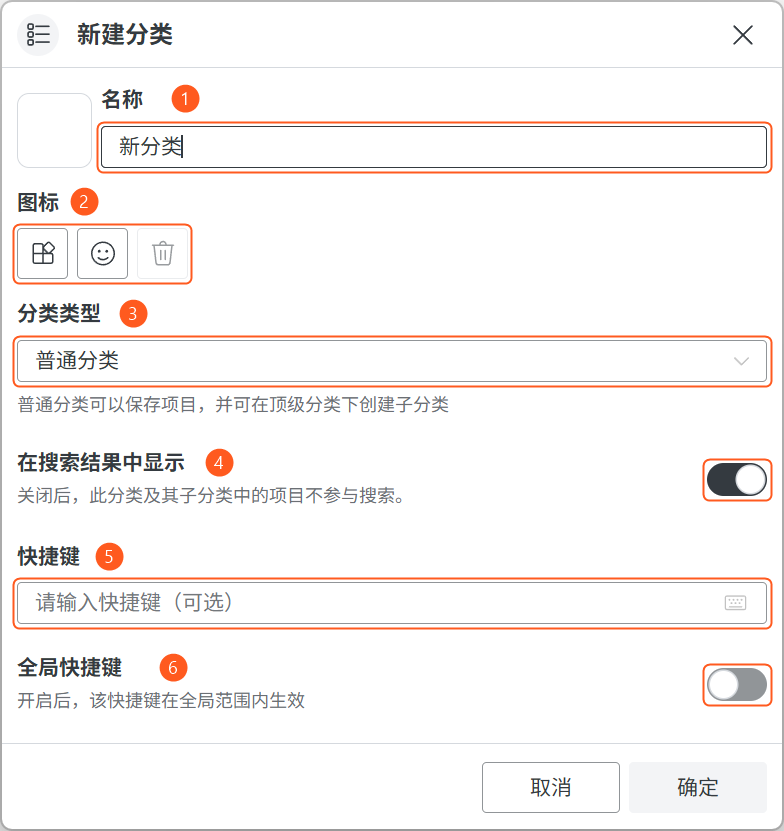
Name
Enter a category name.
Icon
Set or clear the category icon.
Category type
Normal categories hold items. Top-level categories can contain subcategories.
Show in search results
Choose whether items in this category and its subcategories appear in search.
Shortcut
Optionally set keys to switch to this category. Use them within the Dawn main window when Global shortcut is disabled.
Global shortcut
Use the same category key combination while working in other applications.
1.2Linked folder categories
Sync a real folder into a read-only category. Add or remove files in the original folder.
Open New/Edit category → Category type → Linked folder and select a folder. Separate hidden names with commas, e.g.notes.txt,Backup,*.tmp. This hides entries without deleting files.
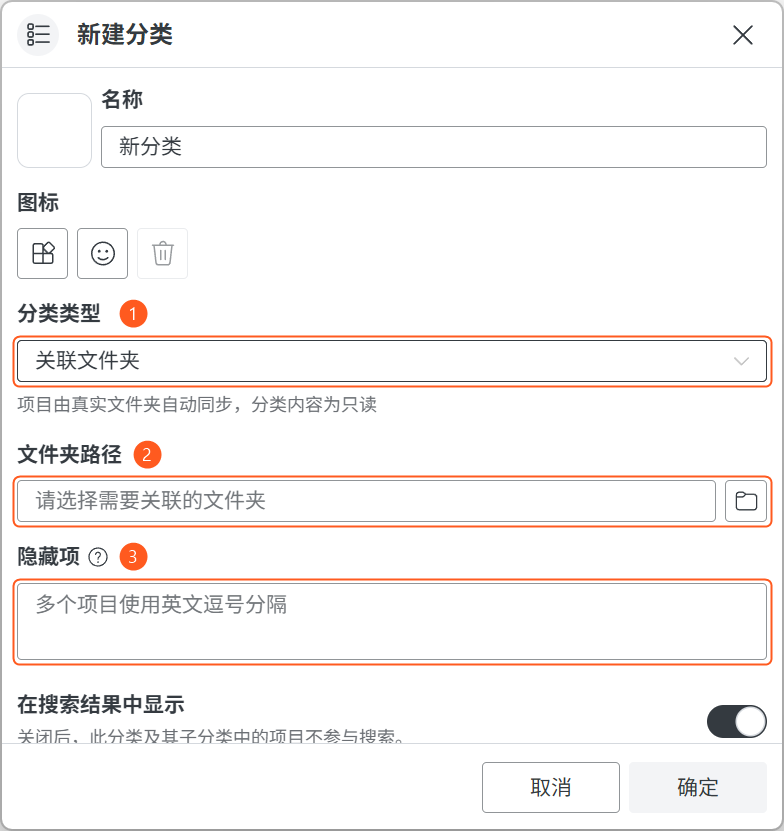
Category type
Linked folders sync items automatically. Category contents are read-only.
Folder path
Select a folder on your computer to link.
Hidden items
Enter actual file or folder names, such as
Readme.txt,Backup, separated with commas. Originals are not deleted.
1.3Aggregate categories
Gather items from other categories without copying them. Open New category → Category type → Aggregate category to set sorting, count and type.
Top-level only; no manual items or subcategories. Change filters via Edit category.
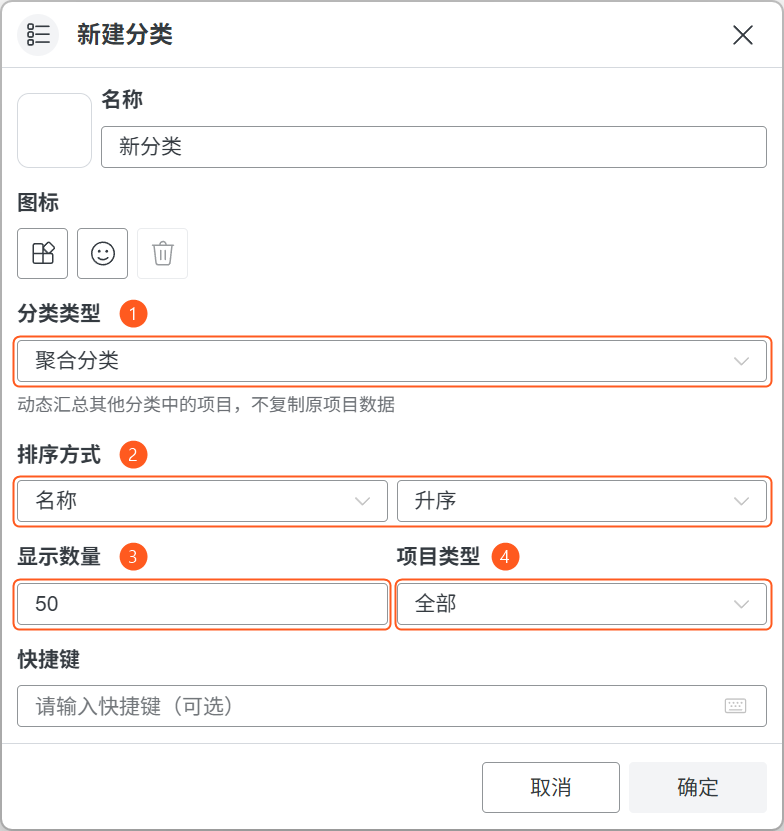
Category type
Aggregate items from other categories without copying their data.
Sorting
Choose a sorting field and ascending or descending order.
Display count
Set how many items to show in the aggregate category.
Item type
Filter which types of items to display.
1.4Right-click a category
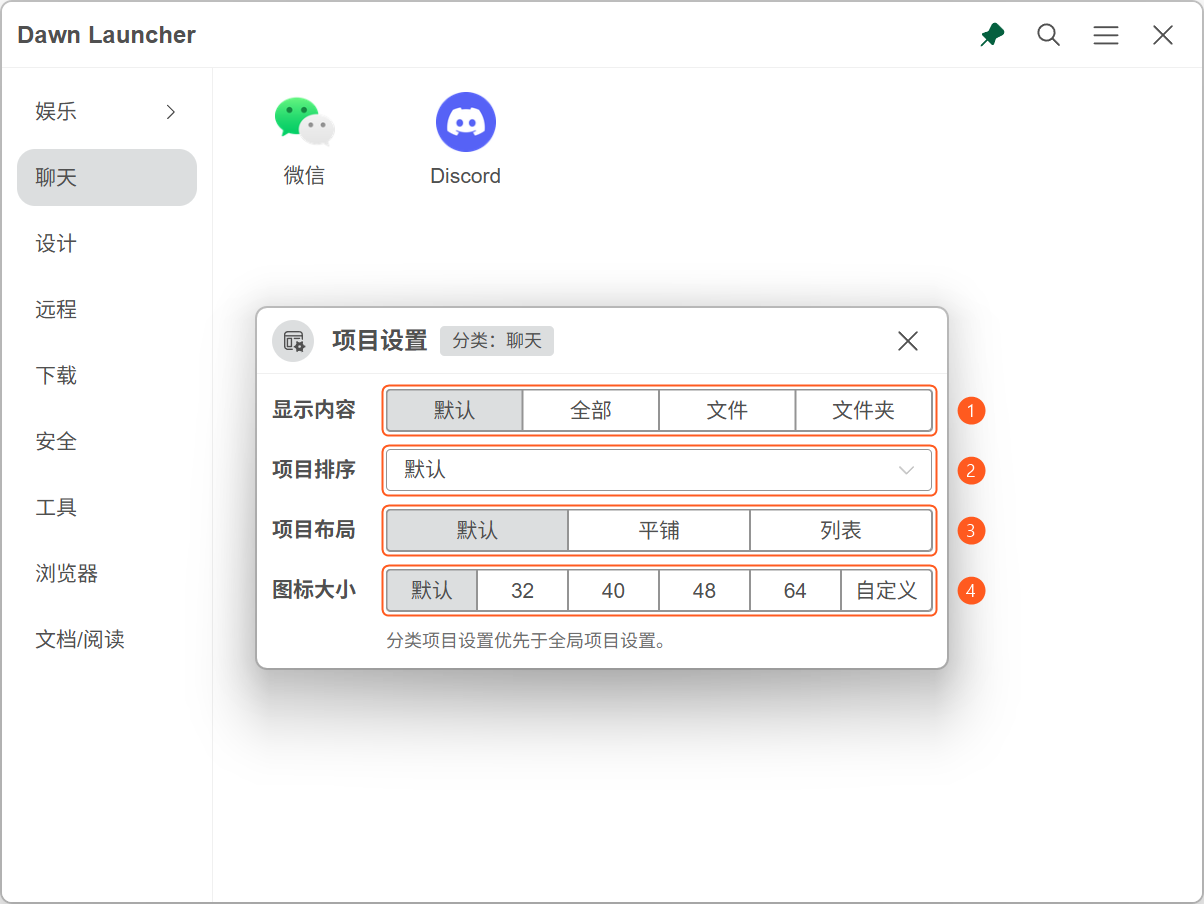
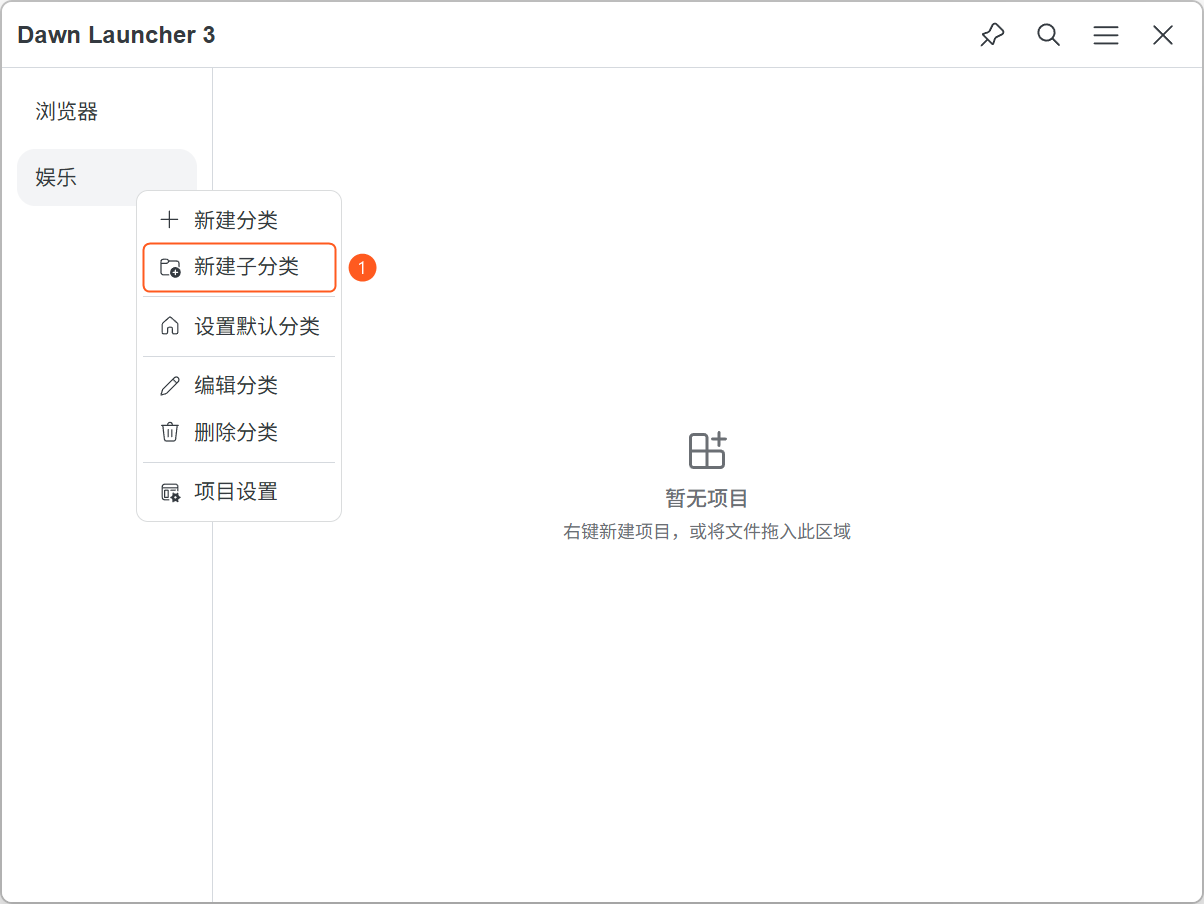
Right-click a category name to create, edit, delete, set a default or open item settings.
Only one default category is allowed; category shortcuts take priority. Deleting removes subcategories and item records, not original files. Keep at least one category.
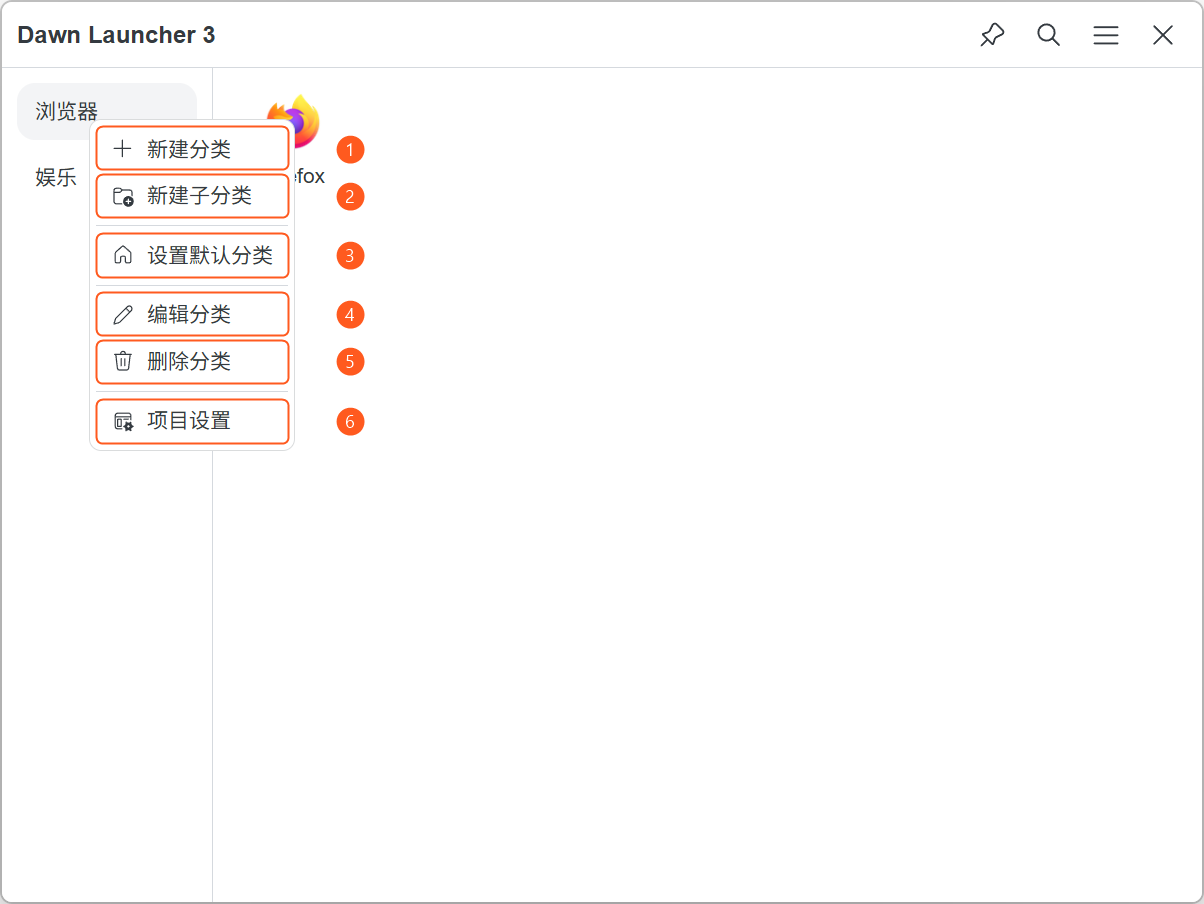
New category
Create a new top-level category.
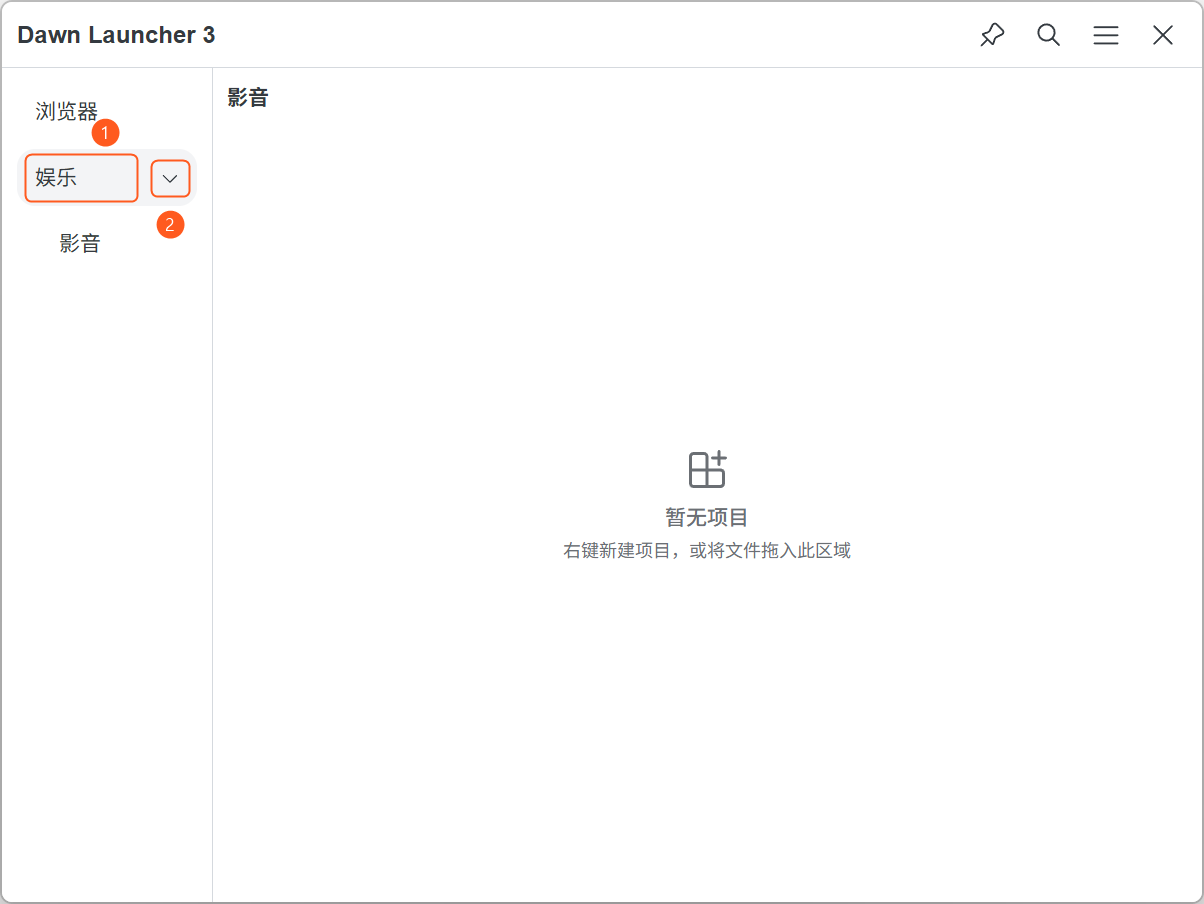
New subcategory
Create a subcategory; only top-level normal categories support this.
Set default category
Show this category on normal main-window activation. Only one default is allowed; right-click again to remove it. Category shortcuts take priority.
Edit category
Change the category name, icon and other category settings.
Delete category
Remove this category, its subcategories and item records. Original files are not deleted; keep at least one category.
Item settings
Adjust item layout and sorting for this category. For aggregate categories, use Edit category.
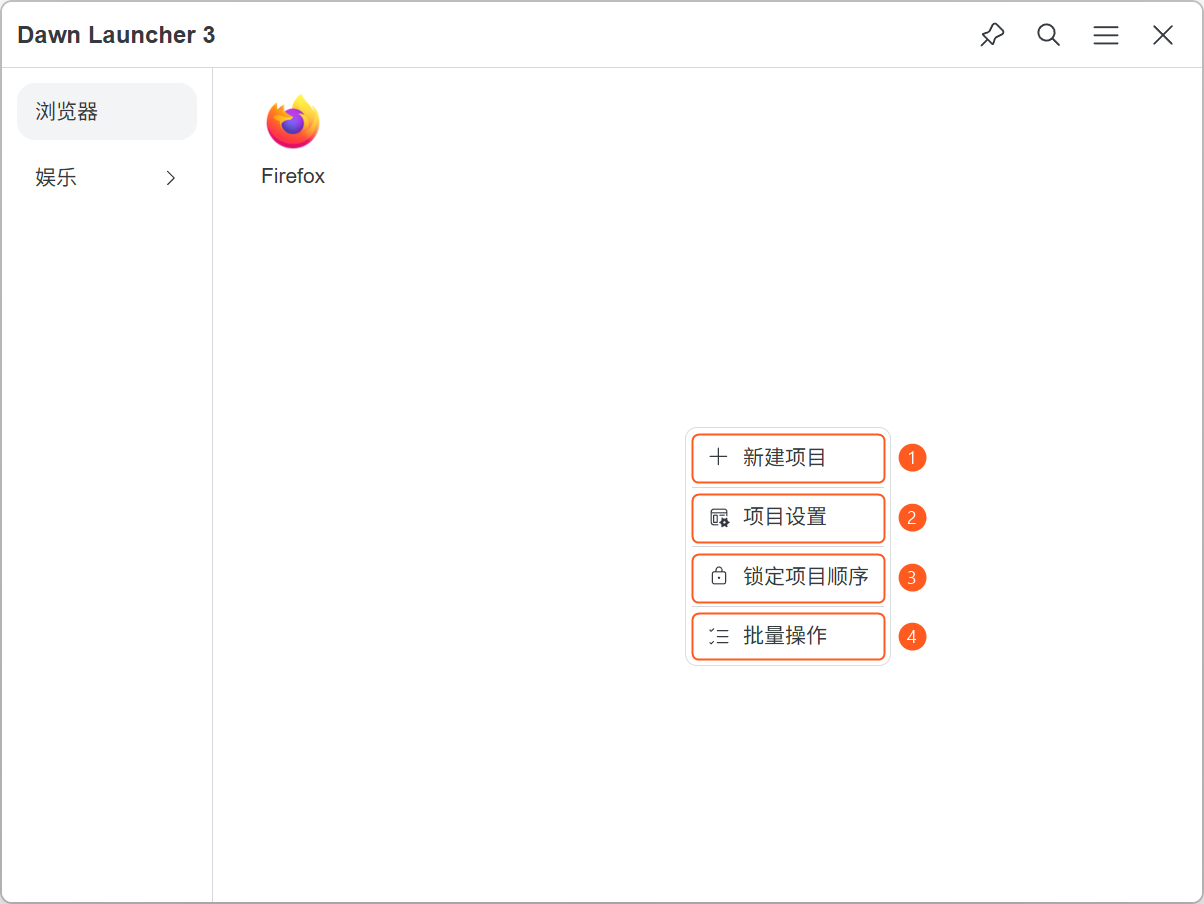
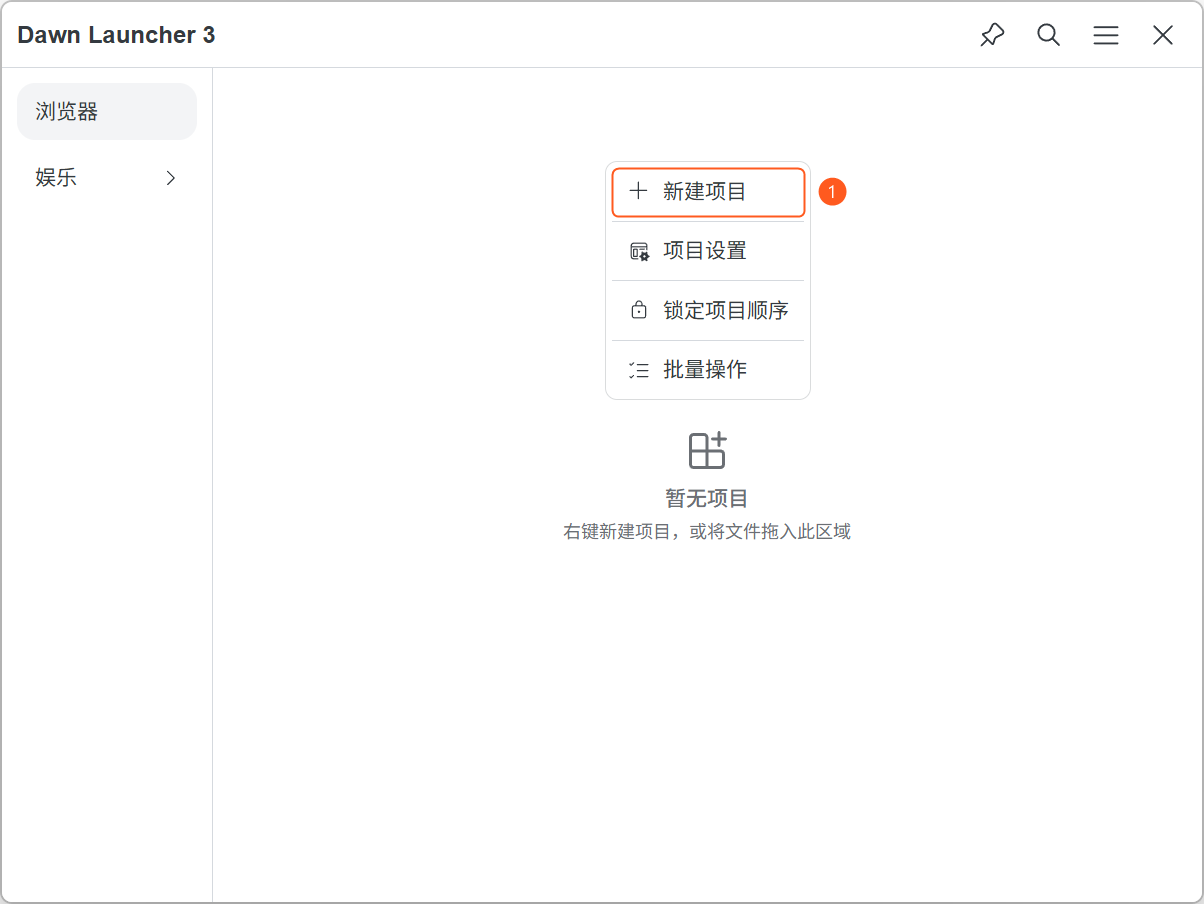
1.5Right-click an empty category area
Right-click an empty category area to create a category or lock/unlock order. Drag when unlocked; subcategories reorder within their parent only.
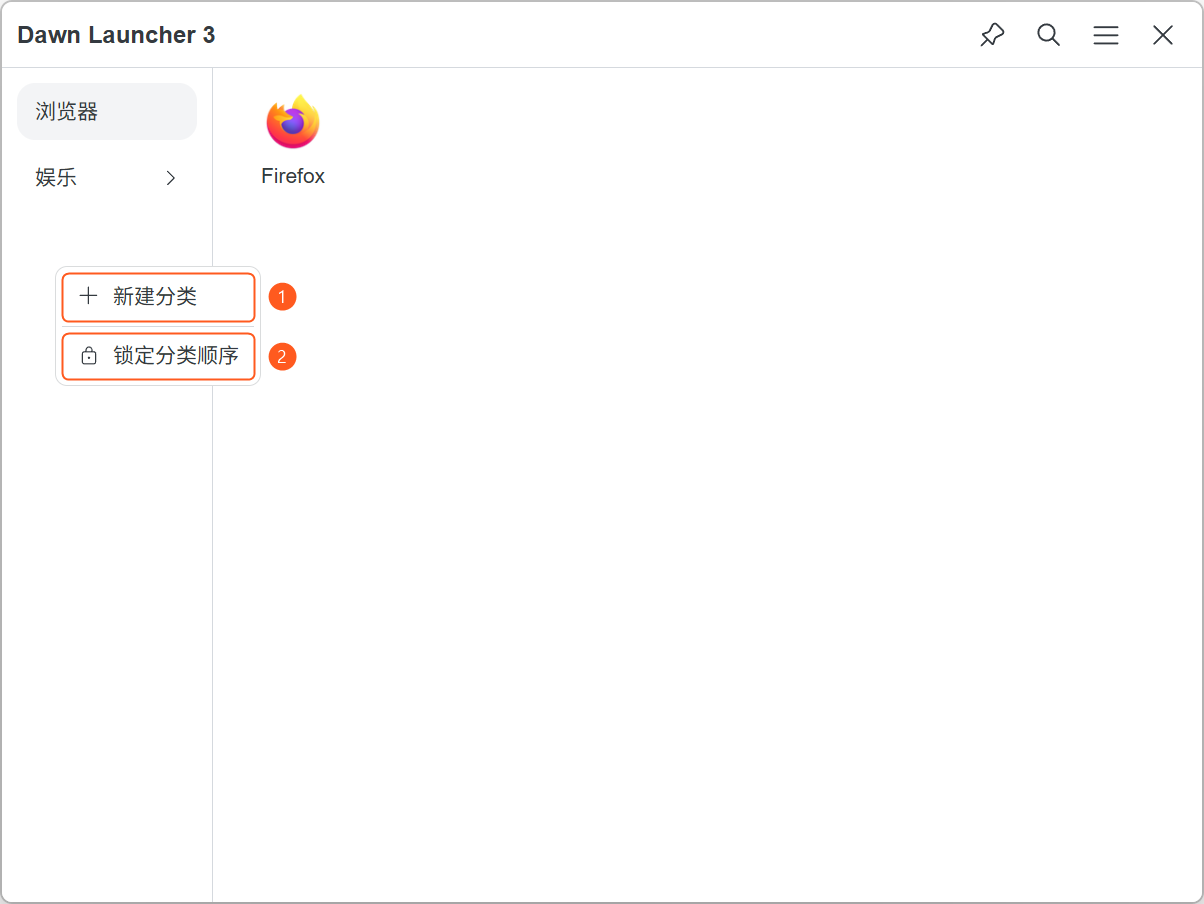
New category
Create a new top-level category.
Lock category order
Locking prevents drag reordering. Unlock before rearranging categories.
1.6Category icon mode
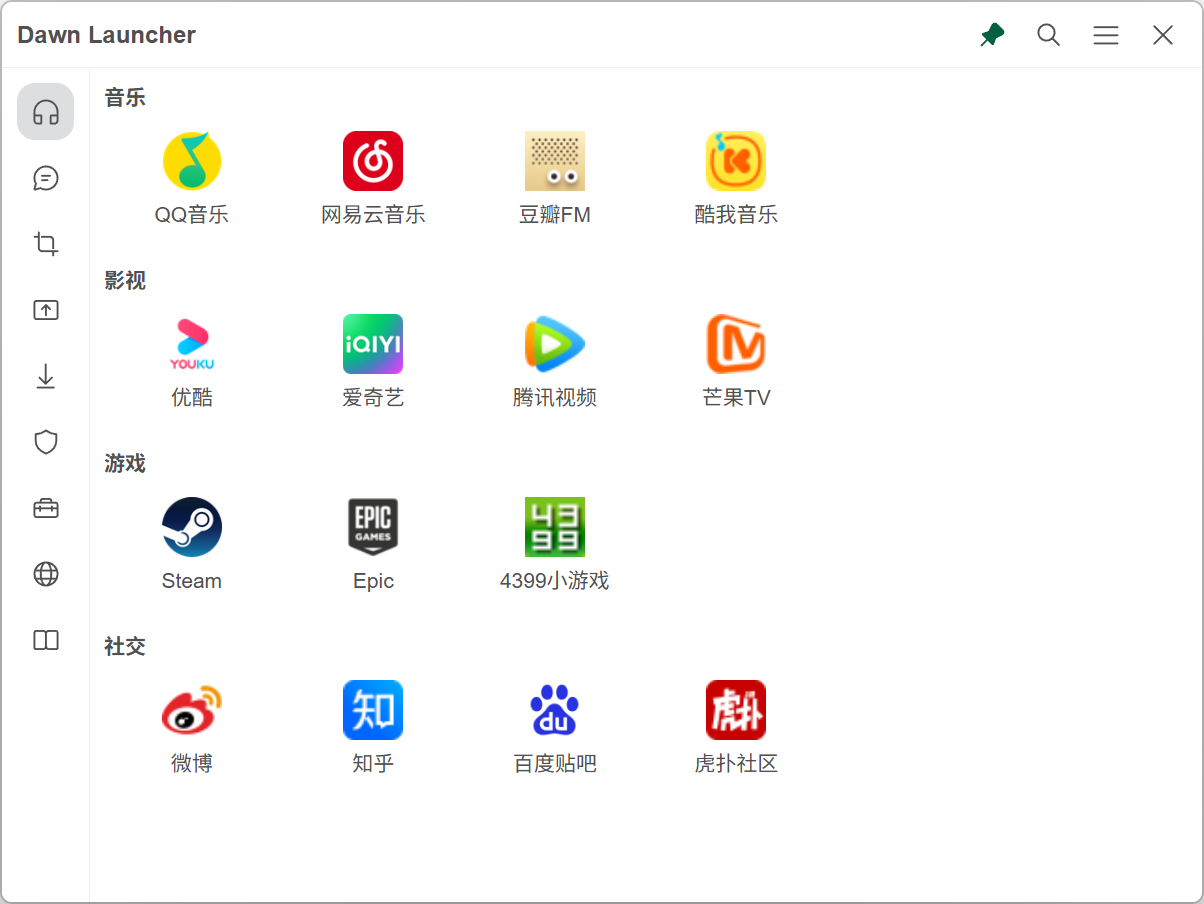
Show only category icons; click one to switch categories.
Open Main menu → Settings → Categories → Display mode → Icons only. This example uses Left layout. Choose Icons and names to restore names.
Set icons via Right-click category → Edit category → Icon.
1.7Categories at the top
Place the category bar above the items.
Open Main menu → Settings → Categories → Layout → Top. This example uses the Icons and names display mode.