DAWN 2 · PROFESSIONAL

Dawn Launcher 2: More features. More control.

Dawn Launcher 2 is the mature, actively maintained Pro edition. Tune its interface, categories, items, launch gestures, and backups to fit the way you work.

01
26 features
02
30 interface screenshots
03
Windows 10 / 11
Dawn Launcher 2 main window interface

FEATURE CATALOG

Everything in Dawn Launcher 2

Explore 26 Pro features organized by workflow and see everything Dawn Launcher 2 can do.

01

Interface & categories

8
01

A redesigned main interface

Switch the main-window layout from Settings → Appearance → UI.
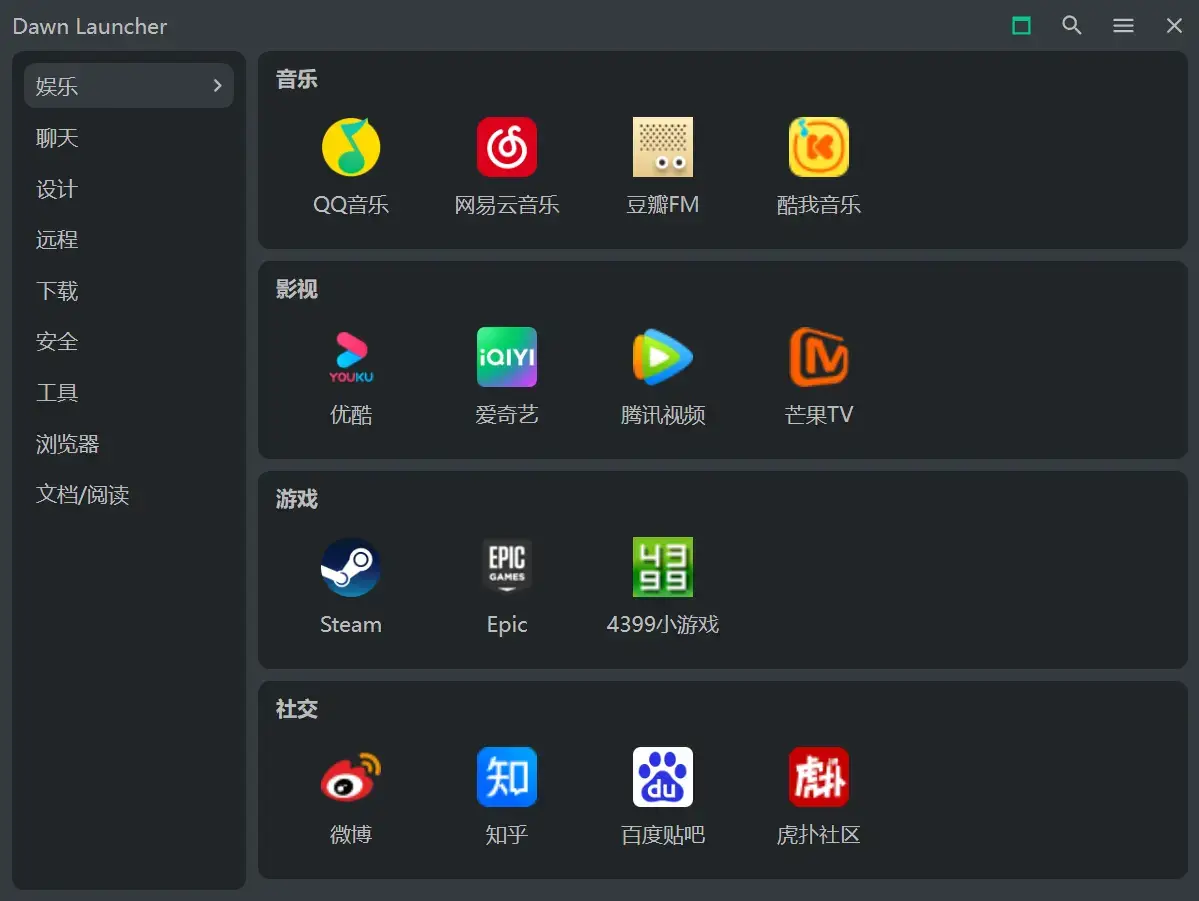
A redesigned main interface — feature interface screenshot 1
02

A redesigned subcategory interface

Choose the subcategory layout that best fits your setup.
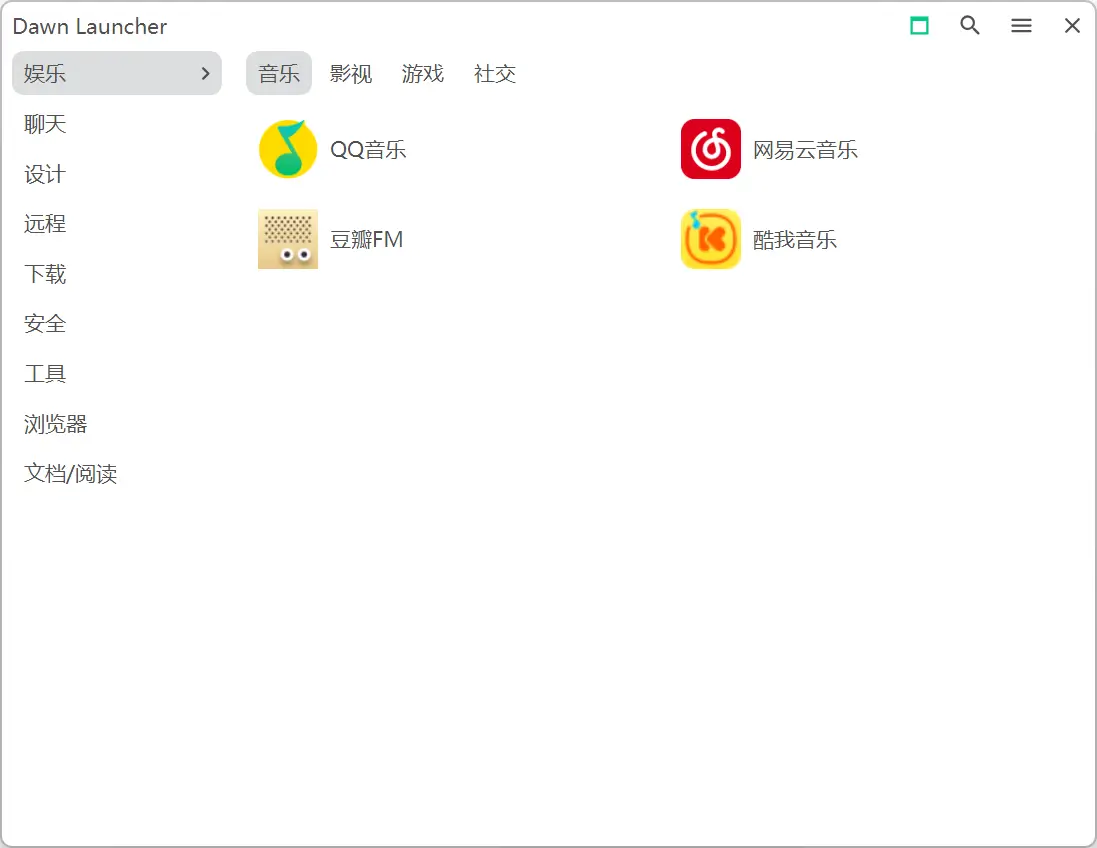
A redesigned subcategory interface — feature interface screenshot 1
03

Standalone category window

Create and edit categories in a focused, standalone window.
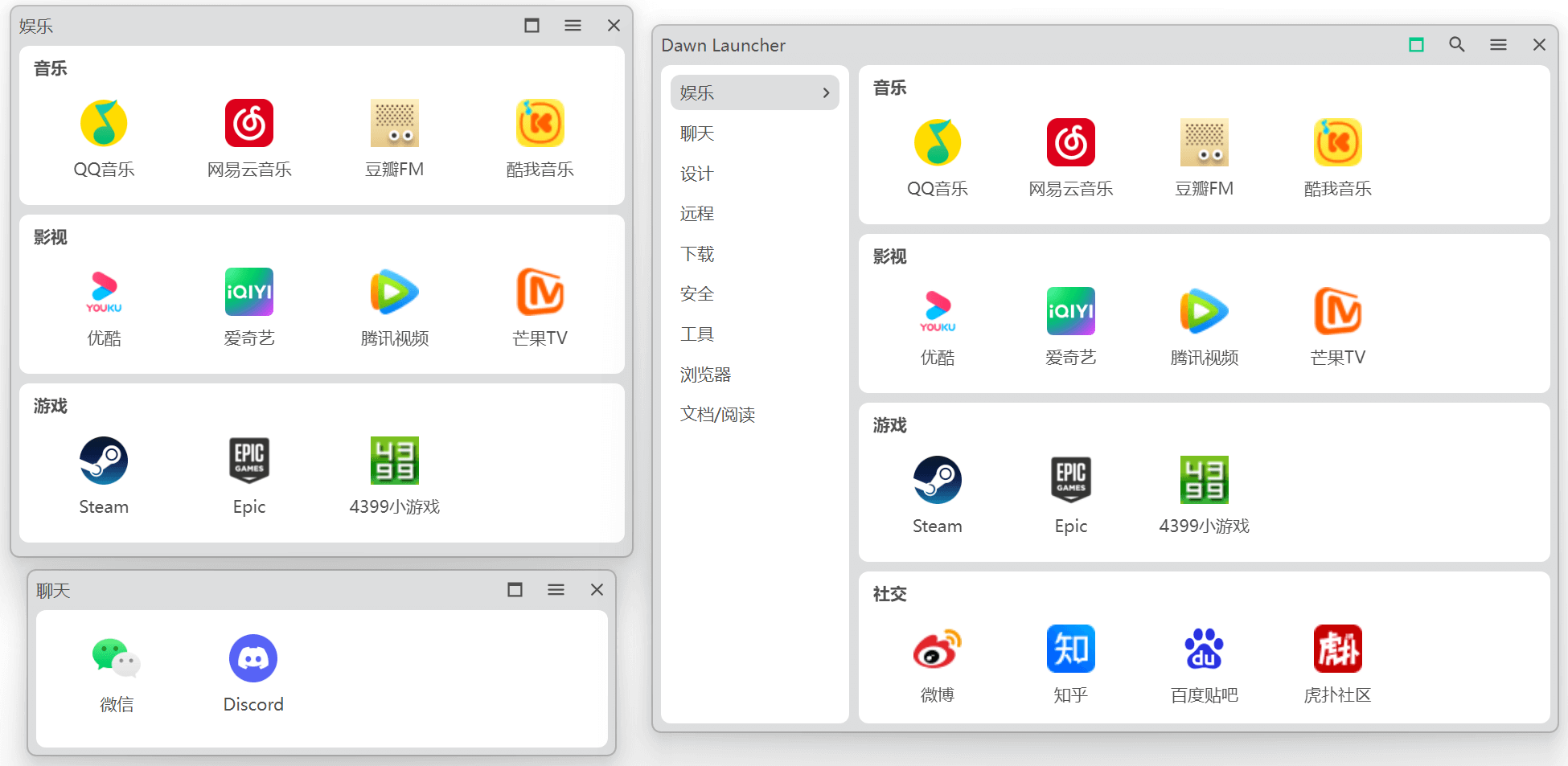
Standalone category window — feature interface screenshot 1
04

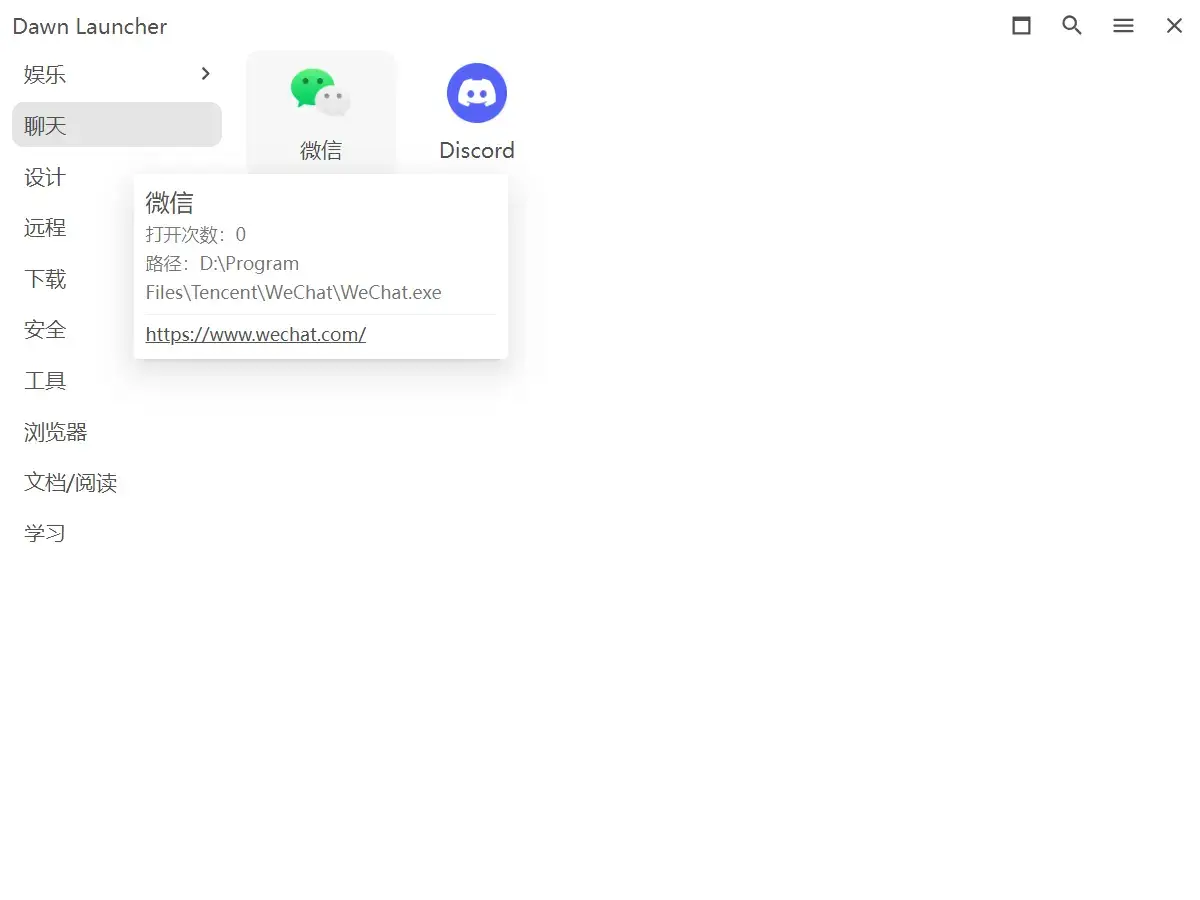
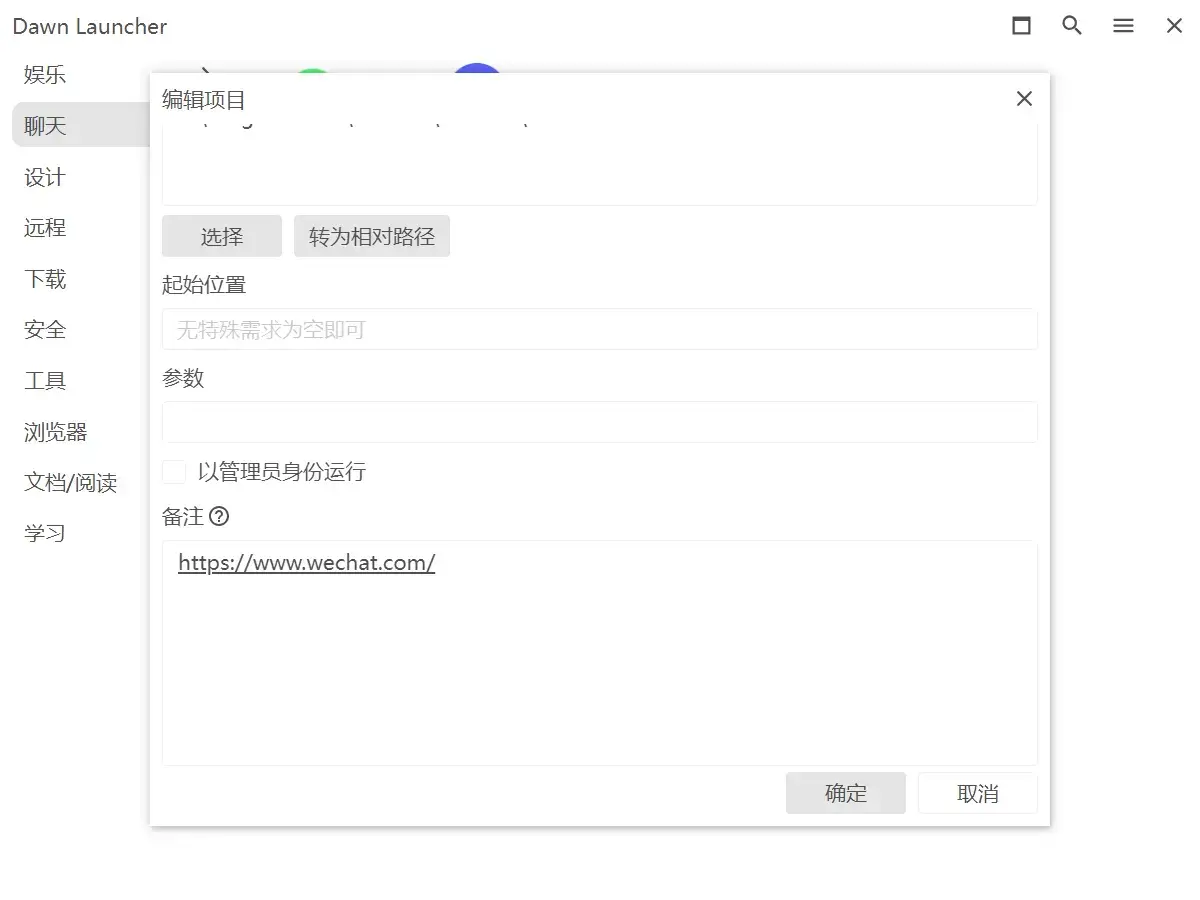
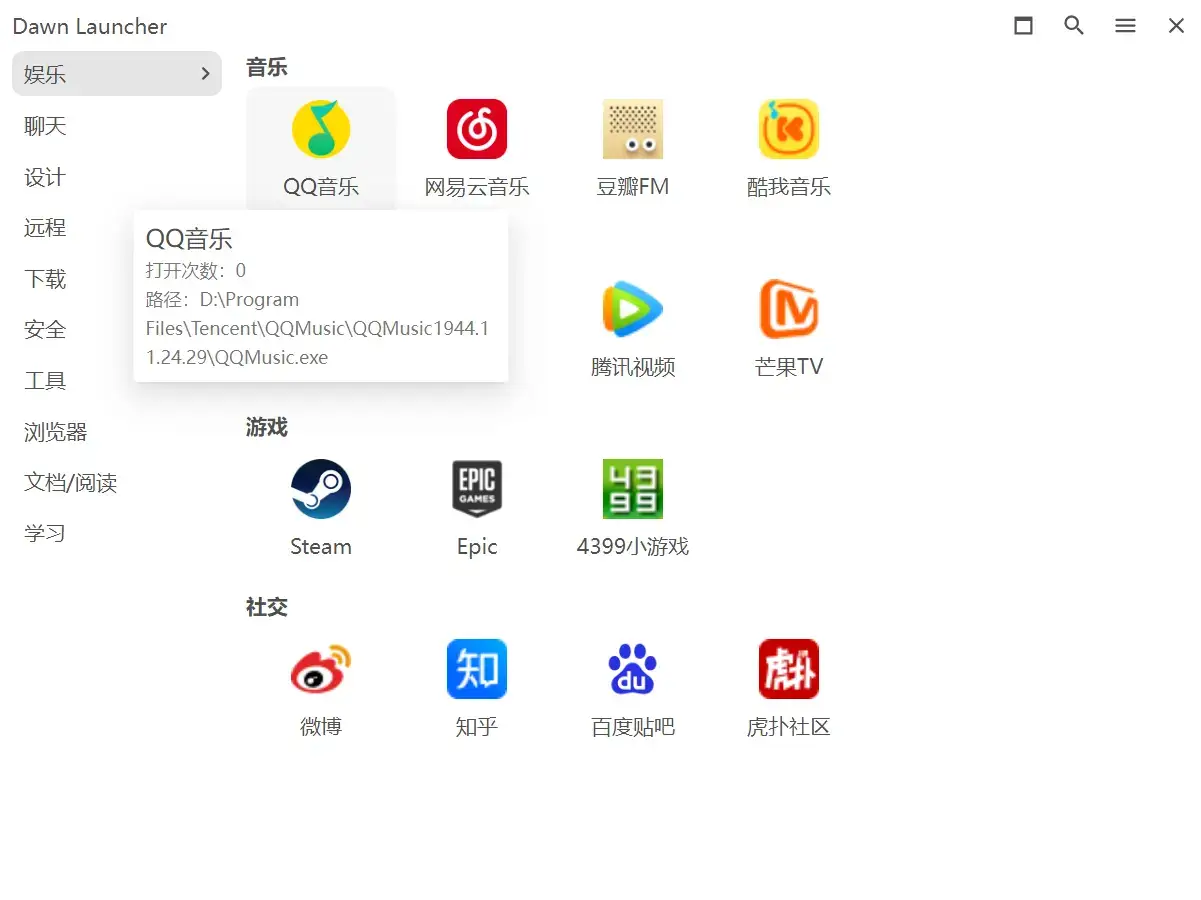
Richer tooltips and links

Copy tooltip content and add web or local-file links to notes.
05

Custom transparent-window corners

Fine-tune corner radius after enabling transparency and rounded corners.
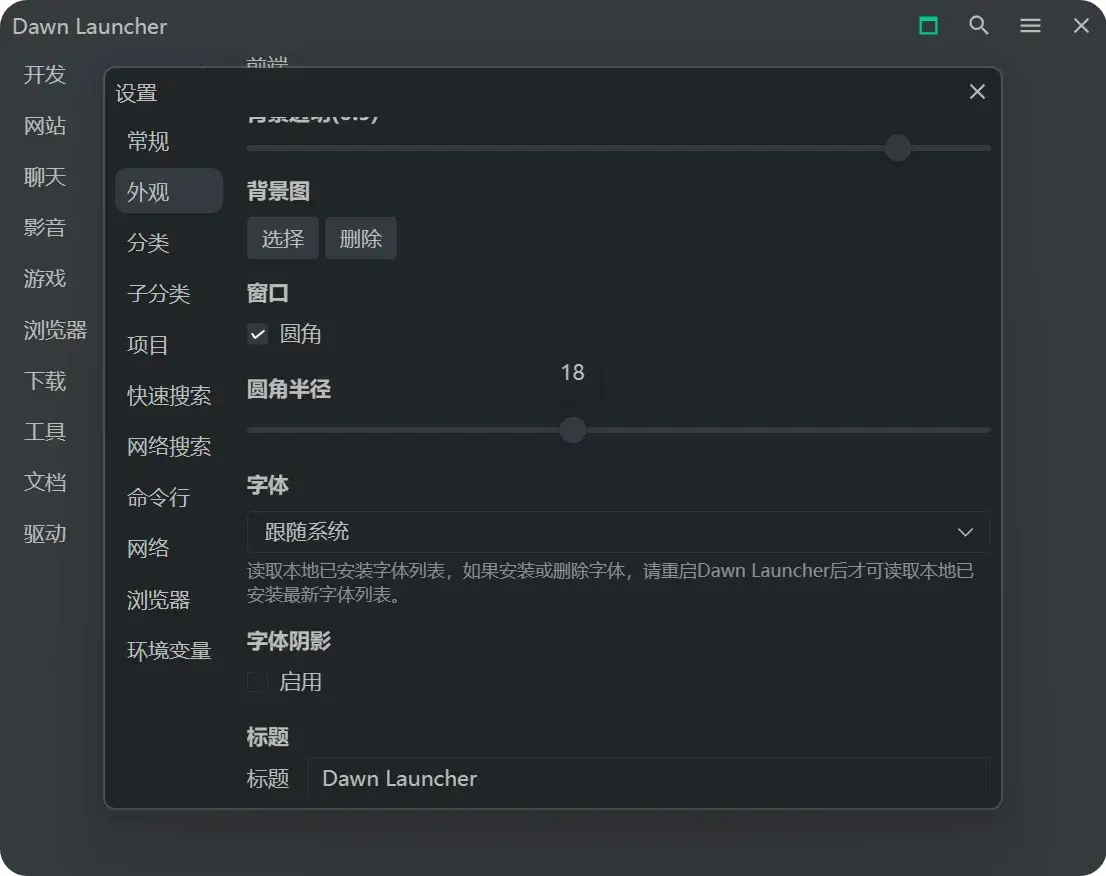
Custom transparent-window corners — feature interface screenshot 1
06

Category fonts

Set the size and weight of category names independently.
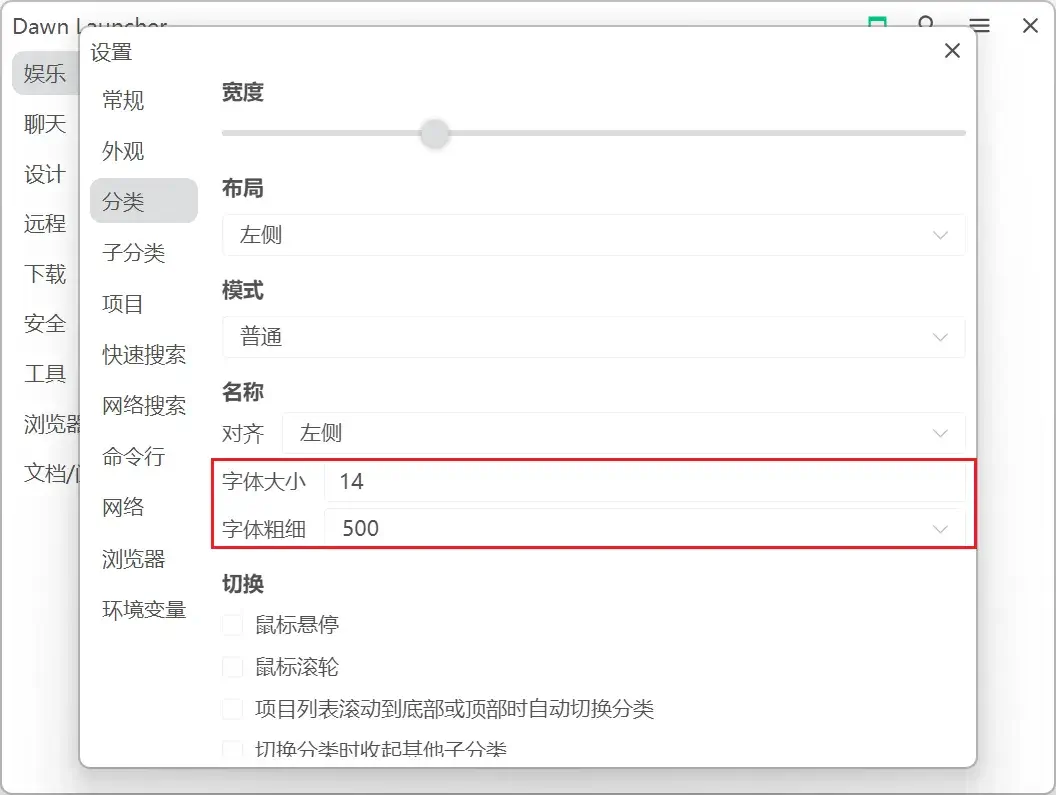
Category fonts — feature interface screenshot 1
07

Custom category icons

Use images, emoji, remote images, or SVG code as category icons.
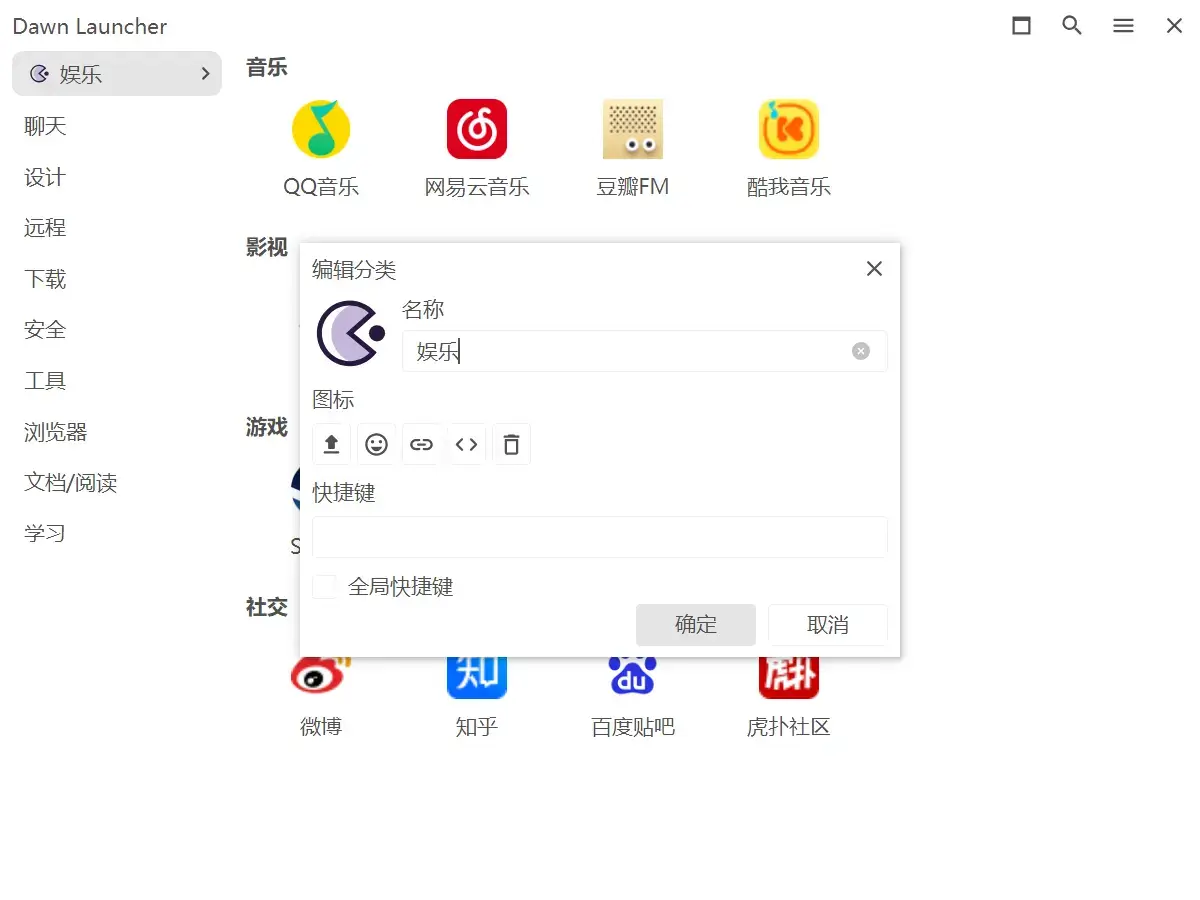
Custom category icons — feature interface screenshot 1
08

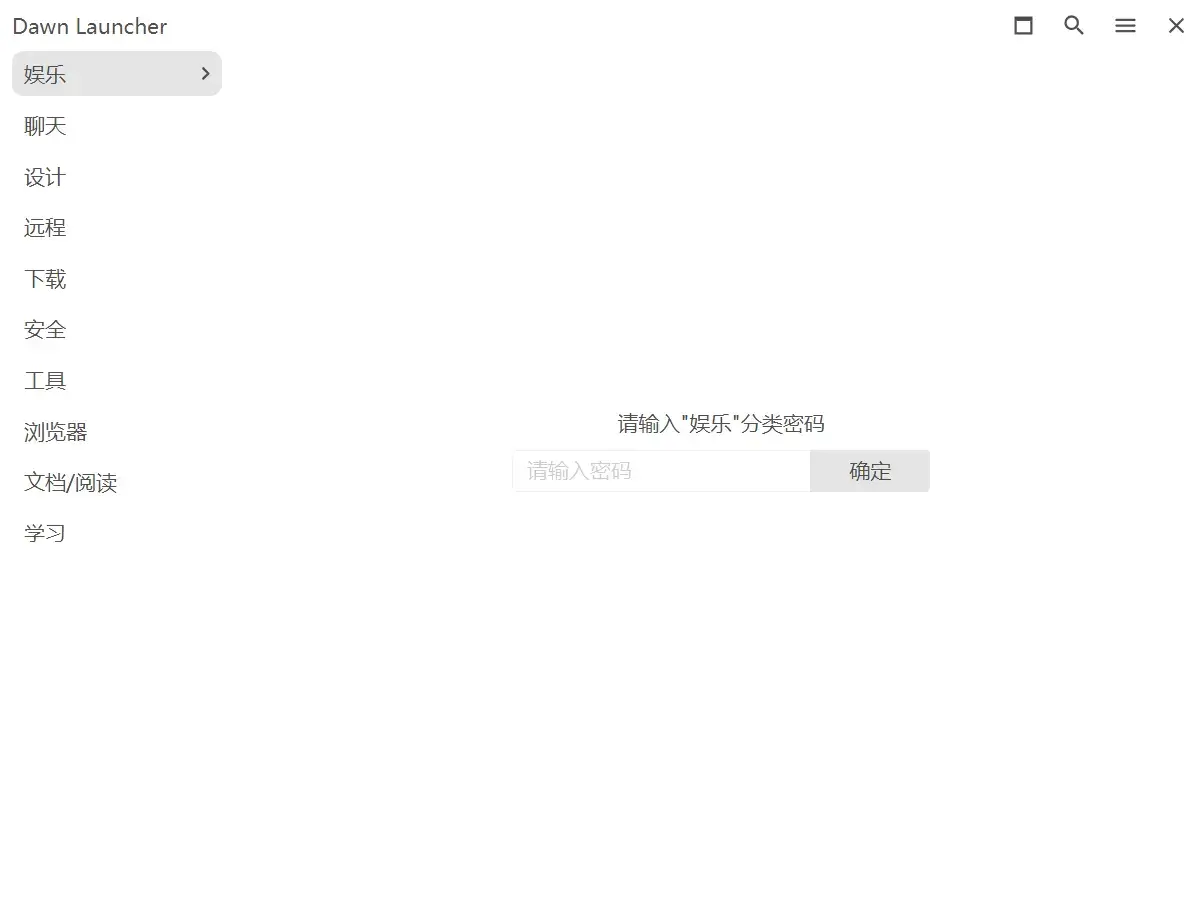
Password-protected categories

Add a password to categories that need extra privacy.
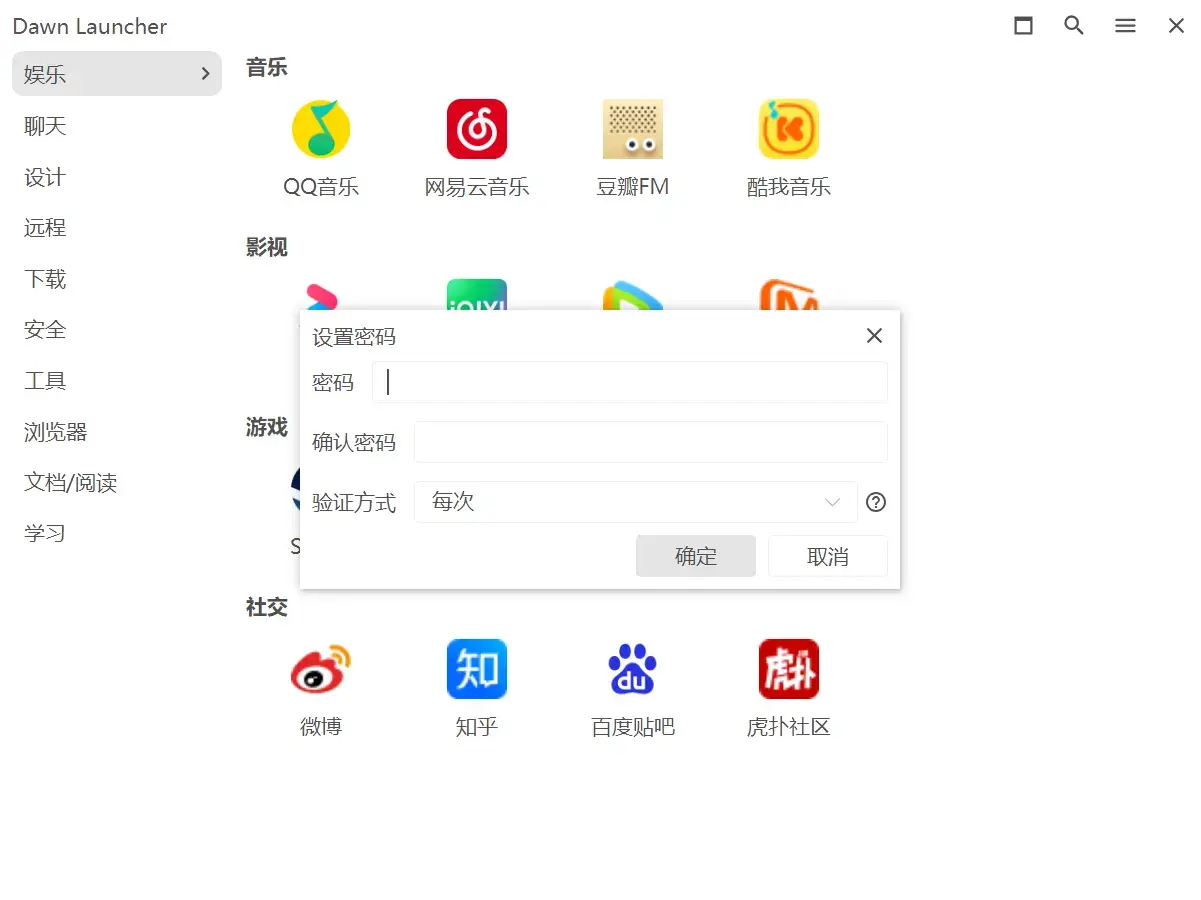
02

Items & folders

7
01

File command-line tools

Run a command with the selected file path supplied as an argument.
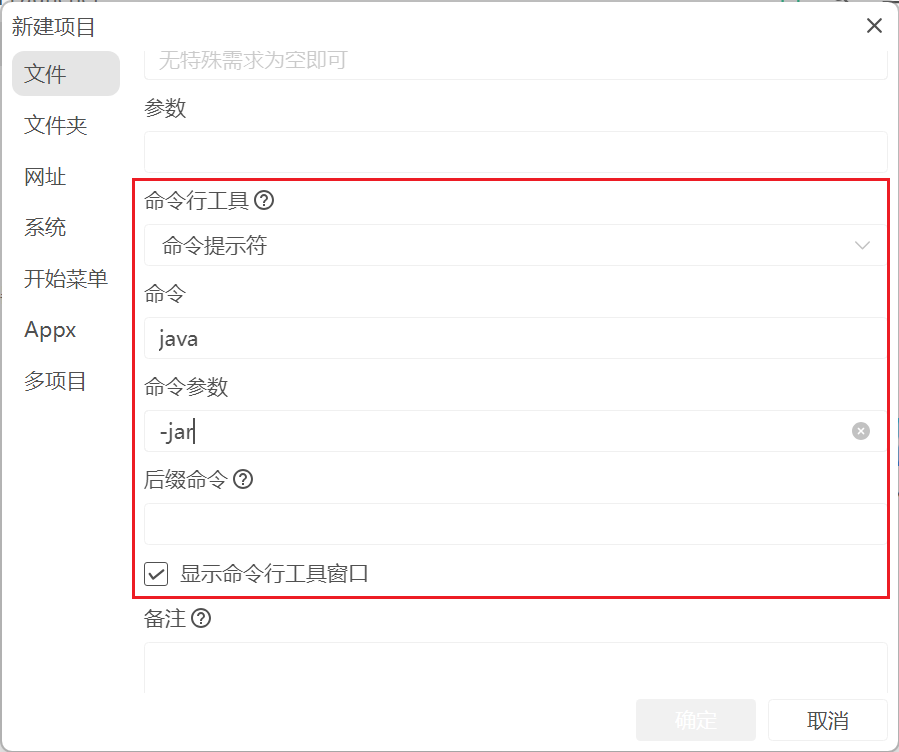
File command-line tools — feature interface screenshot 1
02

Open every item in a category

Use the item-area context menu to launch the whole category at once.
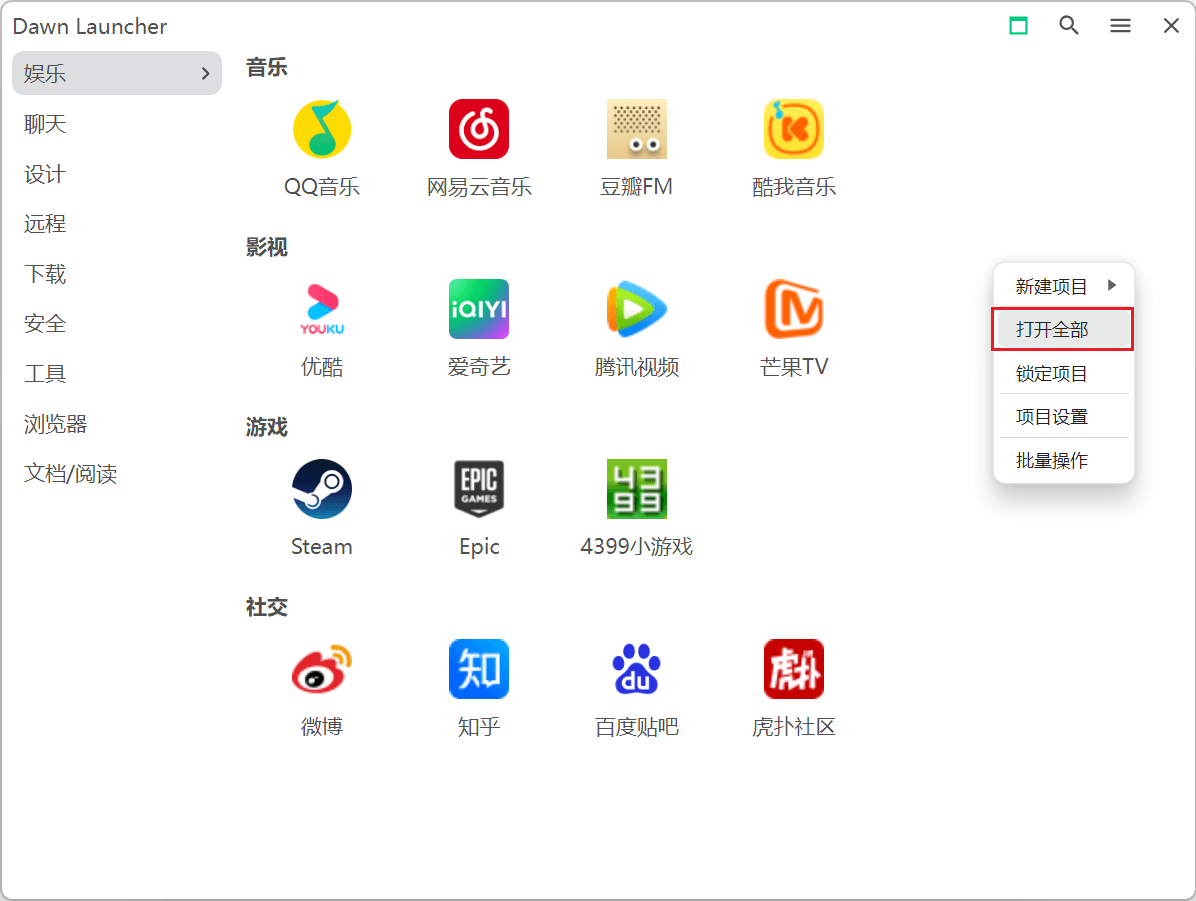
Open every item in a category — feature interface screenshot 1
03

Linked-folder hide rules

Hide linked content by file, folder, or extension.
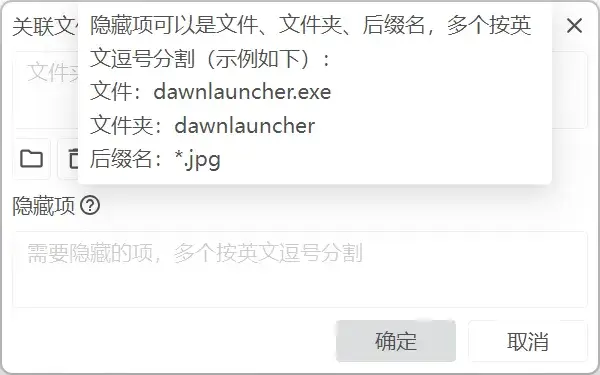
Linked-folder hide rules — feature interface screenshot 1
04

Quickly hide linked items

Hide an item directly from its linked-folder context menu.
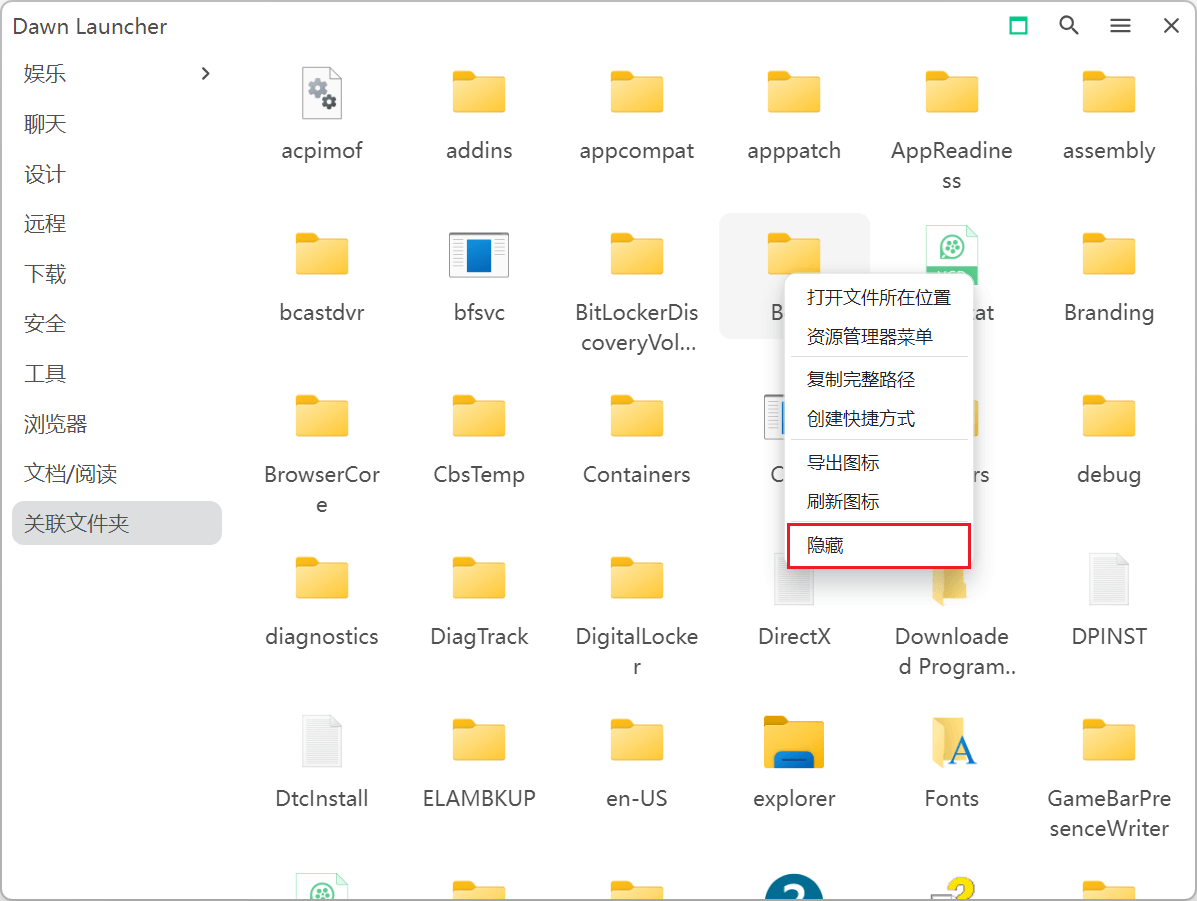
Quickly hide linked items — feature interface screenshot 1
05

Import browser favorites

Create URL items directly from your browser favorites.
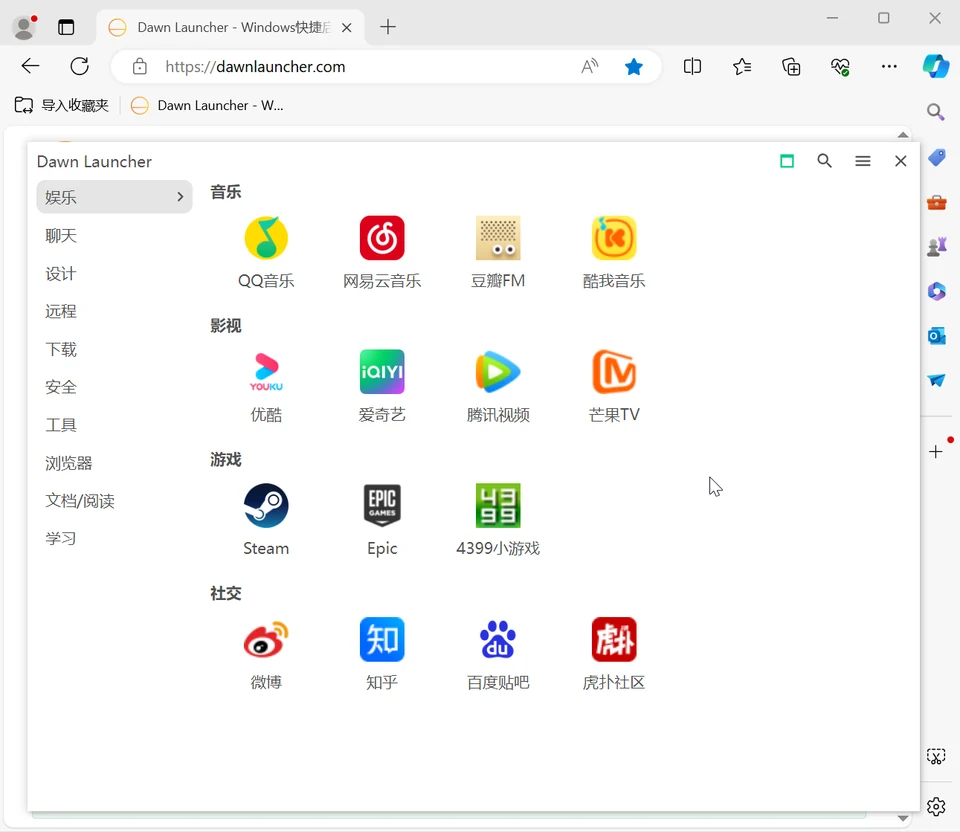
Import browser favorites — feature interface screenshot 1
06

Manage item display in one place

Manage display, layout, sorting, icon size, and item width together.
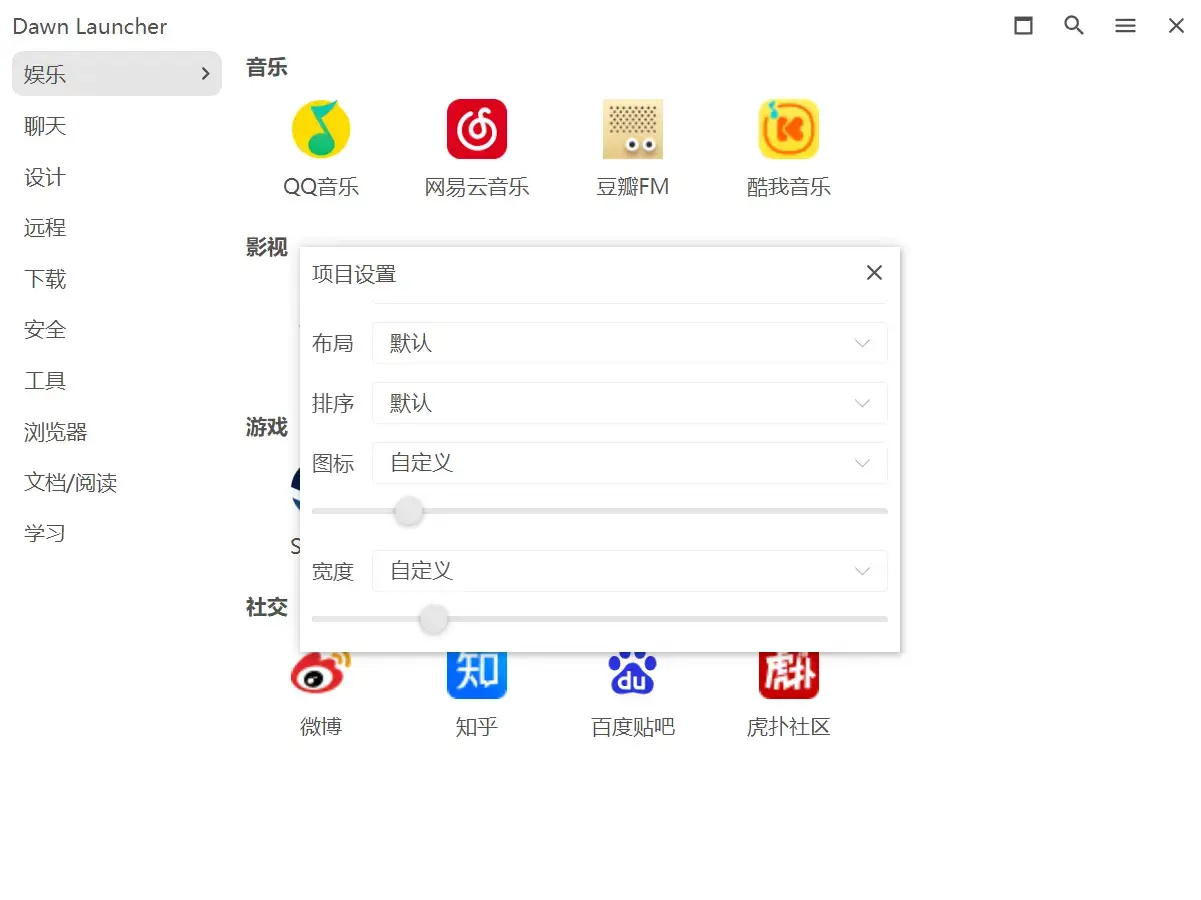
Manage item display in one place — feature interface screenshot 1
07

Locate search results

Jump from Quick Search or main search to the selected item in the main window.
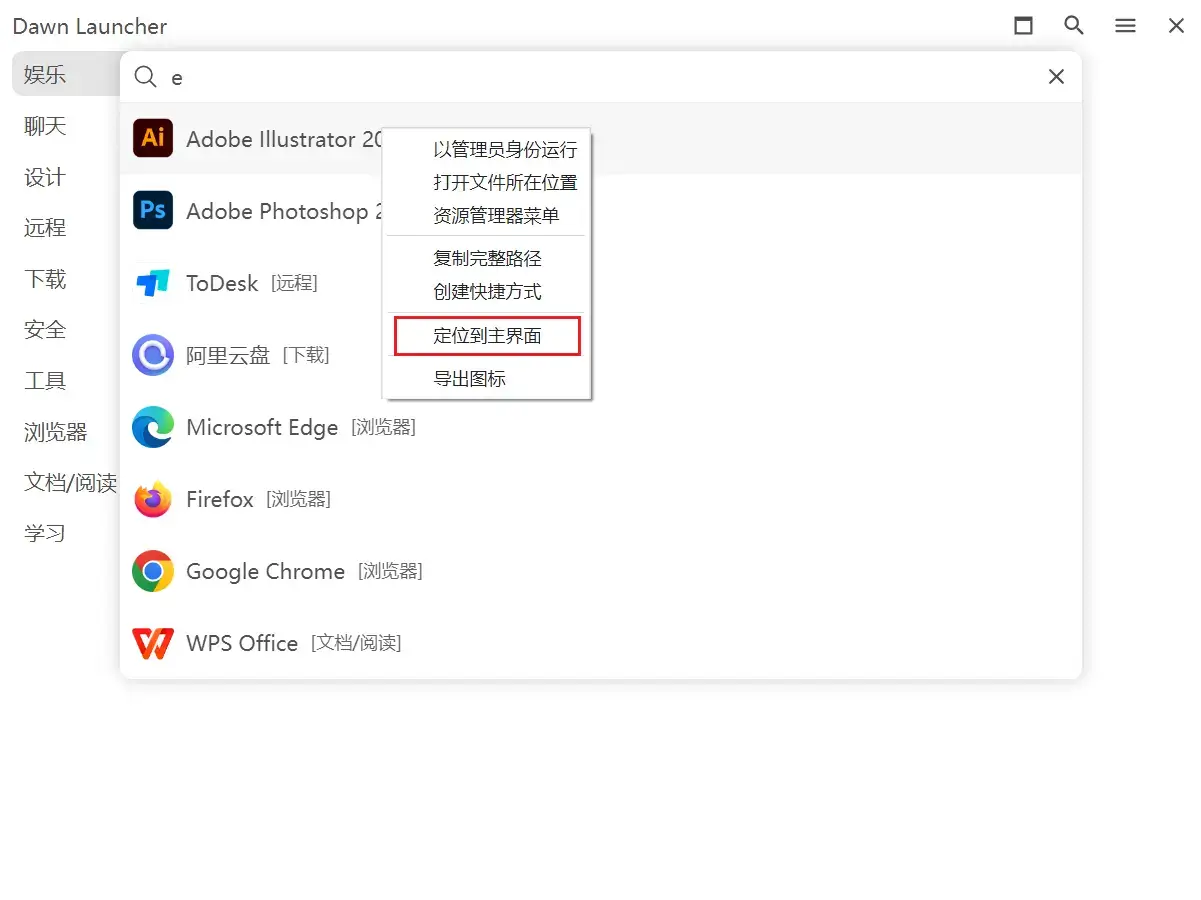
Locate search results — feature interface screenshot 1
03

Quick access

4
01

Double-press Ctrl or Alt

Show the window by pressing Ctrl or Alt twice.
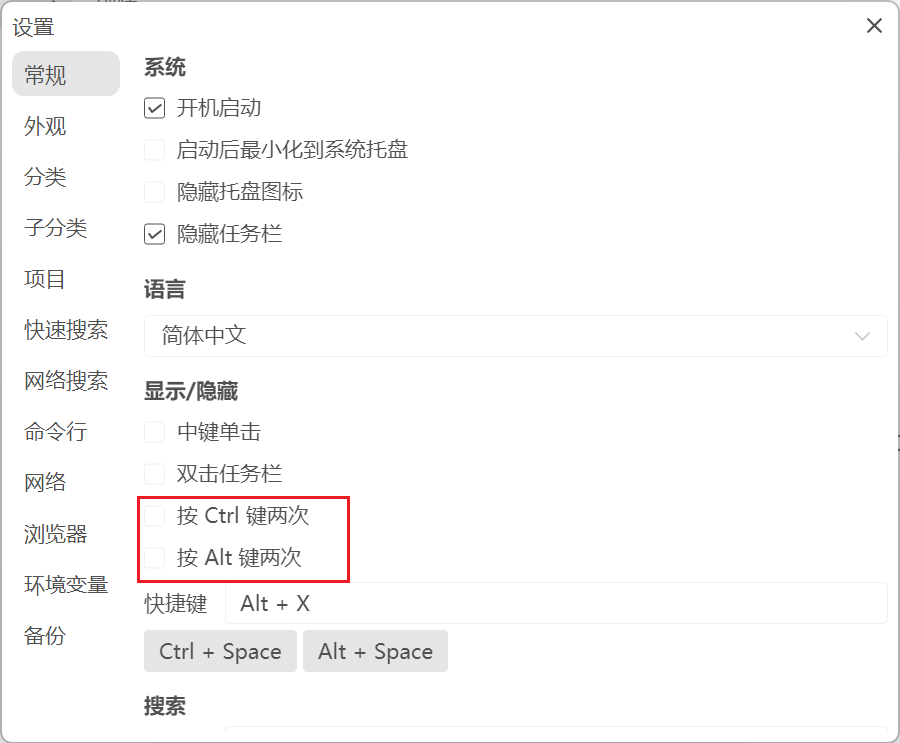
Double-press Ctrl or Alt — feature interface screenshot 1
02

Mouse side-button access

Show or hide the window with a mouse side button.
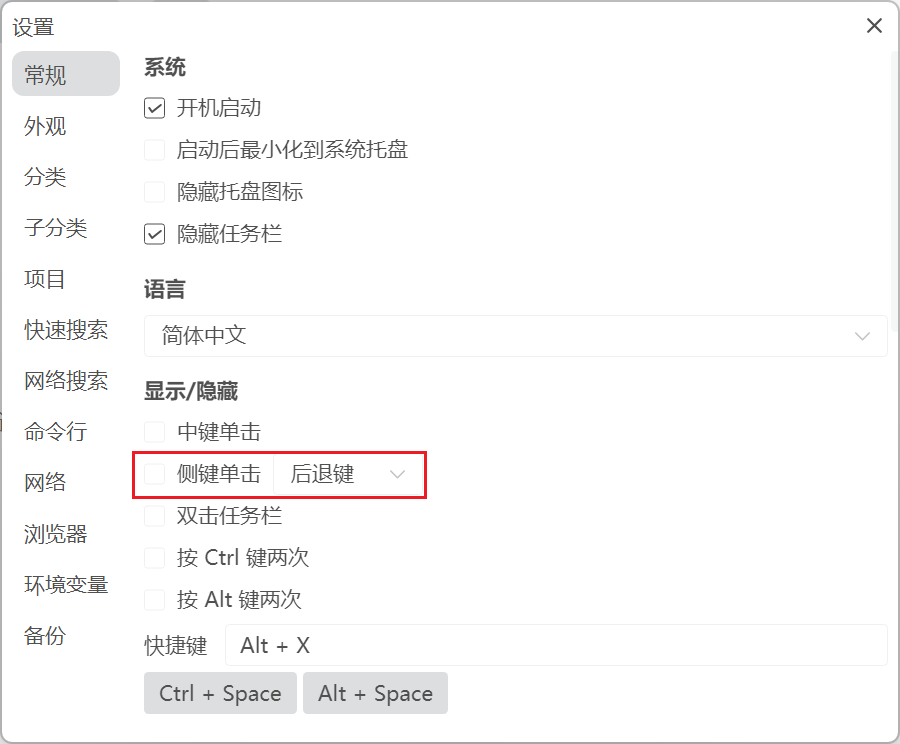
Mouse side-button access — feature interface screenshot 1
03

Double-click to open

Show or hide the window by double-clicking the left mouse button.
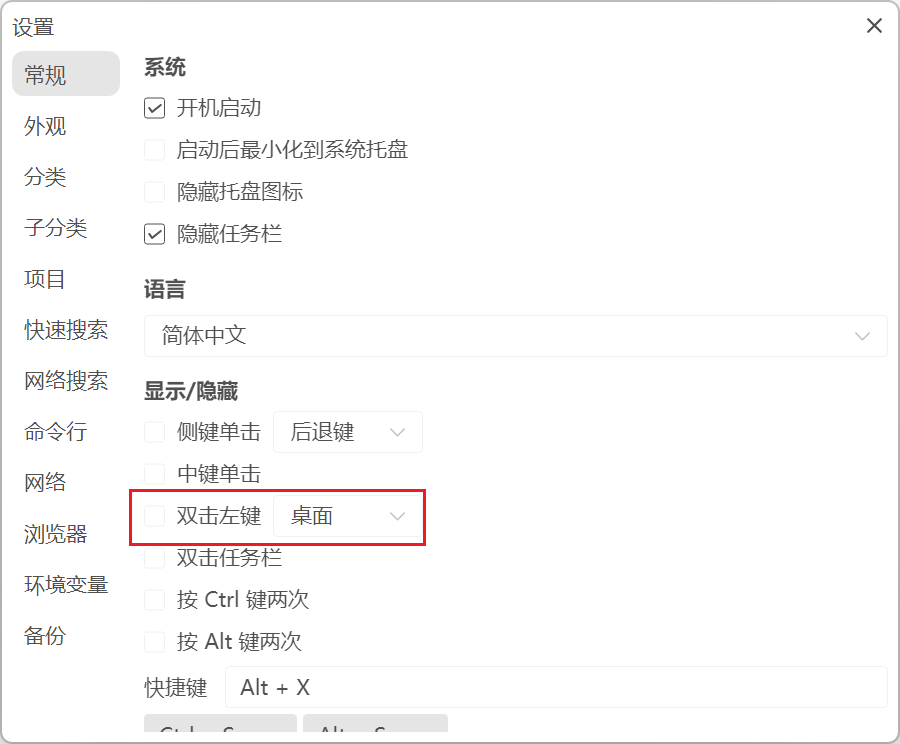
Double-click to open — feature interface screenshot 1
04

Pause or resume shortcuts

Temporarily unregister shortcuts and keep the window hidden until opened directly.
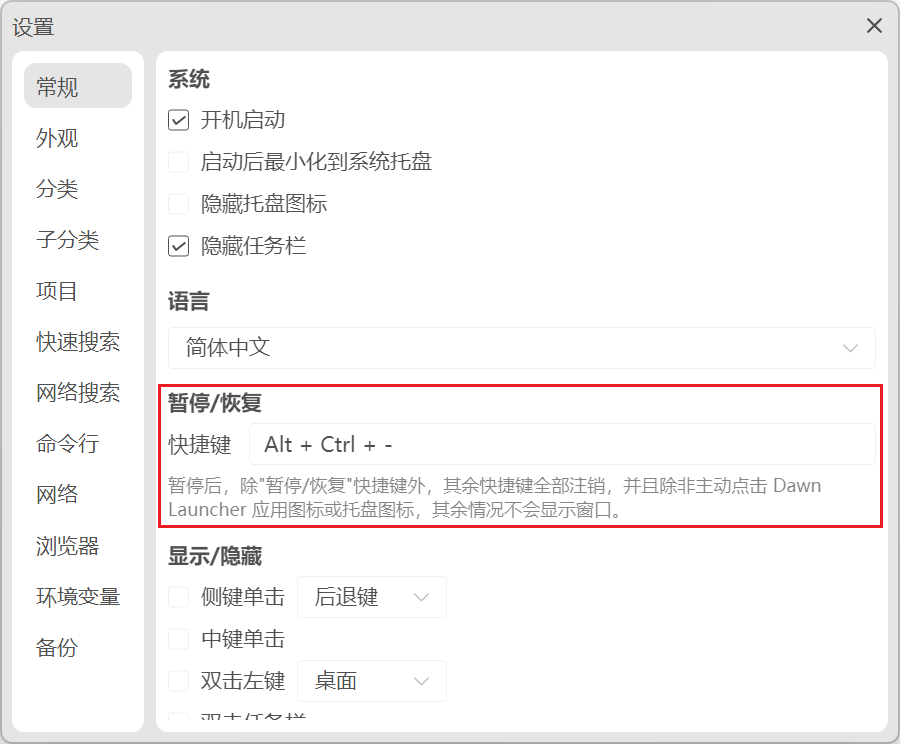
Pause or resume shortcuts — feature interface screenshot 1
04

System & personalization

7
01

Custom fonts

Change the typeface used throughout Dawn Launcher.
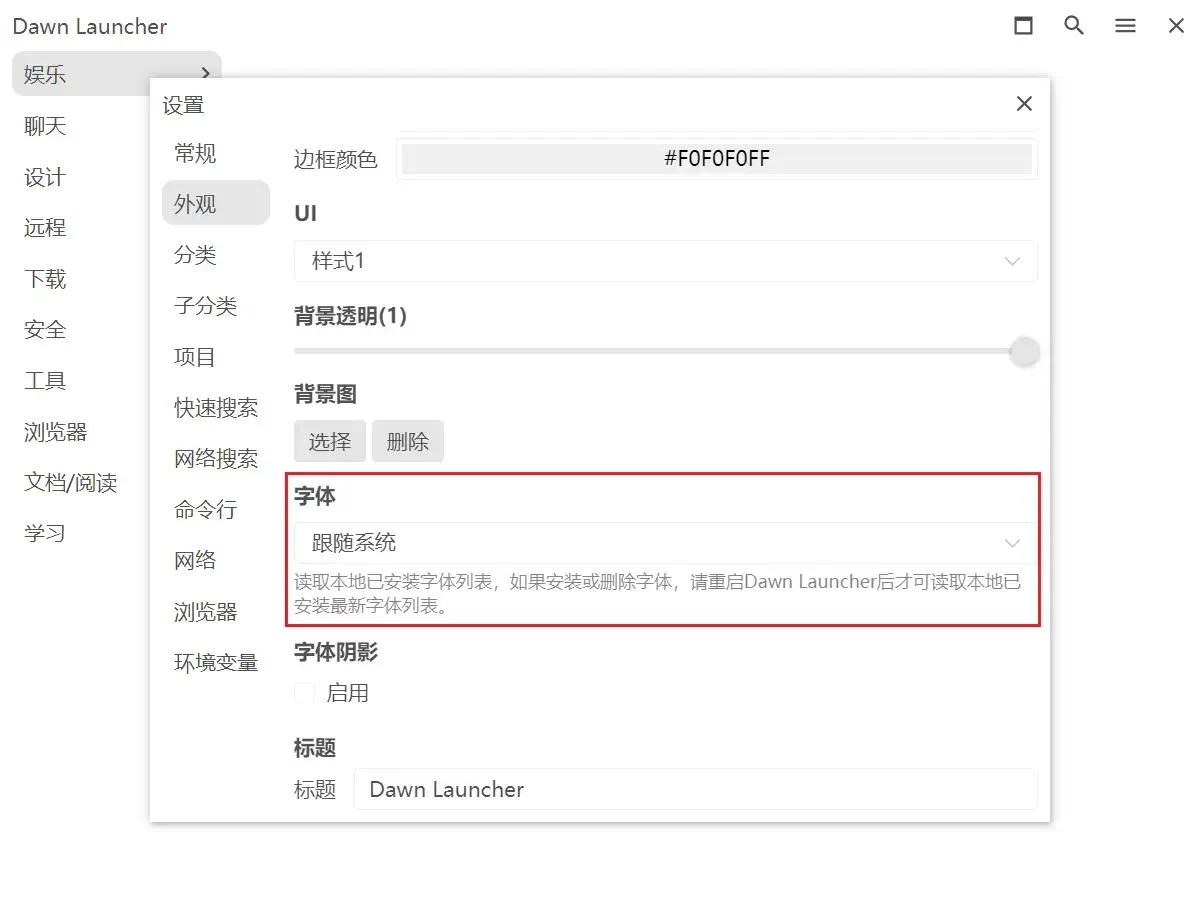
Custom fonts — feature interface screenshot 1
02

Prefer relative paths

Store relative paths first when creating items for easier portable use.
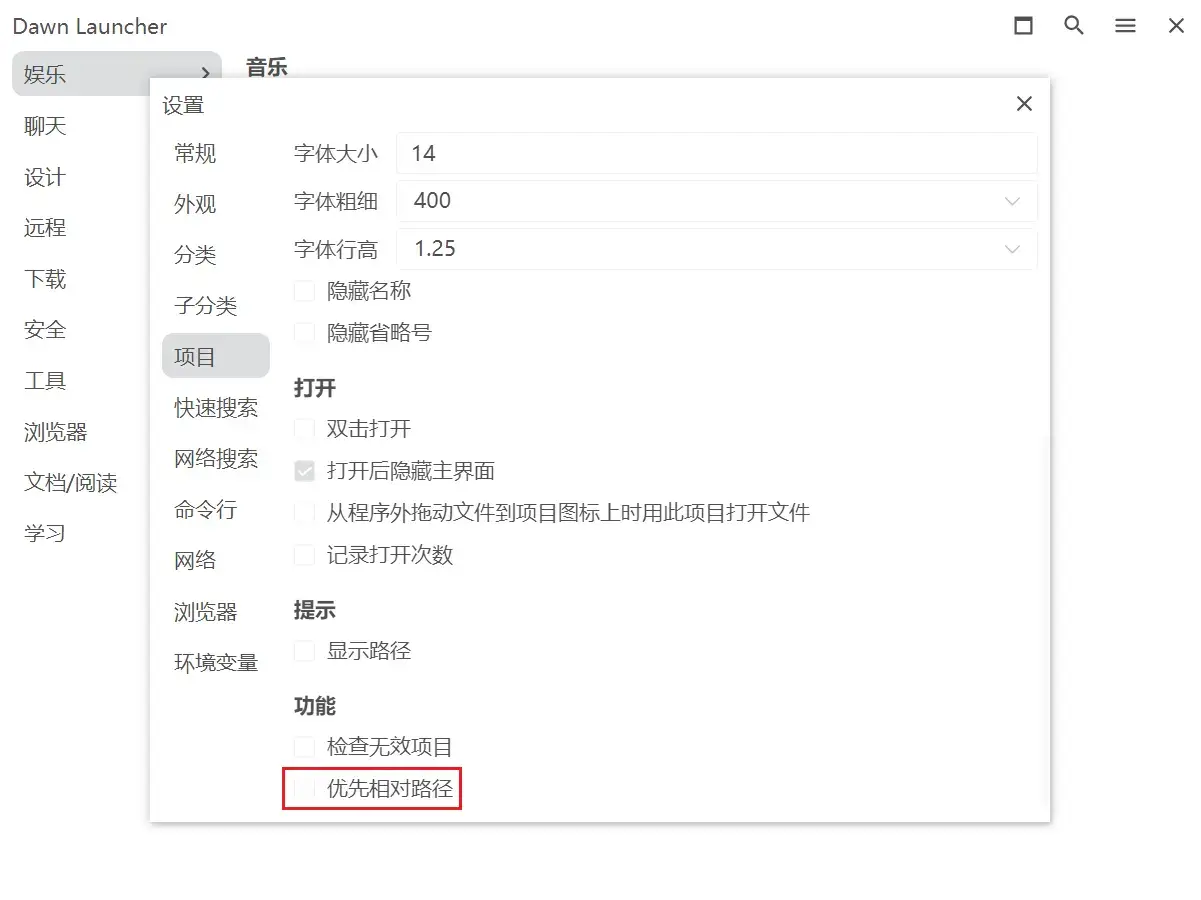
Prefer relative paths — feature interface screenshot 1
03

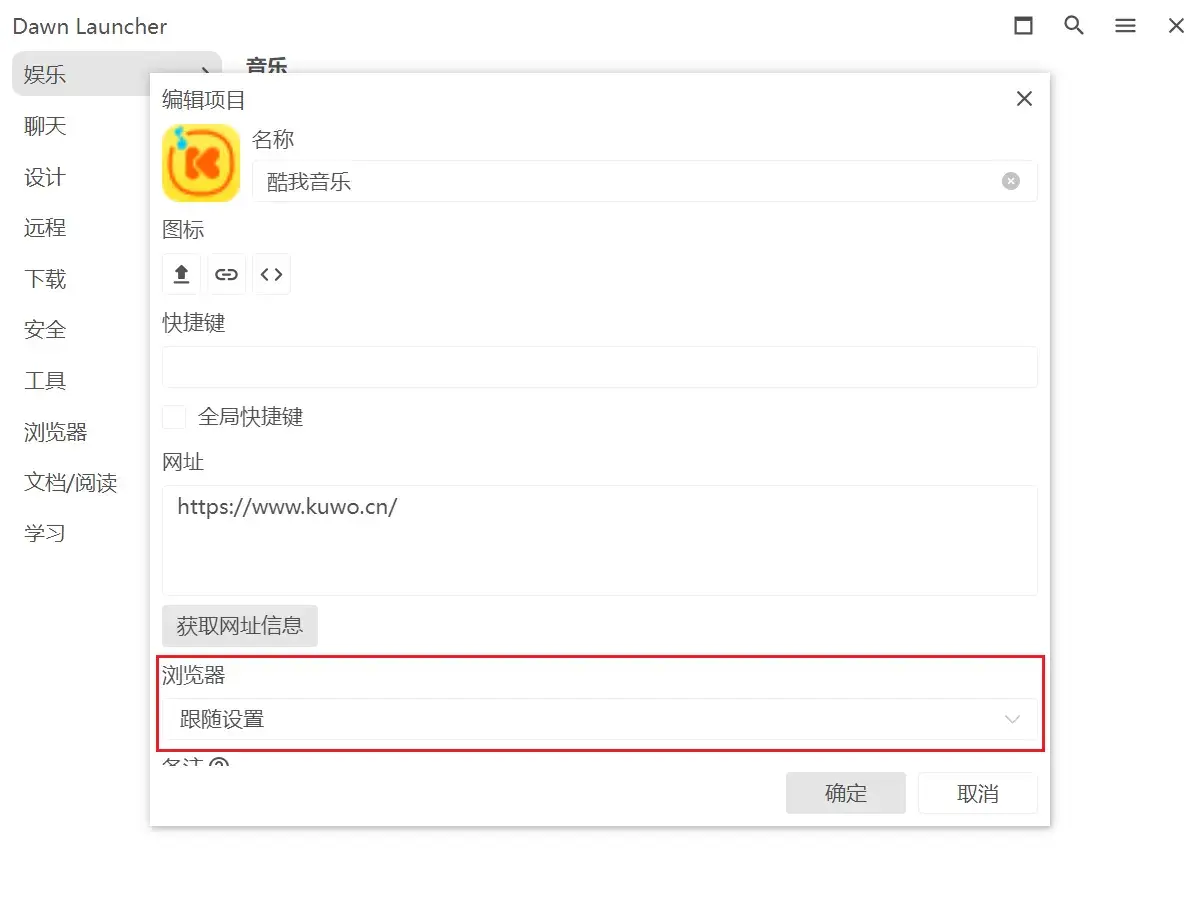
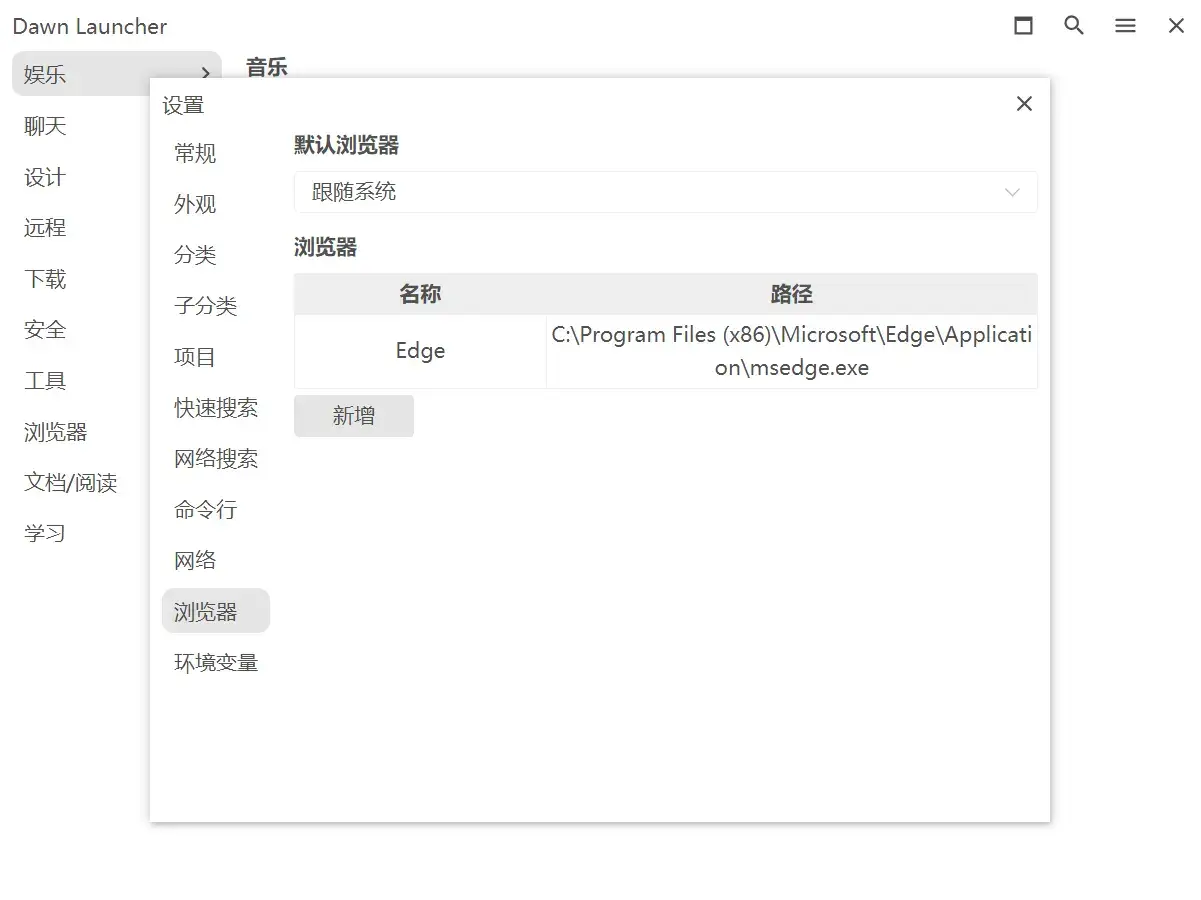
Open URLs in a chosen browser

Register browsers and assign one to individual URL items.
04

Environment variables

Create Dawn Launcher-specific variables for reusable paths and commands.
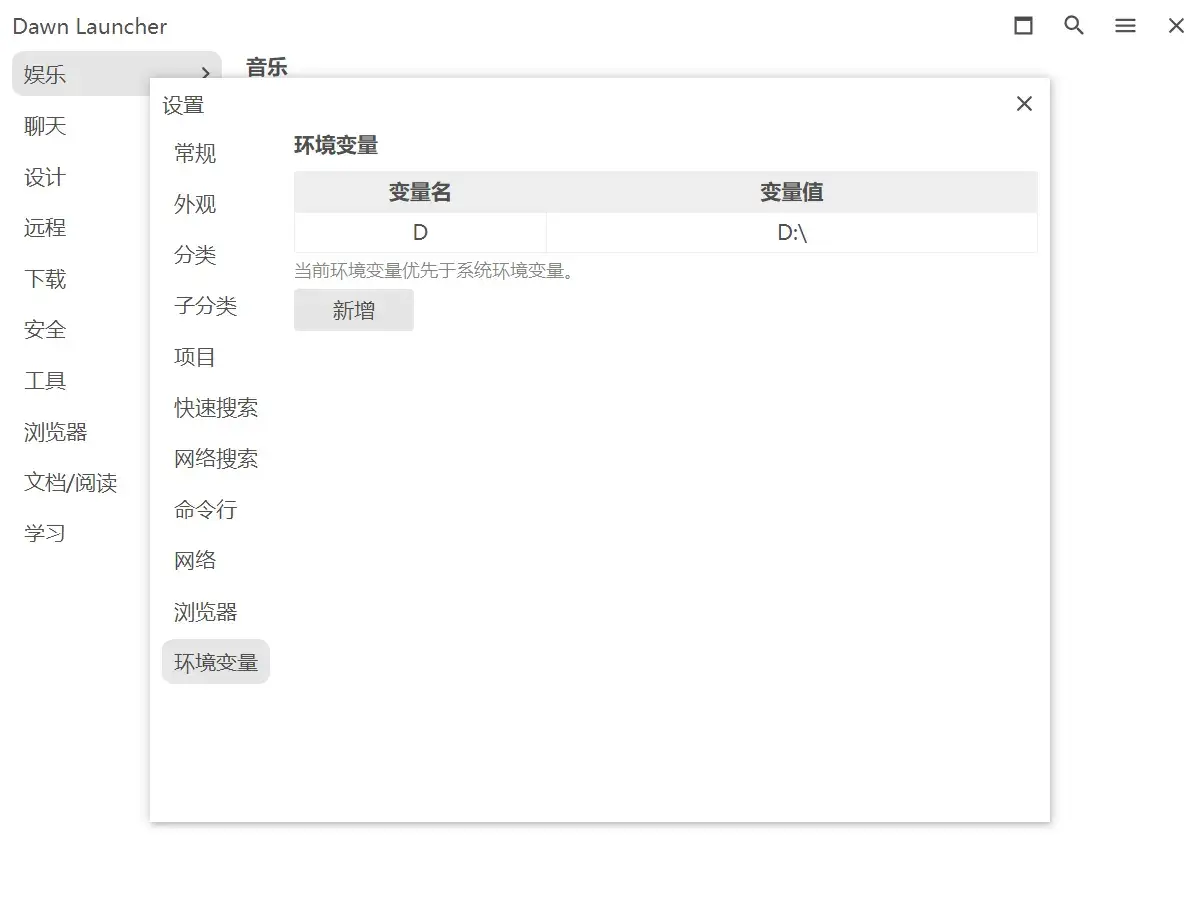
Environment variables — feature interface screenshot 1
05

Custom Quick Search placeholder

Replace the default hint shown in the Quick Search field.
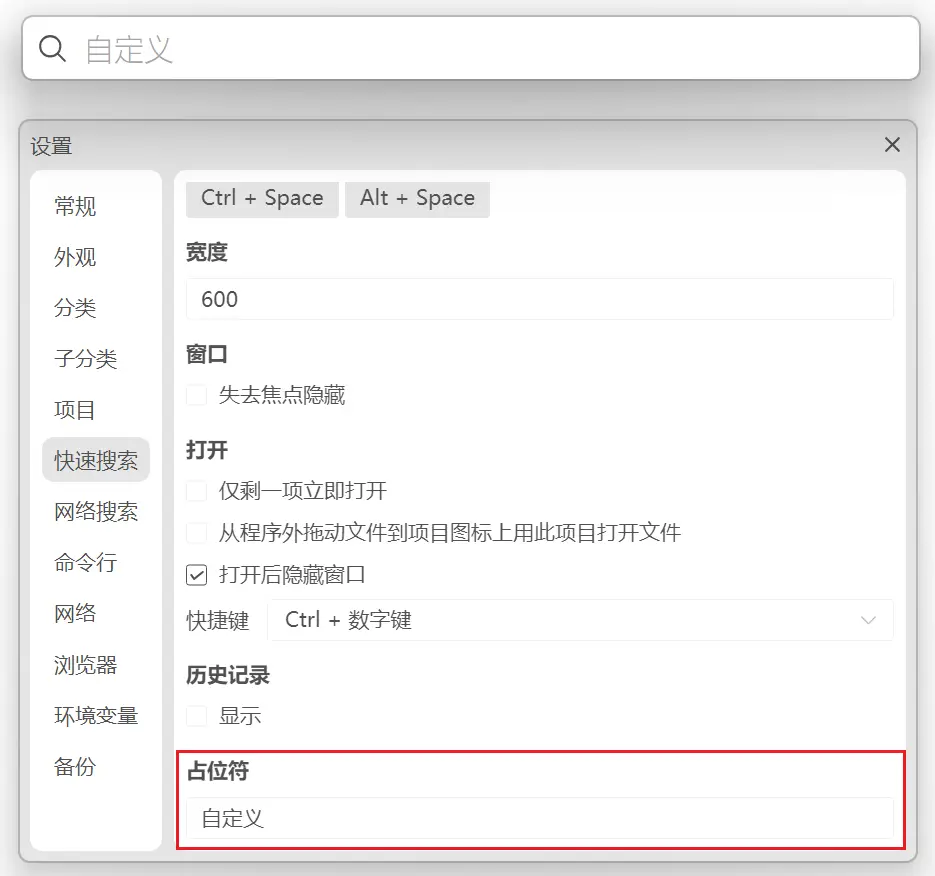
Custom Quick Search placeholder — feature interface screenshot 1
06

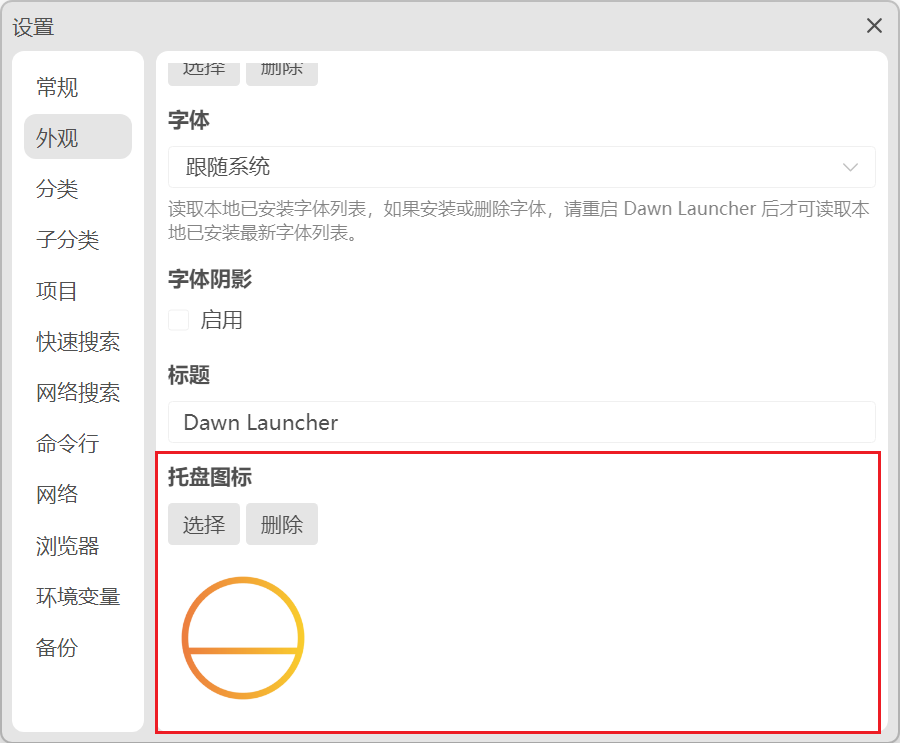
Custom tray icon

Replace the default system-tray icon with your own image.
Custom tray icon — feature interface screenshot 1
07

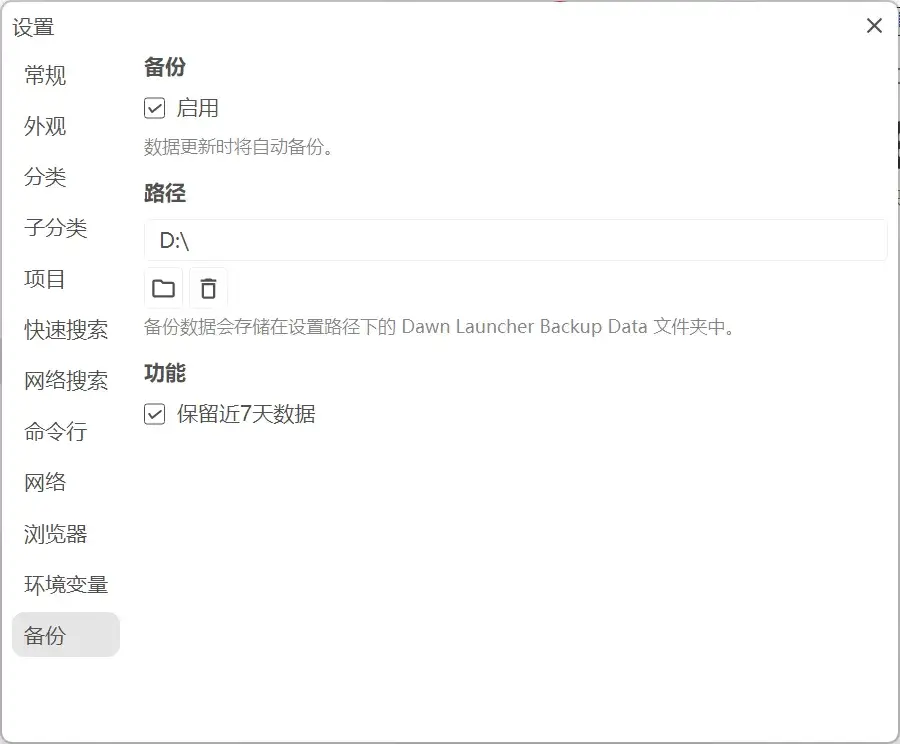
Automatic backup

Choose a backup location once, then back up app data automatically.
Automatic backup — feature interface screenshot 1